
Products
Your ad results product by product, the campaigns of each product with their role, and the searches several of them compete for, fixed in one click.
Products shows your ad results product by product (ASIN or SKU), on every marketplace, instead of campaign by campaign. Open it from the sidebar.
The list
One line per product: spend, sales, ACOS, purchases and clicks over the period you pick, each with its change against the period you compare to (the same Compare to as the dashboard). The page opens on the last 30 days at every visit, whatever period the dashboard shows. Filter by marketplace or ad type, or search an ASIN or any word of a product's title. Click a product's flag to open its page on that marketplace's Amazon, in a new tab.
Click a column's name to sort the list on it, and click it again to reverse the order. The list opens sorted by spend, biggest first. Structure puts the products with the most campaigns to confirm first.
The list shows 50 products per page. Under the table, choose 25, 50 or 100 rows per page, type a page number, or use the arrows. A new search, filter or sort starts again on page 1.
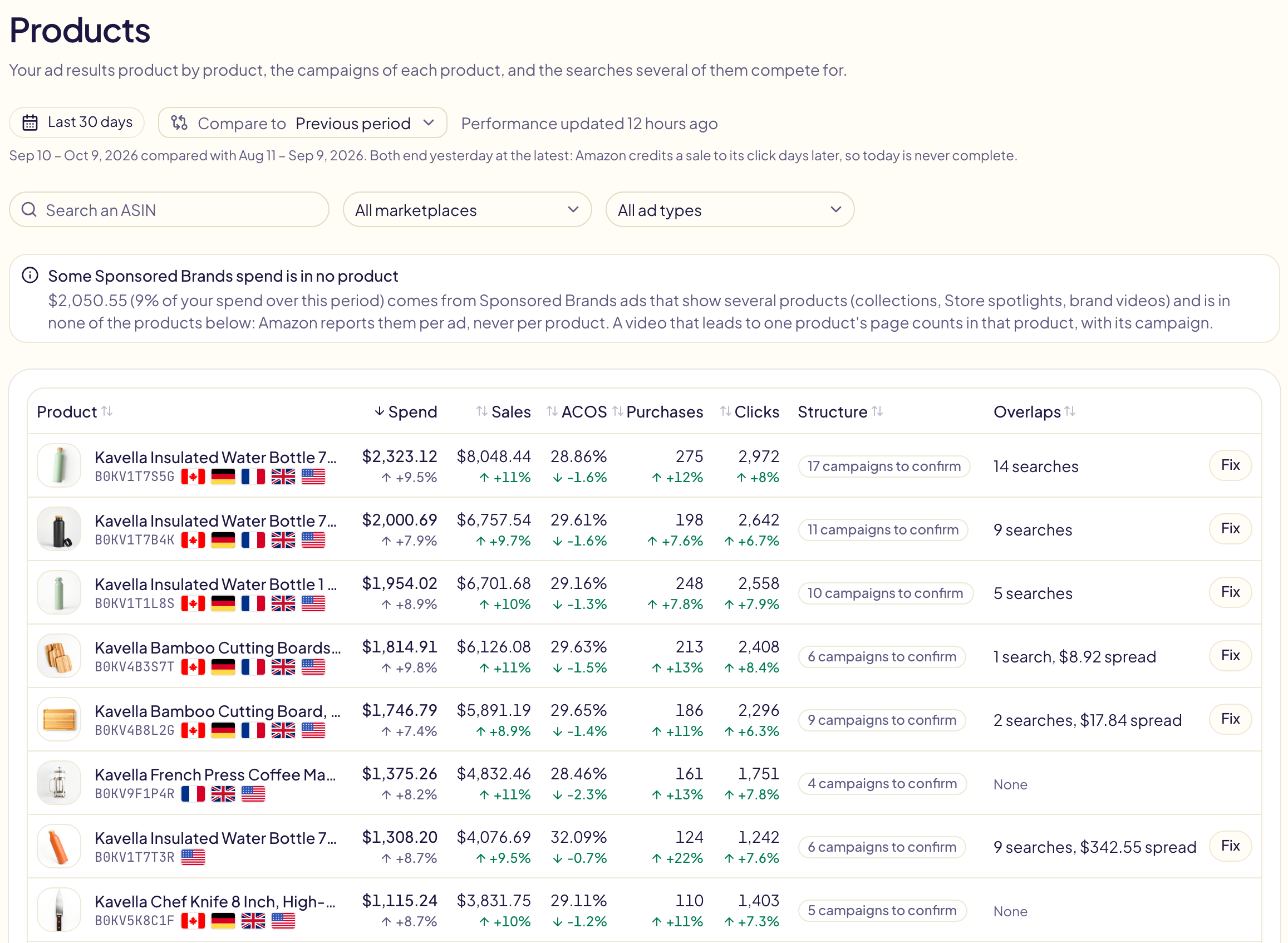
Two more columns:
| Column | Meaning |
|---|---|
| Structure | « 17 campaigns to confirm » until you confirm the role of the product's campaigns, then « Roles confirmed », or « Kept clean » when the switch below is on. |
| Overlaps | How many searches several campaigns of this product compete for, and the money spread across them. Fix opens the product on them. |
Some Sponsored Brands ads show several products at once: Amazon does not tie their spend to one product, so the page counts it apart, in a line under the list.
How fresh the figures are
The first time you open the page, Gloriads reads your results per product from Amazon: the last 30 days arrive within minutes, then the older history. After that, the figures are updated once a day. Refresh asks Amazon again, at most once an hour. If nobody opens the page for 14 days, Gloriads stops reading these figures until it is opened again.
A product's page
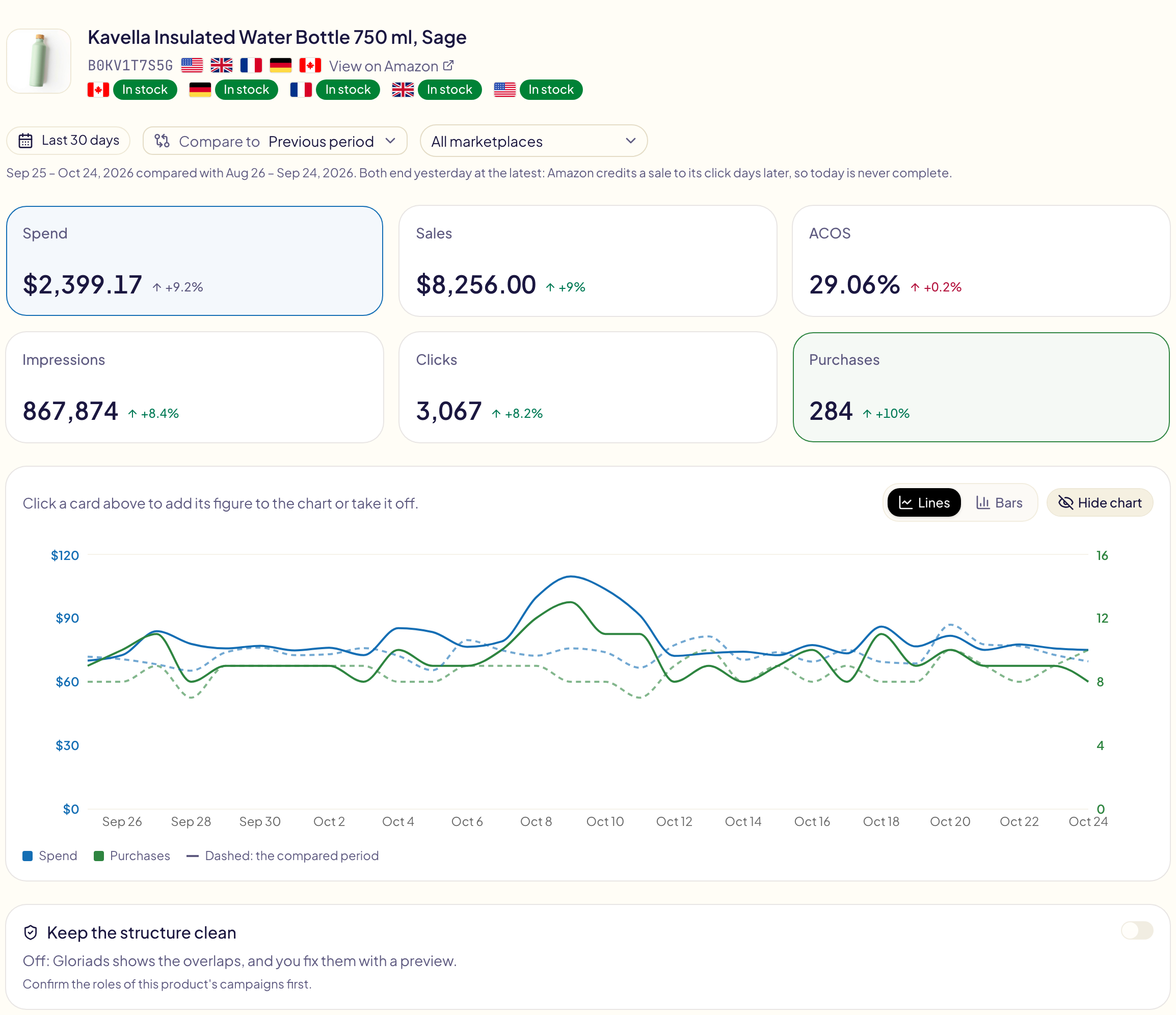
Click a product to see its figures, with their change, a chart of them over the period, and the switch « Keep the structure clean ».
The chart shows Spend and Purchases when the page opens, day by day (month by month over a long period). Click a card to add its figure to the chart or take it off. While you compare, the compared period is drawn dashed. « Hide chart » folds it away.
« Lines » and « Bars » change how the figures are drawn. In bars, the compared period is the paler bar next to each one, and ACOS and Clicks stay lines. Impressions are always bars, even in lines. The chart holds at most 2 lines and 2 bars: ticking one more card unticks the oldest one drawn the same way.
When Amazon has figures for the product on several of your marketplaces, a marketplace list appears next to the period. Pick one to see only its figures, its chart and its campaigns; « All marketplaces » adds them up.
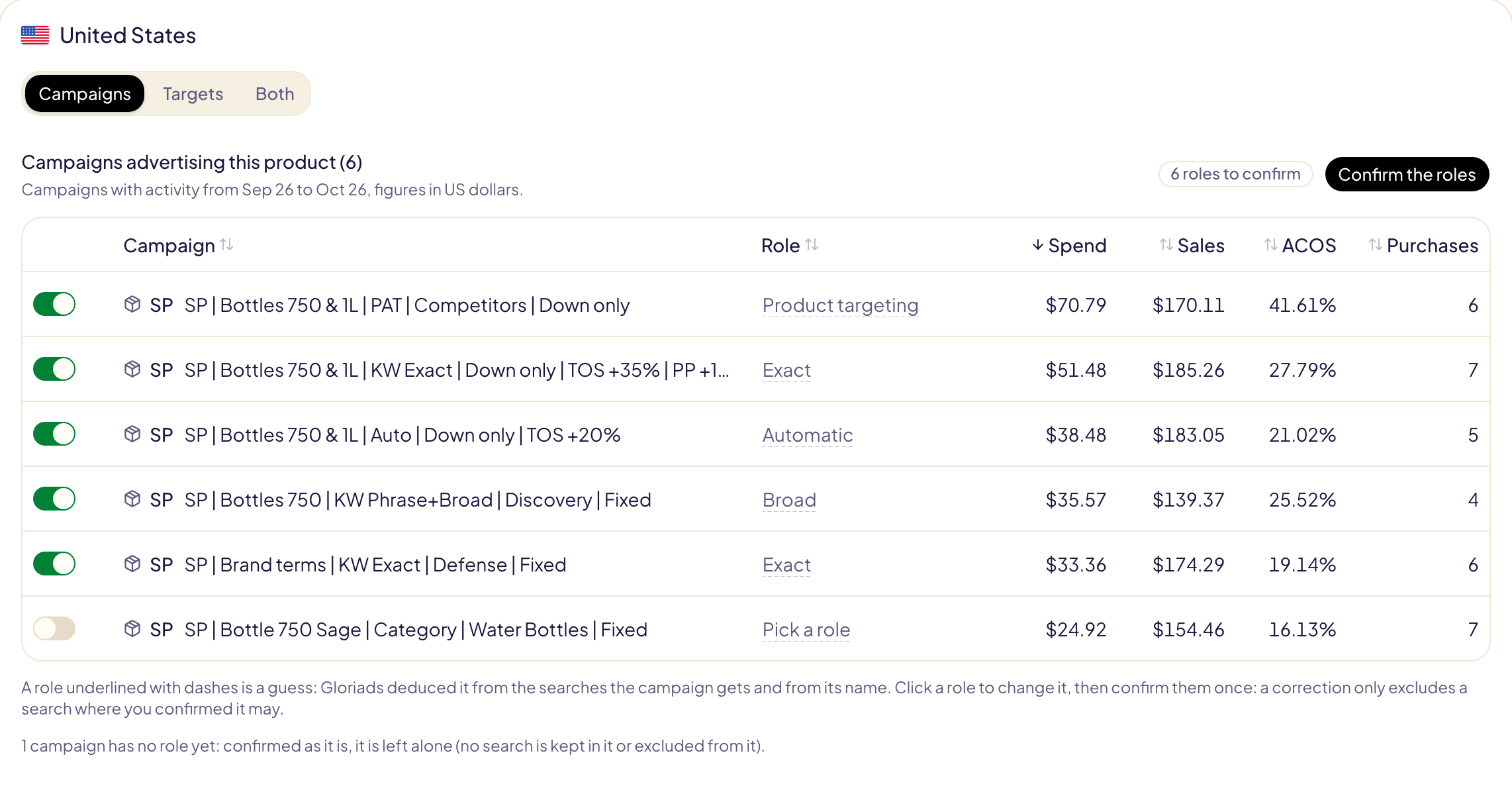
Then, one card per marketplace, with the campaigns that advertised the product over the last 30 days, biggest spender first. Click a column's name to sort them on it: campaign, role, spend, sales, ACOS or purchases. The switch at the start of each row turns a campaign on or off on Amazon, as on the Campaigns page.
Targets and bids
Above the campaigns, a switch changes the card between Campaigns (the table above), Targets (every target of these campaigns, one per row) and Both (each campaign followed by its targets). Keywords, ASIN and category targets and auto-targeting groups are listed, read from Amazon when you open the view; negative targets are not, since they have no bid.
- 7 days, 14 days, 30 days: the period of the targets' figures (spend, sales, ACOS, purchases). It does not follow the page's period: Gloriads keeps each target's figures over these three periods only, updated once a day.
- Filters: Sponsored Products or Brands, and the kinds of target (ASIN, Exact, Phrase, Broad, categories, auto targeting), several at once, plus a search on the target or the campaign. Click a column's name to sort on it.
- Tick the targets to change. In Both, a campaign's box ticks all its targets shown.
Then pick the change in the bar above the table: + or − an amount, + or − a percentage, or Set a bid, with an optional Never above or Never below. The New bid column shows each ticked target's new bid before anything is sent. Review opens the same preview as a bulk edit, which also applies Amazon's minimum and maximum and the campaign's own bid limits; Apply sends it, and every change can be undone in Activity. Pause pauses the ticked targets, and each row's switch turns one target on or off.
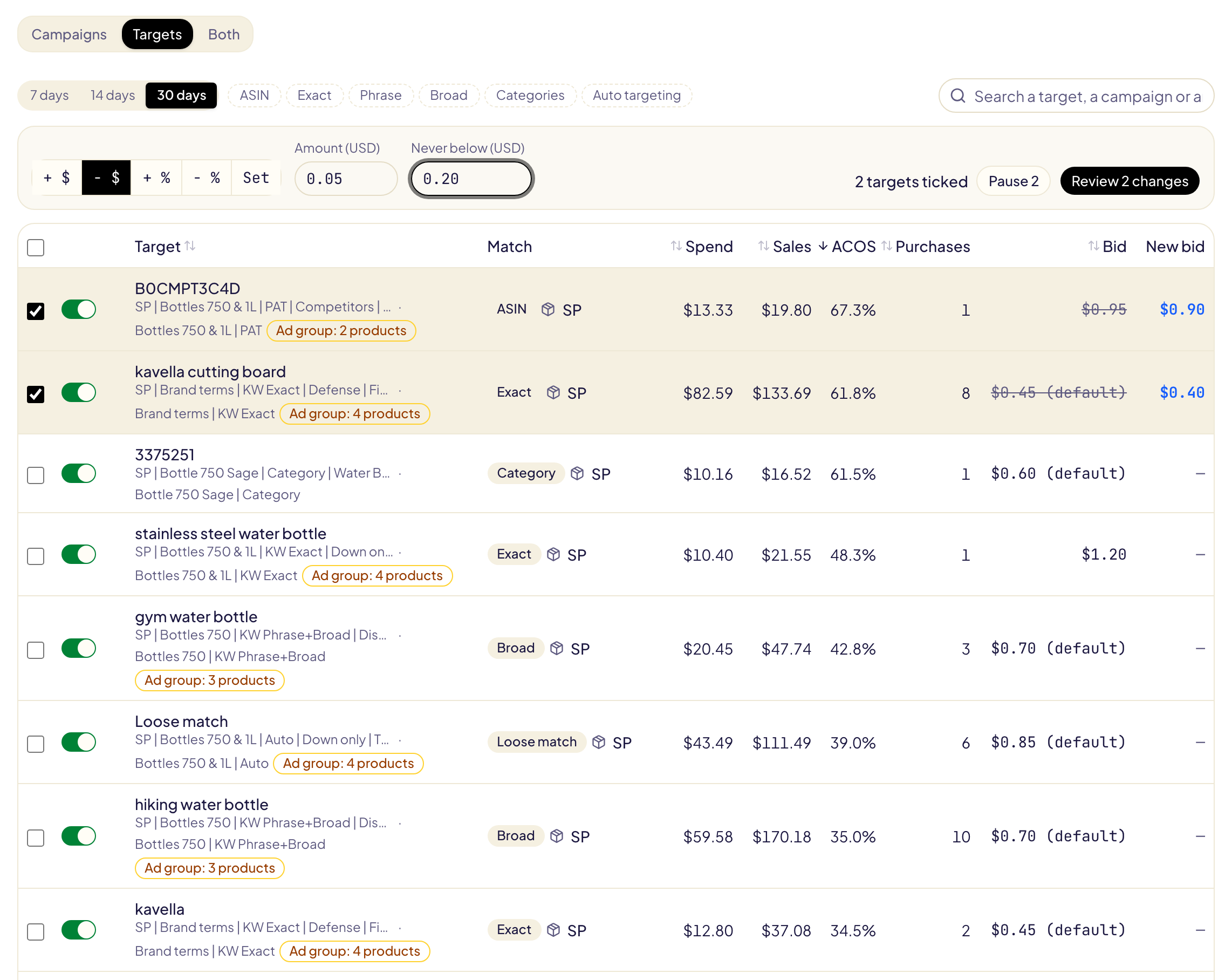
A target's figures are the target's own, for every product of its ad group: Amazon does not split them by product. When its ad group advertises other products too, the row says Ad group: N products.
Stock
Under its name, a product's page shows for each marketplace where it was advertised whether it is In stock, Out of stock, in Pre-order or Unavailable there, as Amazon says it. Hover the badge to see where the answer comes from.

| Your account | Where the answer comes from |
|---|---|
| KDP author, FBA/FBM seller, vendor | Amazon's catalog |
| Merch on Demand | The product's ads, since Amazon's catalog gives nothing for Merch. When Amazon stops them because the product's page is missing its title, image or price, the product shows Unavailable |
You have nothing to do when a product runs out: Amazon stops its Sponsored Products and Display ads by itself, so they spend nothing, and starts them again when it is back. They may still read « Delivering » in the Amazon Ads console: look at their impressions. A Sponsored Brands ad showing several products keeps running (Do Amazon Ads stop when you run out of stock?).
The stock is read when you open the page, then kept for an hour. On Merch on Demand, Gloriads reads the ads of the campaigns that advertised the product over the last 30 days: a product with no ad activity in that time shows no stock.
Campaign roles
Each campaign has a role in the product's structure:
| Role | The campaign |
|---|---|
| Automatic | lets Amazon pick the searches (automatic targeting) |
| Broad | targets keywords in broad match |
| Phrase | targets keywords in phrase match |
| Exact | targets keywords in exact match |
| Product targeting | targets products (ASINs) |
| Other (left alone) | anything else, such as a category or Display campaign: Gloriads never keeps a search in it nor excludes one from it |
Gloriads guesses each role from the searches the campaign gets and from its name. A guessed role is underlined with dashes. Check them once: click any role that is wrong to change it, then click Confirm the roles. Nothing is ever done automatically on a guessed role. A campaign created from a template gets its role from the template.
Overlaps: searches several campaigns compete for
When two campaigns of the same product serve the same search, they bid against each other: Amazon picks which one shows, not always the one with the bid you chose, and the search's results are split, so each campaign is judged on half the story.
Under the roles, each such search is listed with the campaigns that served it (spend and orders in each), the campaign that should keep it, and the money spread across the others.
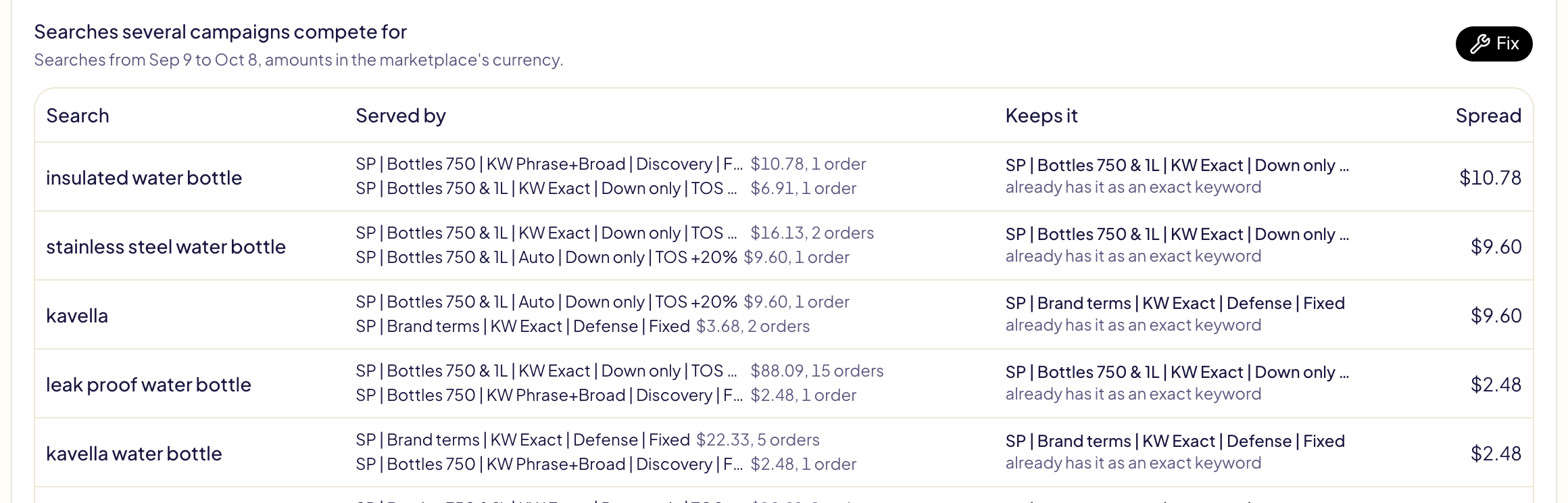
The campaign that keeps a search is, in this order:
- a campaign that already has it as an exact keyword;
- else the product's exact campaign, where it is added as an exact keyword;
- else the campaign that sold it best.
Fix the overlaps
Fix shows every change before anything is sent:
- the search is added as an exact keyword in the campaign that keeps it, if it is not there yet;
- it is excluded, as a negative exact keyword, from the product's other campaigns that served it or can catch it (automatic, broad, phrase): from the campaign in Sponsored Products, from its ad groups in Sponsored Brands.
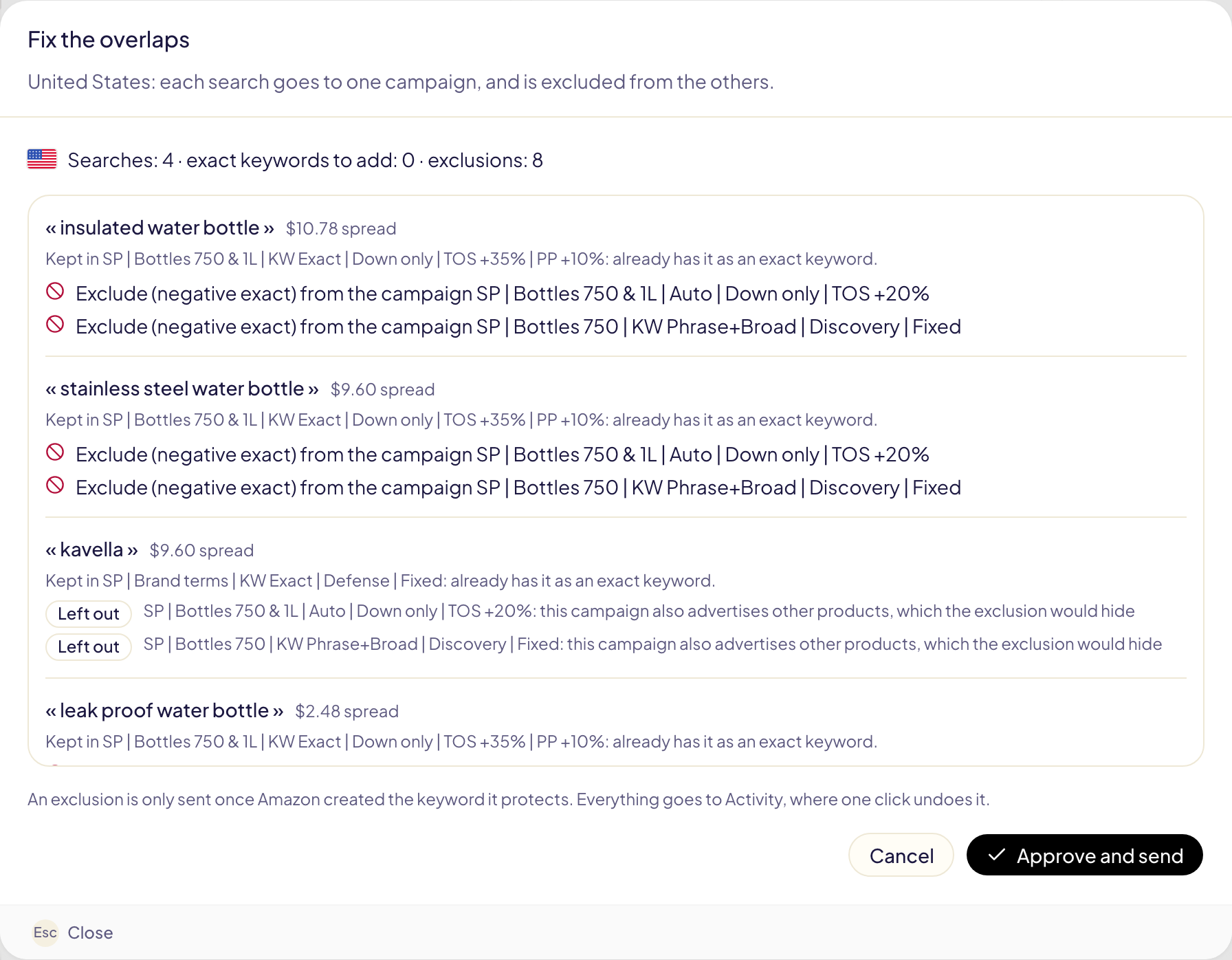
Gloriads never:
- sends an exclusion before Amazon created the keyword it protects (if the keyword fails, the exclusion is not sent);
- excludes a search from a campaign that also advertises other products: it would hide them too (the line says Left out);
- excludes what your never-negate lists protect;
- adds an exclusion that is already there.
A fix handles 200 searches at most, the most spread first; the rest goes to the next one. Approve and send sends it. It appears in Activity as « Structure correction », where Undo archives every keyword and exclusion it created (Amazon never deletes them: archiving is final).
Keep the structure clean
The switch on a product's page, off by default:
- Off: Gloriads shows the overlaps, and you fix them with the preview.
- On: Gloriads fixes this product's overlaps by itself, once a day, with the same rules as Fix. Every change is in Activity and undone in one click.
It can be turned on only once the roles of the product's campaigns are confirmed, and it only acts on campaigns whose role is confirmed: a campaign that appears later waits for you.
Your brand's searches
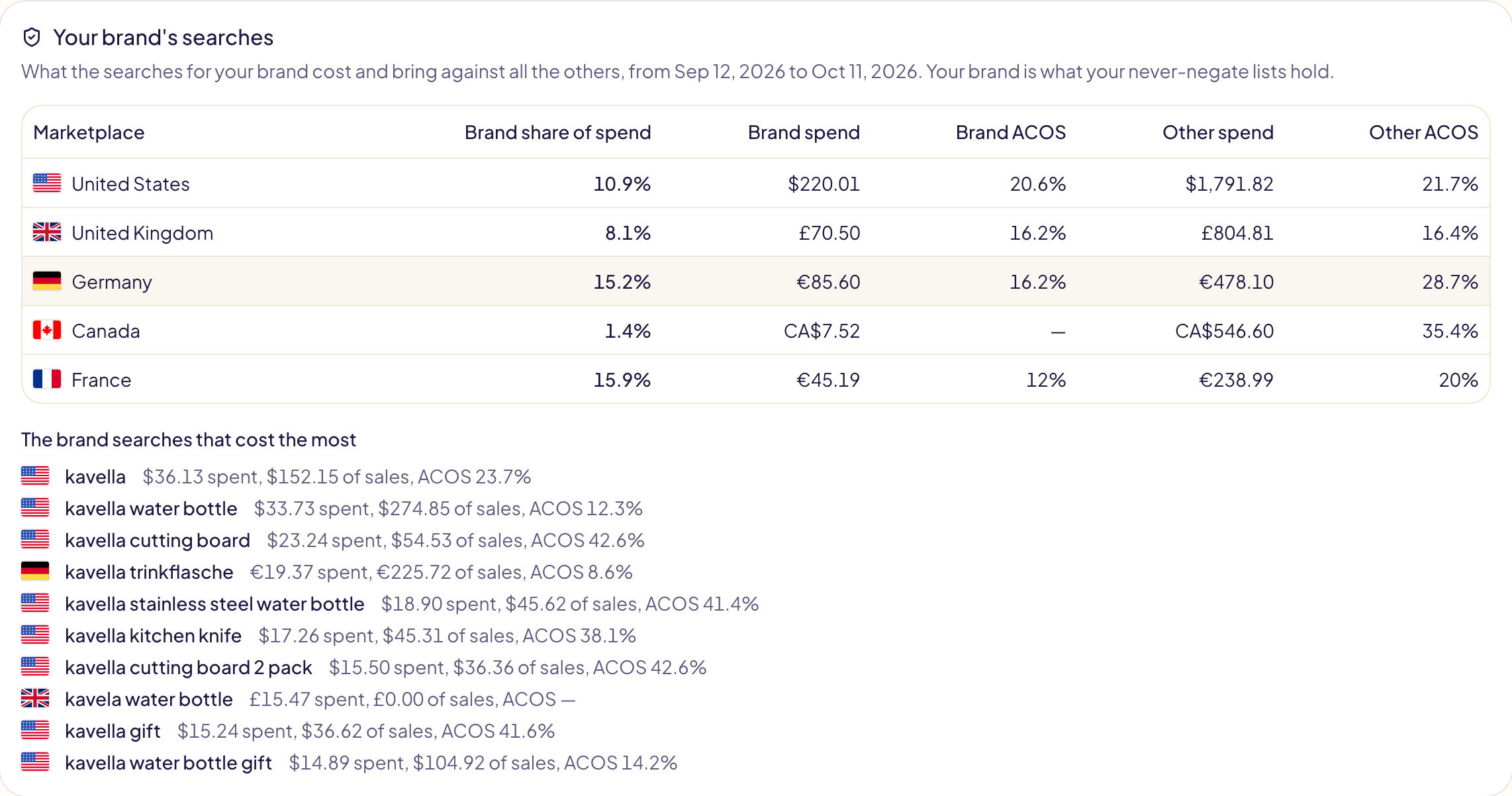
At the bottom of the page, what the searches for your brand cost and bring against all the other searches, per marketplace: the brand's share of spend, its spend and ACOS, the others' spend and ACOS, then the brand searches that cost the most.
Your brand is what your never-negate lists hold: a search is a brand search when it contains one of their terms (your brand, an author's name, their misspellings) or one of their ASINs. With no list, the card links to them. The figures come from the same search-term report as the overlaps, over the same days.
Business details
On a product's page, Business details holds what only you know: its margin (the share of the price left after every cost but advertising, so its break-even ACOS), its phase (launch, grow or harvest), whether it is in stock, and a label of your own. Every field is optional.
In stock is there for vendor accounts only. On a KDP, Merch on Demand or FBA/FBM account, Amazon gives the stock itself: the page shows it under the product's name (Stock).
Rules read them through the one product an object advertises: « ACOS over the last 30 days greater than product margin × 1 » finds each keyword above its own product's break-even.

In rules and templates
- Rules: « Add as keyword » can send a search to the product's exact campaign, read from the confirmed roles. If the product is kept clean, the search is also excluded from its other campaigns that can catch it. See Rules.
- Templates: when you launch templates with an exact campaign and an automatic, broad or phrase one, Keep the new campaigns clean excludes each exact keyword from the new automatic, broad and phrase campaigns of the same products, once it exists.
Limits
- Overlaps are read on the last 30 complete days, ending yesterday.
- Sponsored Brands videos count per product; other Sponsored Brands ads do not. A video that leads to a product's page shows that one product, so its spend and its campaign count in that product, like a Sponsored Products campaign. Collections, Store spotlights and brand videos show several products: Amazon reports them per ad, never per product, so they are in no product. A notice at the top of the list gives their total.
- Sponsored Display campaigns count in a product's figures, but their role is always « Other »: no keyword search reaches them. Streaming TV is not on this page, as on the dashboard.
- In the demo, every screen works, but nothing is sent to Amazon.