
Add products to ad groups
Add one or more products to many campaigns and ad groups at once, with a preview before anything changes.
Advertising a product in twenty ad groups takes twenty trips through the console. Here it is one operation. Open Toolkit → Add products to ad groups, then pick the marketplace at the top.
1. Products
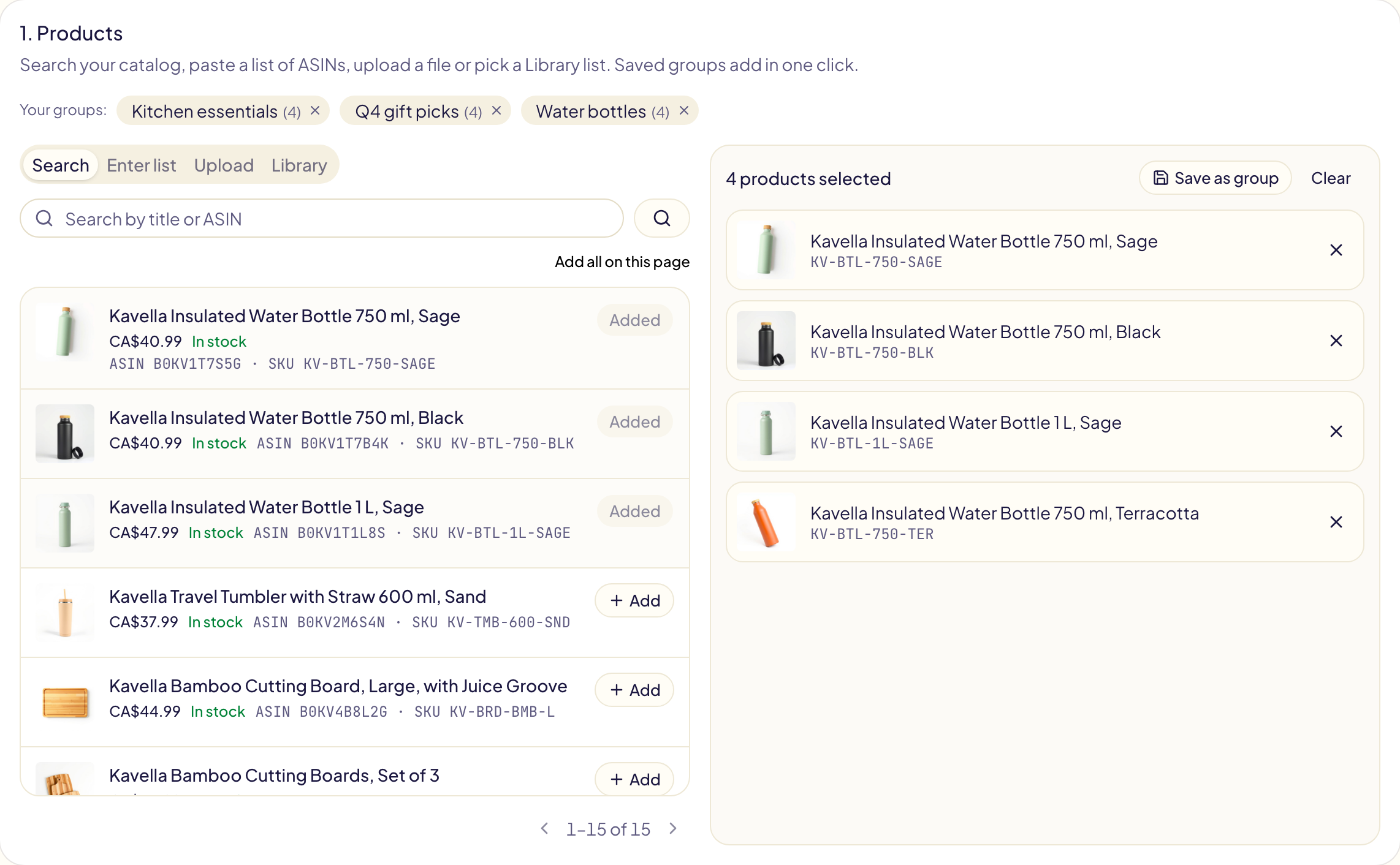
Four tabs, as in the Amazon console, each adding to the selection on the right:
| Tab | What it does |
|---|---|
| Search | Search your catalog by title or ASIN. Each product shows its photo, title, format, price and stock, and whether it can be advertised. Click Add, or Add all on this page. |
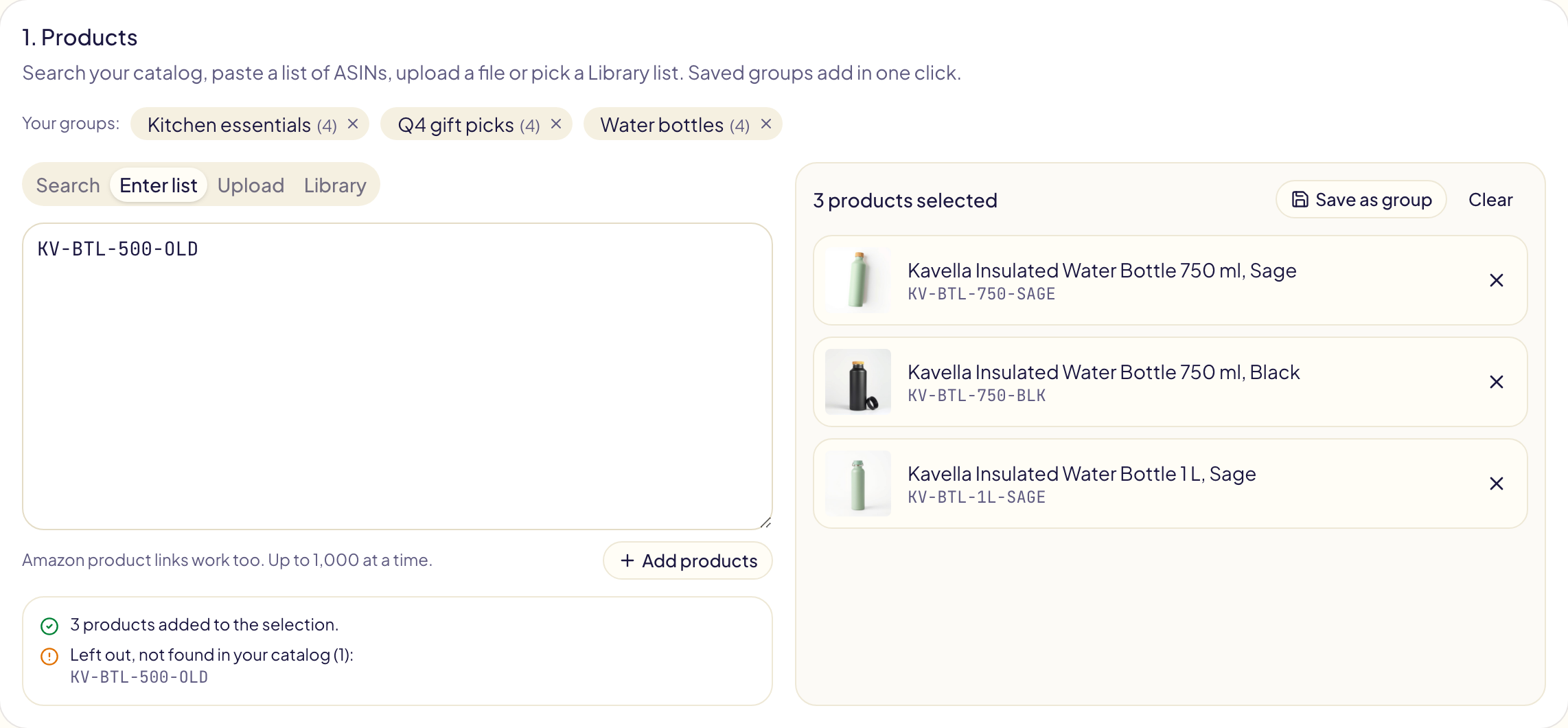
| Enter list | Paste ASINs, one per line or separated by commas. Amazon product links work too. Sellers can paste SKUs. |
| Upload | Pick a .txt, .csv, .tsv or .xlsx file with one product per row. It is read in your browser, never uploaded. |
| Library | Add one of the ASIN lists saved in Library (in the sidebar) in one click. |
A list adds up to 1,000 products at a time. Gloriads checks each one with Amazon first, then says what it left out and why: not an ASIN, not eligible for Sponsored Products, or not found in your catalog. In Enter list, what was left out stays in the box, to fix or delete.
Merch on Demand. Amazon does not list Merch on Demand catalogs, in its console or here, so Search finds none of its titles. Type an ASIN in Search and click Add B0…, or bring many at once with Enter list, Upload or Library. They are added without photo or title, and Amazon checks them when the ads are created: any it refuses shows in the operation's result.
Groups save time when you add the same products often. Pick a few products, click Save as group and name it. Next time, click the group's name to add all of them at once. Deleting a group never touches your ads.
2. Ad groups
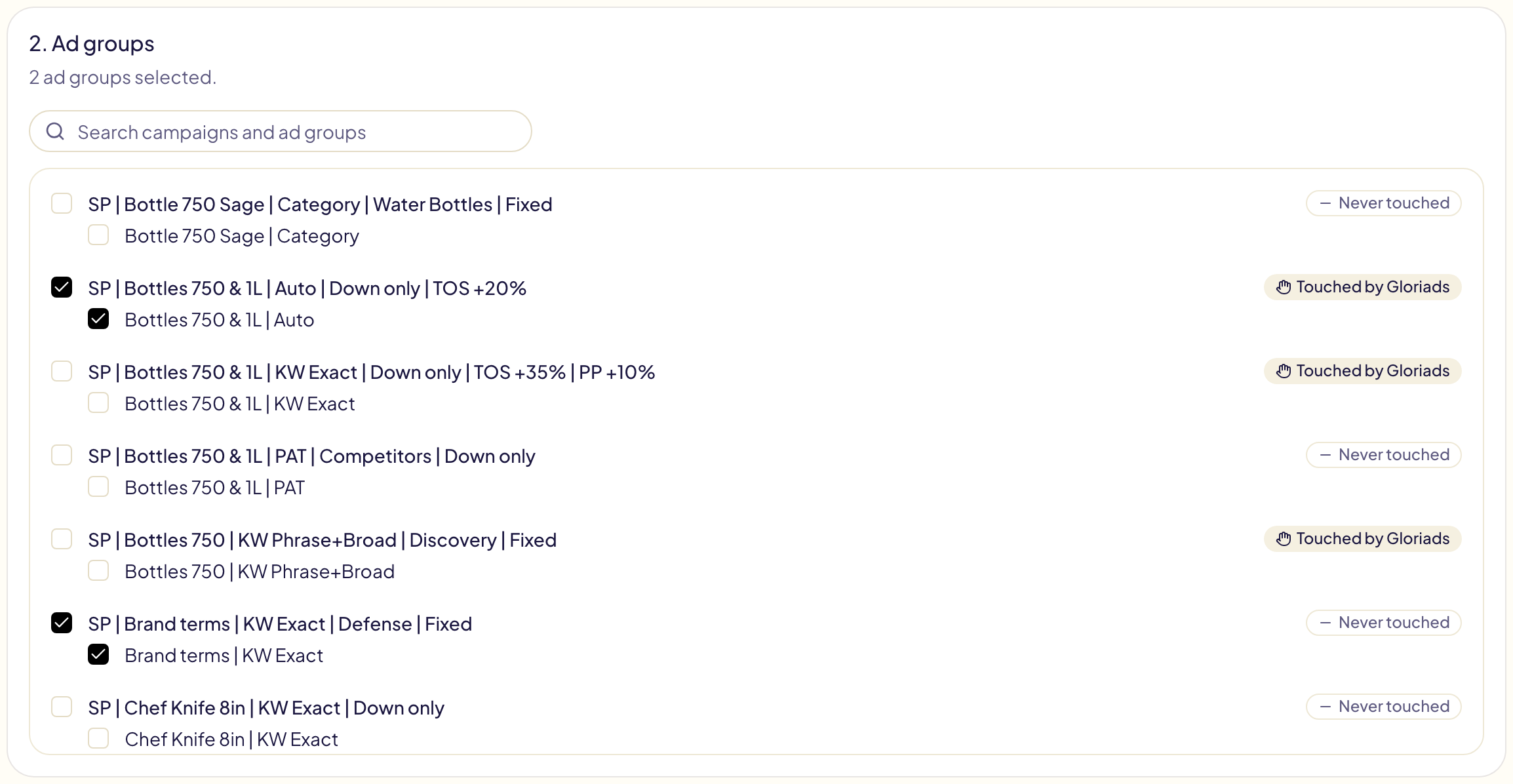
Tick the ad groups to add the products to, across as many campaigns as you want. Search by campaign or ad group name: Select all shown ticks every ad group the search keeps, on every page. Each campaign shows whether Gloriads created or touched it.
3. Preview and approve
Click Preview. It says how many ads will be created, and how many already exist and are left as they are: a product already in an ad group is never added twice.
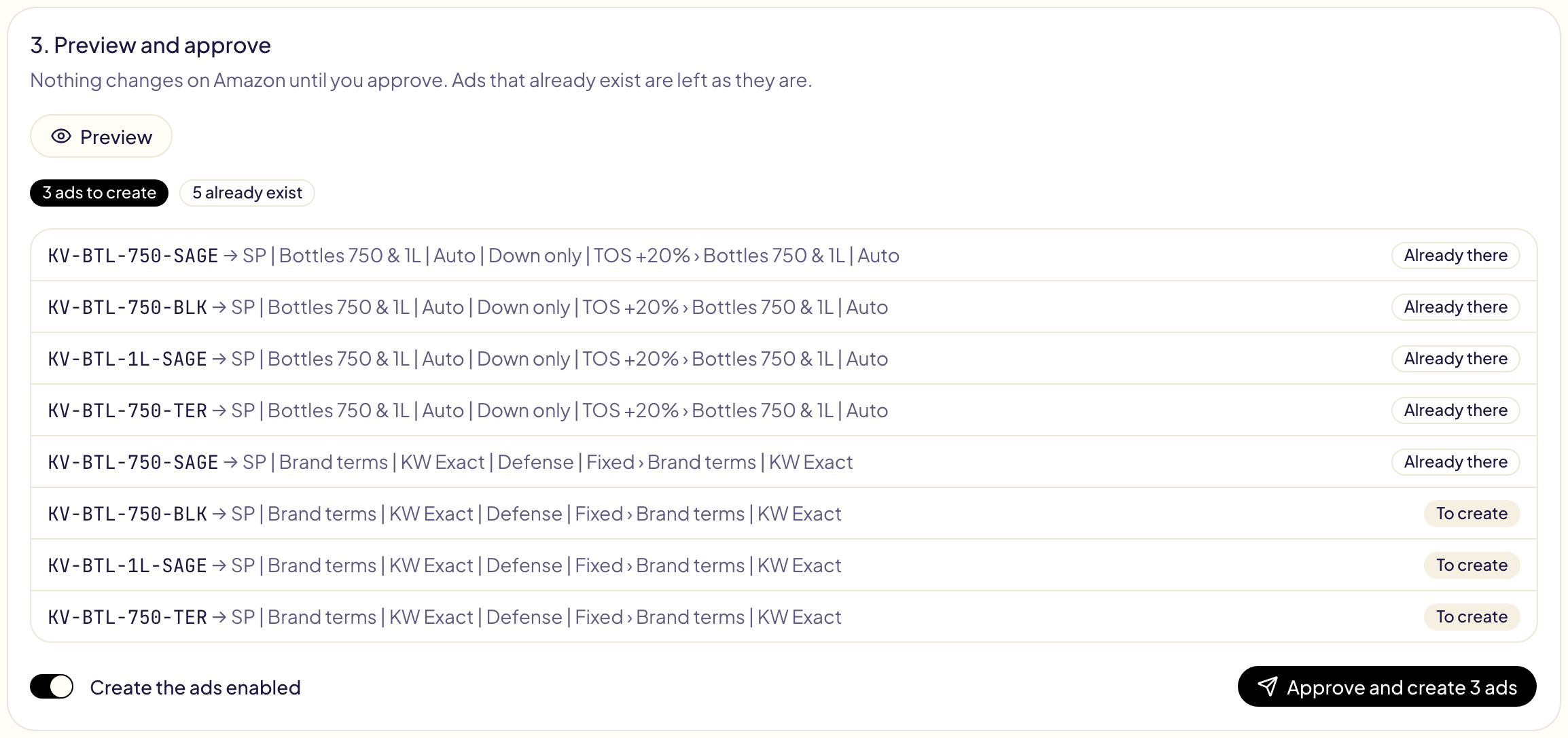
Create the ads enabled is on by default. Switch it off to create them paused.
Click Approve and create. Gloriads creates the ads and opens the operation in Activity, where each line shows its result as Amazon confirms it.
After creation
Amazon reviews every new ad before it shows (« Pending review » in the console). Gloriads checks the review for you and notifies you if an ad does not deliver, so you do not have to watch for Amazon's e-mails.