
Dashboard
Your spend, sales and ACOS over any period, every marketplace together, what moved, the money spent on targets that never sell, your monthly budgets, and cards you arrange as you like.
The dashboard sums the performance of every marketplace of your account over the period you pick, and shows what needs you, what moved and where money leaks. It is made of cards: keep the ones you use, in the order you want.
Arrange your dashboard
Customize, at the top right, lists every card.
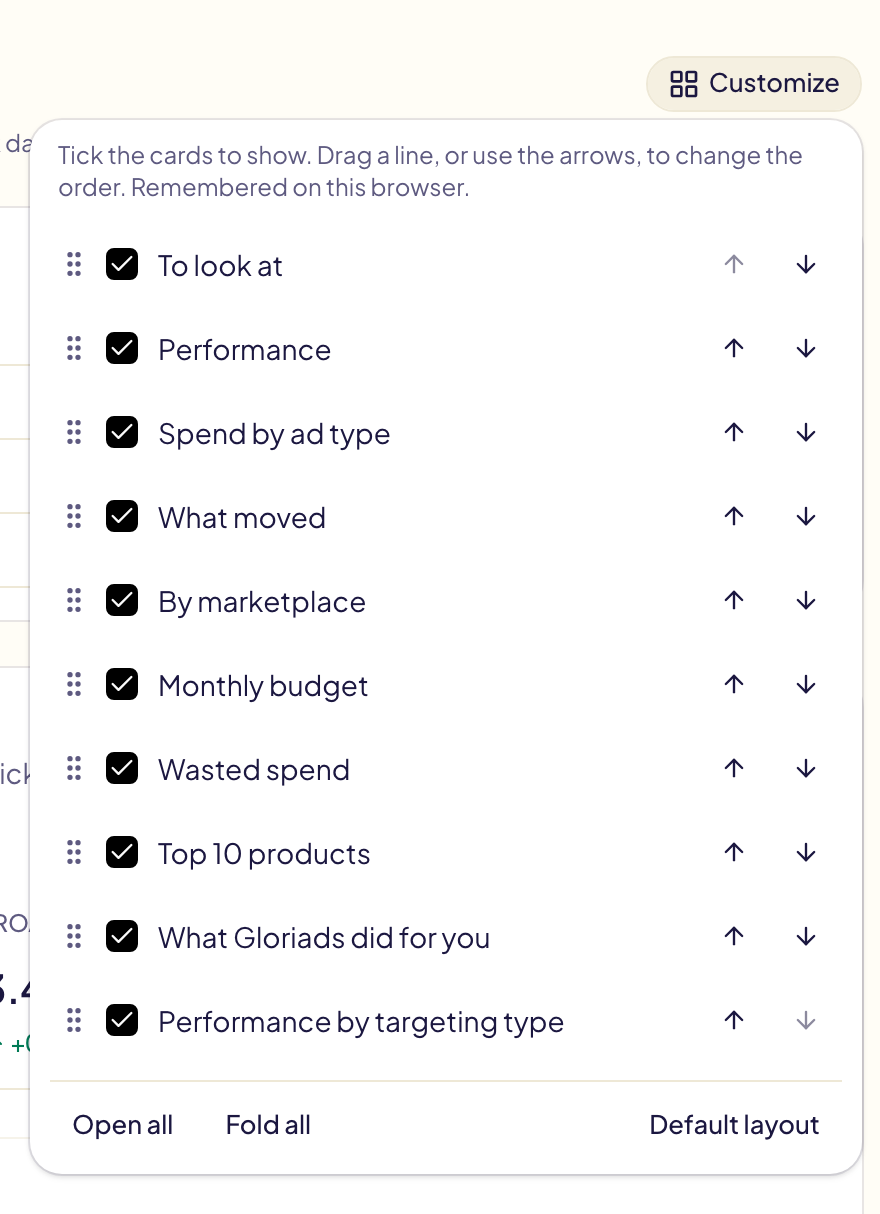
- Show or hide a card: tick or untick it.
- Change the order: drag a line by its handle, or use its arrows.
- Open all and Fold all open or fold every card. Default layout puts everything back.
- Fold one card: click its title, or the arrow at its top right. A folded card keeps only its title, and loads nothing until you open it.
- The « … » menu of a card moves it up or down, or hides it.
Gloriads remembers your layout on this browser. Performance by targeting type stays hidden until you tick it in Customize, then starts folded. Kindle Unlimited exists only for KDP authors. With All advertisers picked in the sidebar, the dashboard keeps its fixed layout.
To look at
What needs you now, over the last 7 days, each line with a link to the right page: your Amazon access lost or about to end, a marketplace without a payment method at Amazon, operations to review or that failed, a monthly budget reached or spending faster than the month, and unread notifications that need action (an ad refused by Amazon, a rule that stopped). Red needs action; amber is worth a look. With nothing to report, the card says so.
Once you click Open on an operation or notification line, that line goes away. The cross at the end of the line does the same without opening anything. An operations line comes back only when a new operation needs you, and then it counts only the new ones. Lines about your Amazon access, a payment method or a budget stay until the problem is solved. Seen operation lines are remembered in this browser.

Performance
Five figures over the period, each with its change, above a chart of them day by day (month by month on long periods). Every amount is converted to US dollars at Amazon's own daily rates, and covers Sponsored Products, Sponsored Brands and Sponsored Display.
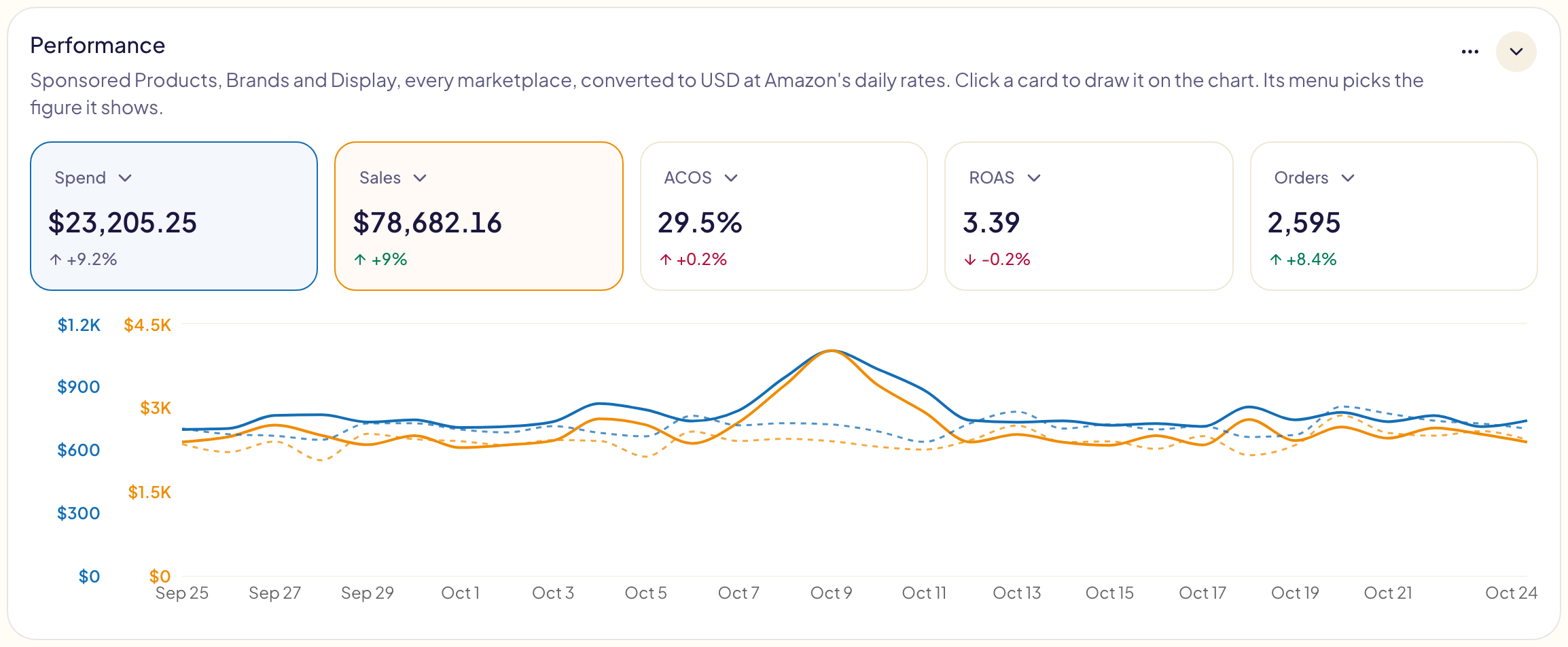
- Pick a figure: open the menu of a card.
- Draw it: click the card; click again to take it off the chart.
- Line or bars: the two buttons in the corner of a card. Impressions are always bars and ACOS always a line.
- With Compare to on, every figure is a line, next to the compared period dashed in the same color. At most 2 figures are drawn: a third takes off the one drawn first. Hover a day to see both dates and their figures.
| Figure | What it means |
|---|---|
| Spend | What Amazon charged for your ads. |
| Sales | The sales Amazon attributes to your ads, not your organic sales. |
| ACOS | Spend ÷ sales. 25 % means $25 of ads for $100 of sales. Blank when there were no sales. |
| ROAS | Sales ÷ spend: 4 means $4 of sales for $1 of ads. |
| Orders | Orders attributed to your ads (orders, not units). |
| Impressions, Clicks | How many times your ads were shown, and clicked. |
| CTR | Clicks ÷ impressions. |
| CPC | The average cost of a click. |
| Conv. rate | Orders ÷ clicks. |
Gloriads remembers your figures on this browser, apart from those of the Campaigns page.
Pick a period
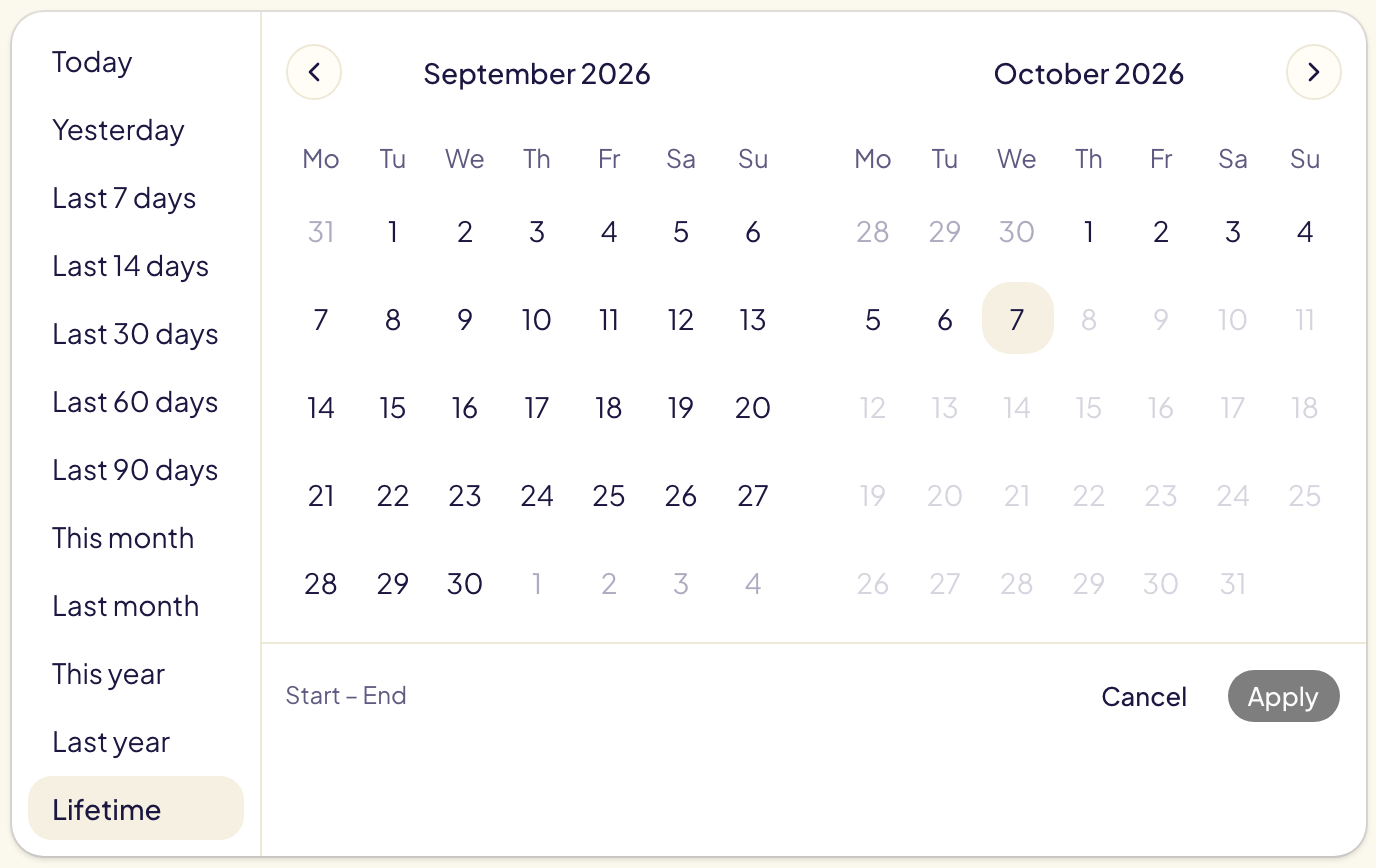
Click the period button. Choose a preset, or two days in the calendar then Apply. Gloriads remembers your choice on this browser.
- Today fills in during the day: Amazon reports with a delay.
- This year, Last year and Lifetime show one point per month on the chart; shorter periods show one point per day.
- Lifetime starts at the first month your account spent on ads. The line under the figures says which.
Compare with another period
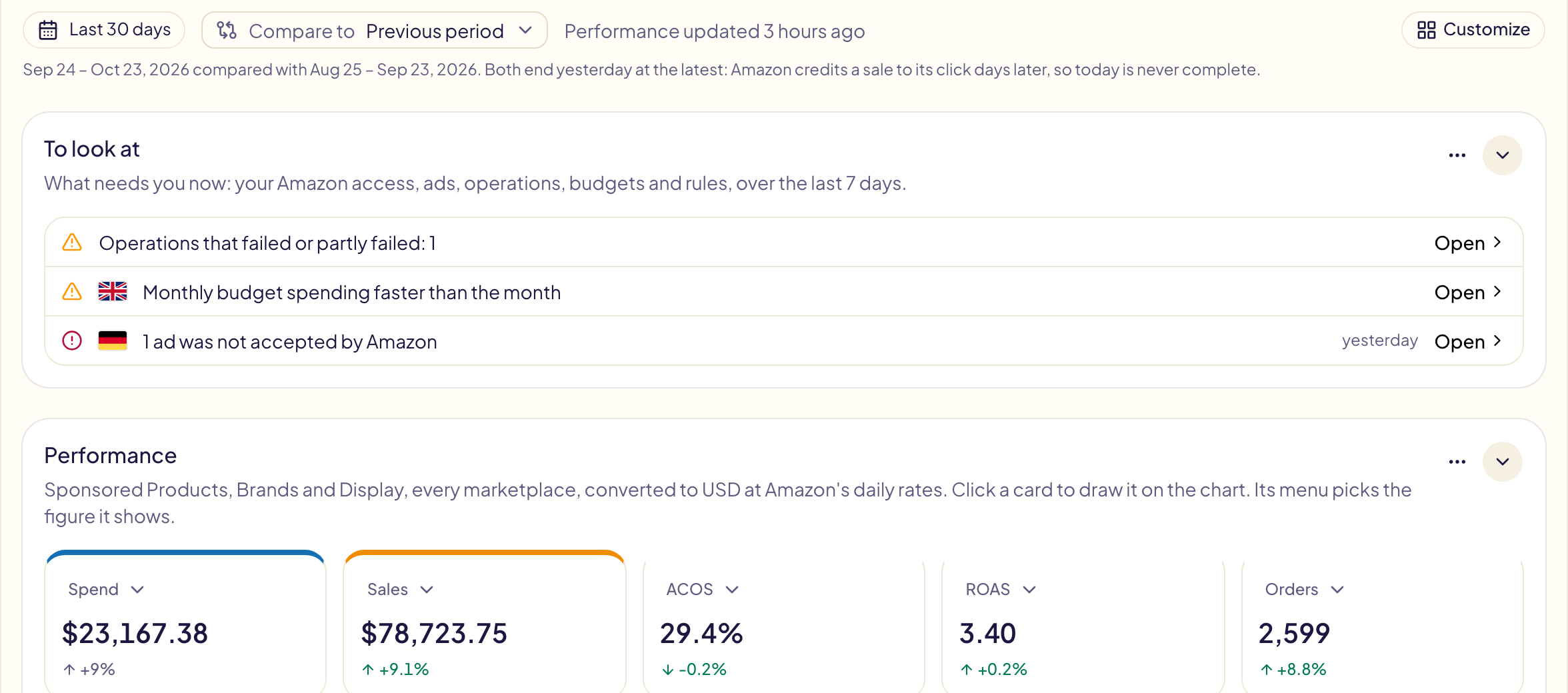
Compare to, next to the period button, writes each figure's change next to it: +18%. It is on from the start, set to Previous period, and Gloriads remembers your choice on this browser.
| Choice | Compared with |
|---|---|
| Previous period | The same number of days just before. Calendar periods compare to the one before: this month so far against the same days of last month, last month against the month before, this year so far against the same days of last year. |
| Same period last year | The same dates one year earlier: tells a real change from the season (Prime Day, the holidays). |
| Off | Nothing: the figures alone. |
- Both periods end yesterday. Amazon credits a sale to its click days later, so today is never complete and would look like a drop. The line under the buttons gives the dates of both periods.
- The color says whether the change is good news. Green: more sales, orders, impressions or clicks, or a lower ACOS or CPC. Red: the opposite. Grey: spend, which you may have raised on purpose.
- Hover a change to see the compared period's dates and its figure.
- New means the figure was zero before. — means there is nothing to compare: ACOS without sales, or no history for that period.
- Today has no comparison: today is not complete yet. On Lifetime, the Compare to button disappears: nothing comes before it.
- Not enough history: Gloriads holds your figures day by day for the last 14 months and month by month before that. A short period older than that, such as the last 90 days against last year, shows — and a line saying why.
Spend by ad type
One bar split between Sponsored Products, Sponsored Brands and Sponsored Display, with each type's share of the spend and its change. Hover a type to see its own figures, each with its change.

What moved
The campaigns, keywords and targets whose spend moved the most.
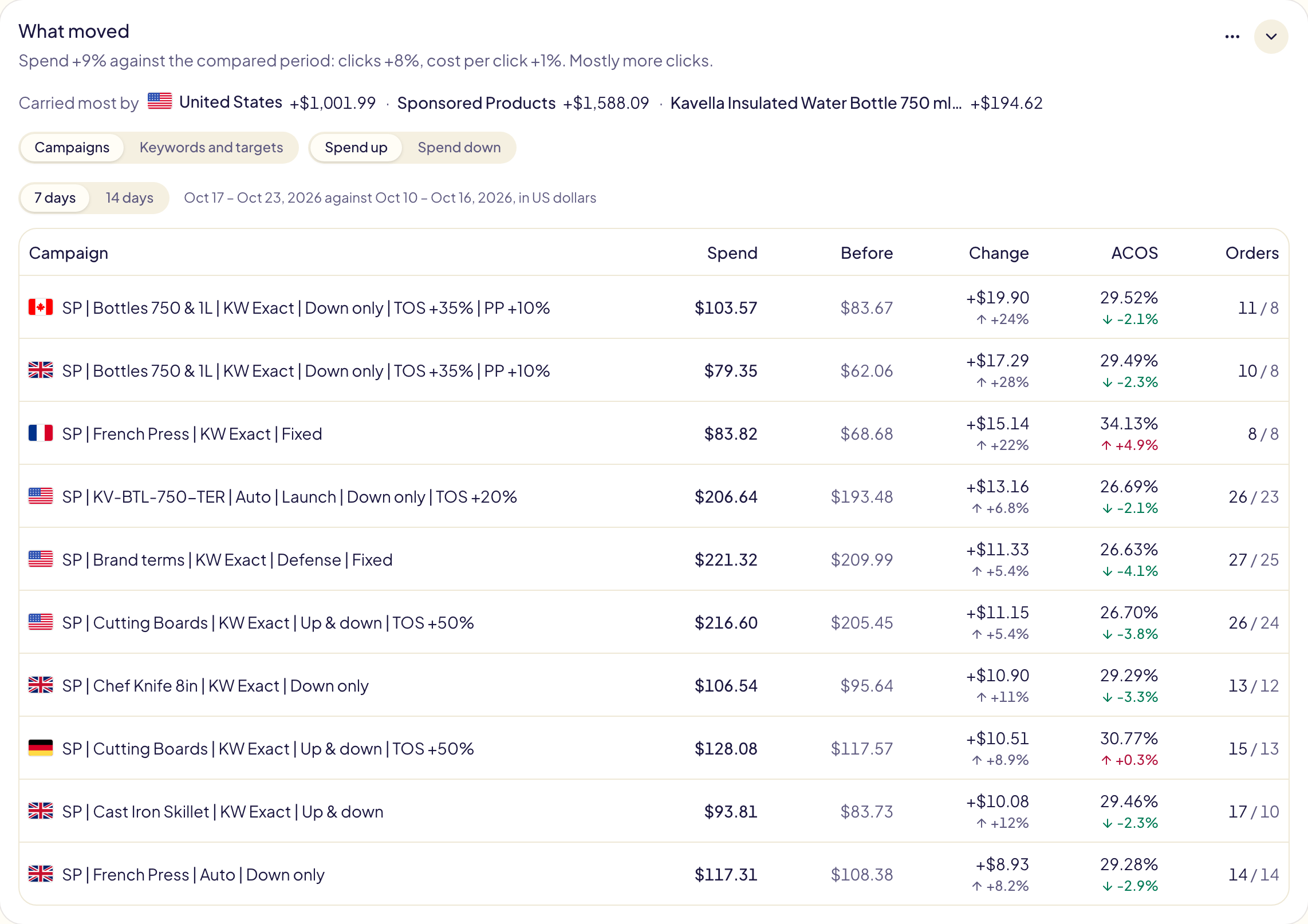
- Why your spend moved, when Compare to is on: the first line splits the change into clicks and cost per click (« Spend +9 % against the compared period: clicks +8 %, cost per click +1 % »), then says which of the two weighs most. Carried most by names the marketplace, the ad type and the product that moved the most, with their amount.
- Spend up or Spend down picks the rises or the falls, in both tabs.
- Campaigns: the ten campaigns whose spend moved the most over the last 7 days or 14 days, against the same number of days just before, with their ACOS and orders. In US dollars. This tab does not follow the period you picked.
- Keywords and targets: Find the keywords and targets asks Amazon for both periods' figures (a few minutes). Then pick a marketplace: each keyword or target shows its campaign, its change of spend, and how much of it came from clicks and from cost per click. Amounts are in the marketplace's own currency. It needs Compare to, and Amazon keeps these figures for about 6 years: an older compared period has no keywords.
- In both tabs, click a campaign's name to open it in the Amazon Ads console, in a new tab.
By marketplace
One row per marketplace: spend, sales, ACOS, its target ACOS, impressions, average CPC, purchases with the change of each, and how many campaigns, ad groups and ads it runs. ACOS is green at or under the marketplace's target, red above it. Set each marketplace's target ACOS on the Rules page; without one, ACOS stays plain.
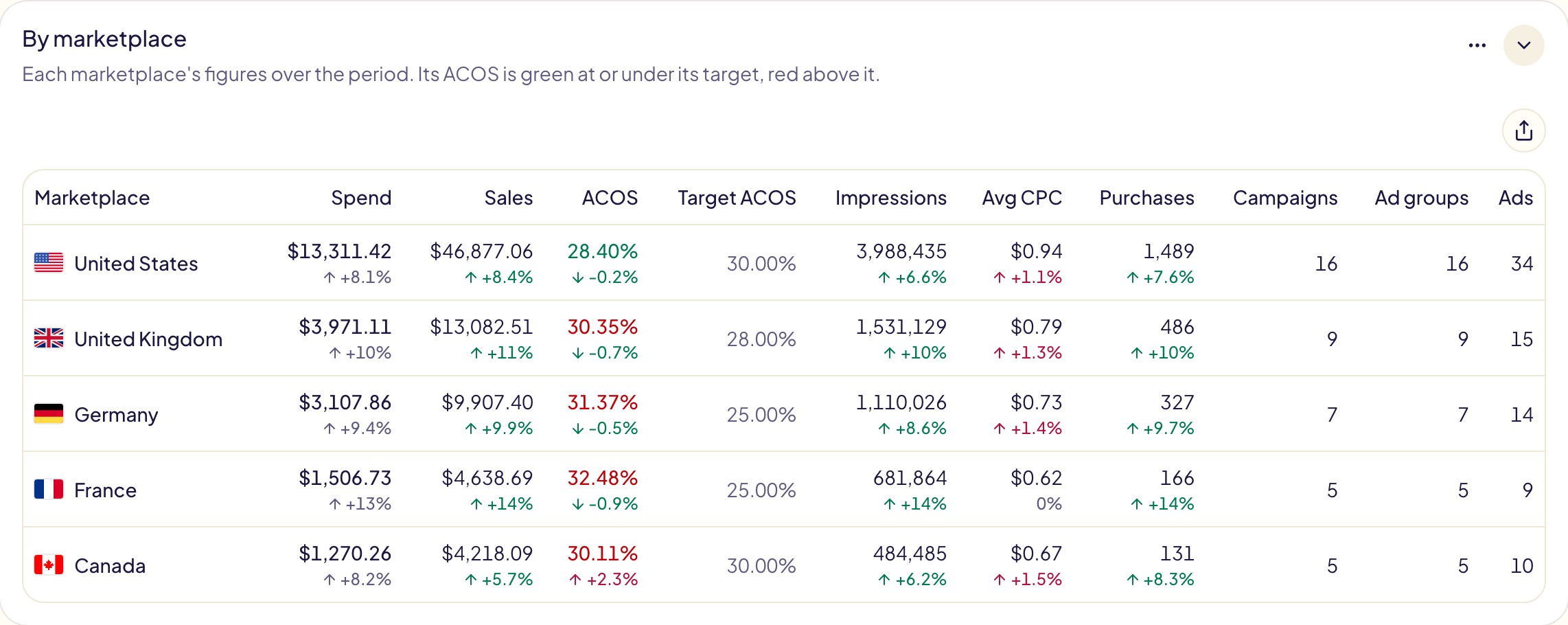
With only one marketplace in your account, the card is hidden. Tick it in Customize to show it.
Monthly budget
This month in each marketplace with a monthly budget: what it spent so far, the budget, and where the month ends at this pace.
| Badge | What it means |
|---|---|
| On track | The month ends close to its budget. |
| Ahead of budget | Spending faster than the month: the budget runs out before the end. |
| Behind budget | Spending slower than the month: some of the budget will be left. |
| Budget reached | The budget is spent. |
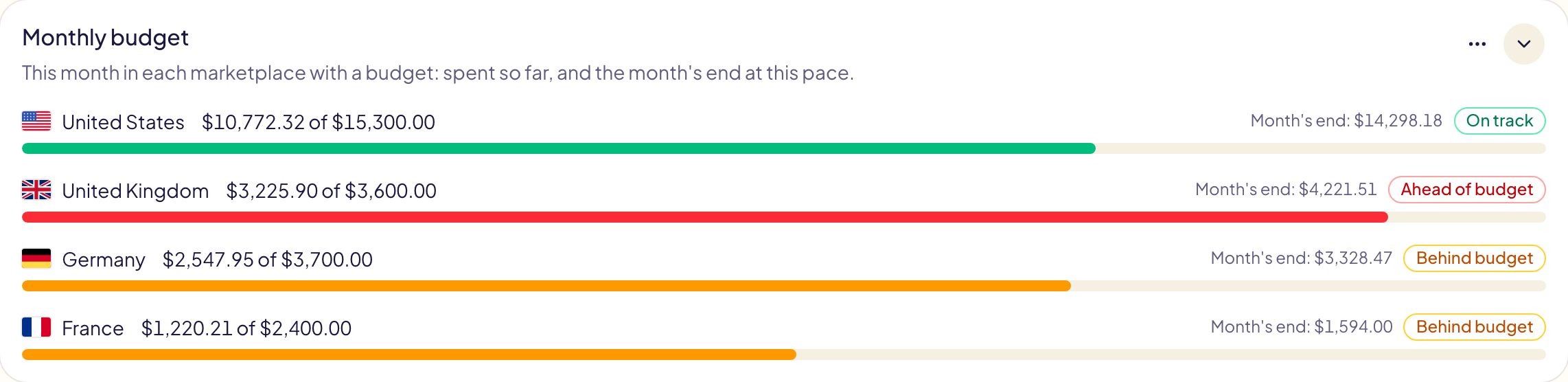
While no marketplace has a monthly budget, the card is hidden. Tick it in Customize to show it: its Set a budget button opens the Budgets page.
Wasted spend
The targets that got clicks and not a single sale: what they cost together, how many they are, their share of your spend, and the biggest of them.
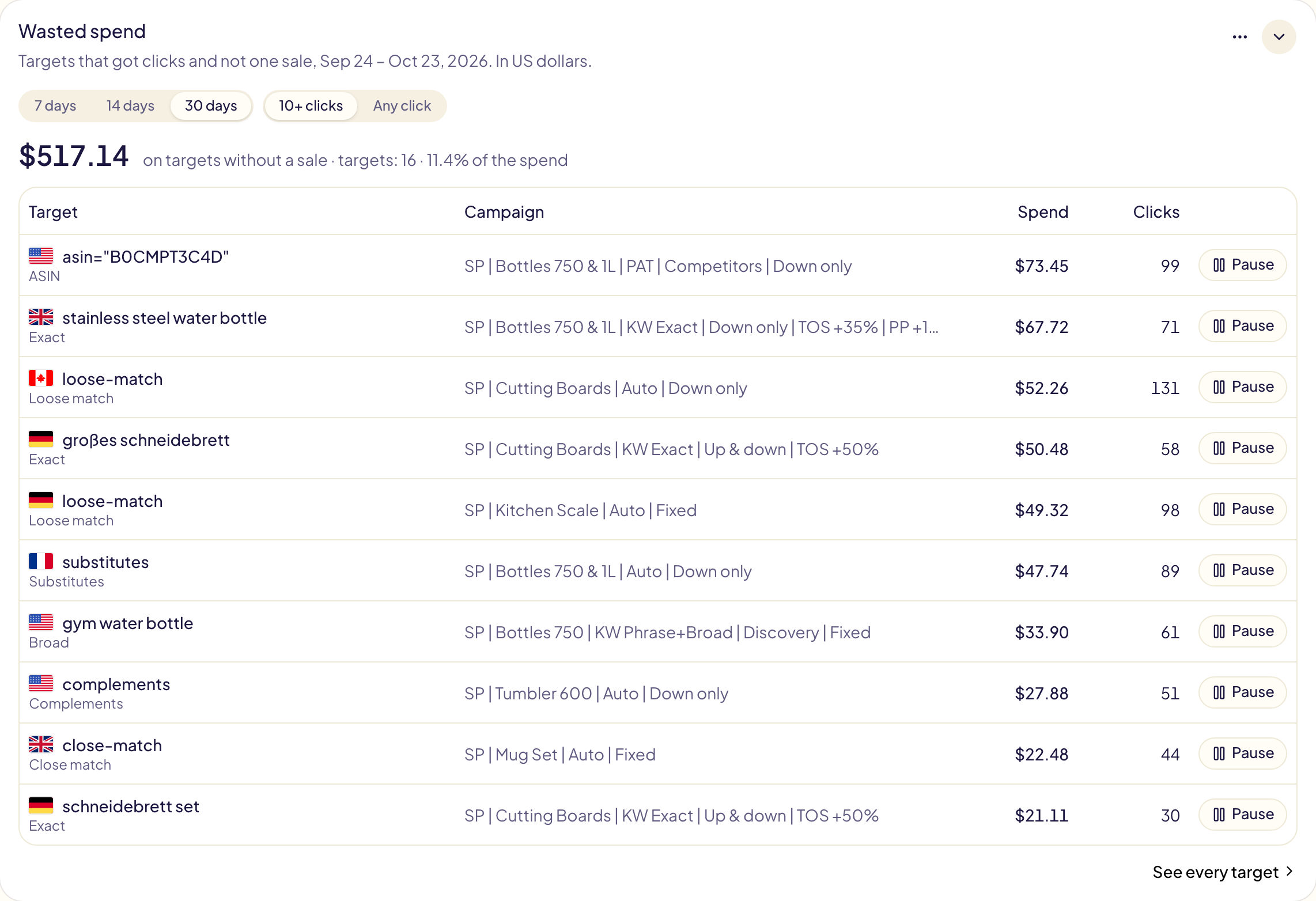
- 7 days, 14 days, 30 days: the last days counted. This card does not follow the period you picked.
- 10+ clicks keeps the targets with enough clicks to judge; Any click shows every one.
- Pause shows what will change, and pauses the target at Amazon once you confirm. The change goes to Activity, where it can be undone.
- See every target opens all your targets, with their figures.
- Amounts are in US dollars. The figures are updated once a day, while you open the dashboard at least every two weeks.
- Click a campaign's name to open it in the Amazon Ads console, in a new tab.
The Search words tab shows, for one marketplace, the words of what shoppers typed that cost the most over the last 30 days without one sale, in that marketplace's currency. It fills itself when you open Search terms, and stays for 14 days.
Top 10 products
The ten products that matter most over the period, each one summed over all its marketplaces. Click a product to open its page, or one of its flags to open it on that marketplace's Amazon. View all products opens the Products page.
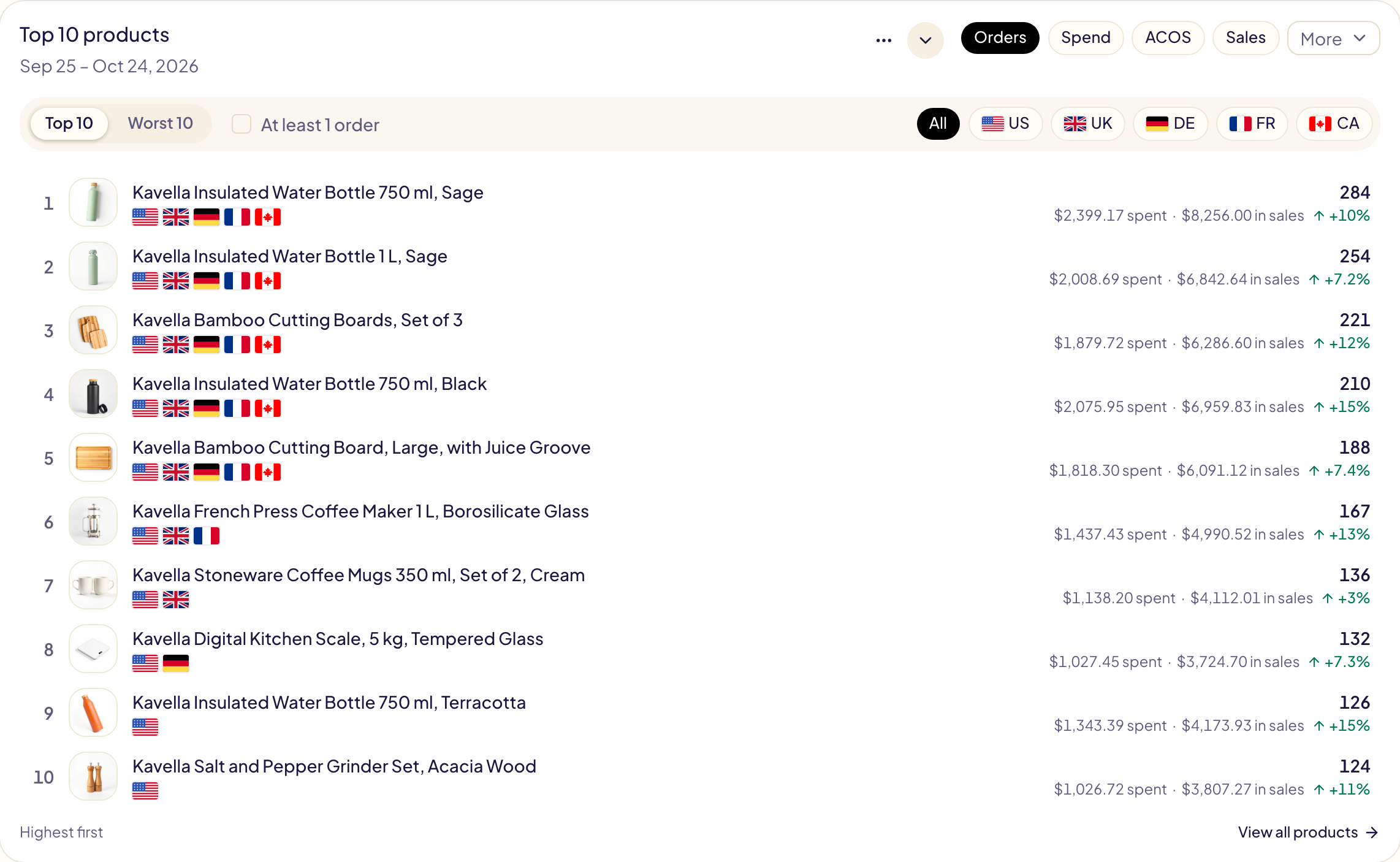
| Choice | What it does |
|---|---|
| Orders, Spend, ACOS, Sales | What ranks the products, Orders first. More adds ROAS, clicks, impressions, CPC, CTR and the conversion rate. |
| Top 10 | The best first: the most orders or sales, the lowest ACOS or CPC, the most spend. |
| Worst 10 | The other end. For ACOS, products that spent without a single order come first, marked No orders with what they spent, the most spent first. |
| At least 1 order | Leaves out every product with no order, in Top 10 and in Worst 10. Tick it to see the worst ACOS among the products that sell. |
| All, or one marketplace | All marketplaces together, or one marketplace's figures alone. Marketplaces come in the order of the marketplace table: the most spend over the period first. |
- Only products that spent over the period are ranked. A ranking by ACOS leaves out products with no order, except in Worst 10 when At least 1 order is not ticked.
- Under its figure, each product shows two more that put it in context, what it spent always among them (its orders, when ranked by Spend). Under a percentage (ACOS, CTR, conversion rate), they are its orders and its spend: a low ACOS on one order says less than on fifty.
- Two products showing the same figure: the one that spent more ranks worse. Ranked by Spend, the one with more orders comes first.
- With Compare to on, each figure shows its change.
- Sponsored Brands spend counts for a product only through its product videos. Collections and Store spotlights belong to no product, so these ten products do not add up to the totals above.
- Product figures are updated once a day. The first time, they take a few minutes, then your older history follows.
What Gloriads did for you
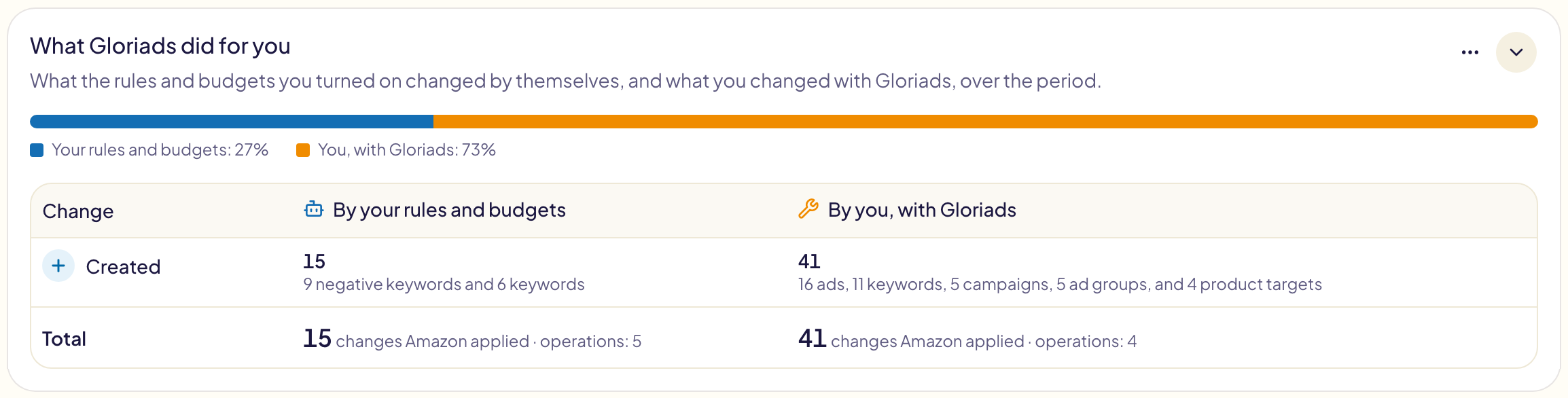
What changed on your ads through Gloriads over the period, in two parts:
- By your rules and budgets: what the rules and monthly budgets you turned on changed by themselves.
- By you, with Gloriads: what you created or changed with Gloriads' tools.
The bar on top shows each part's share of the changes. The table below has one row per kind of change (bid raised, created, paused…): for each part, how many and on what. Its last row gives each part's total and the operations it came in.
Kindle Unlimited
For KDP authors only: the Kindle Unlimited pages read thanks to your ads, and what they earn, every marketplace together.
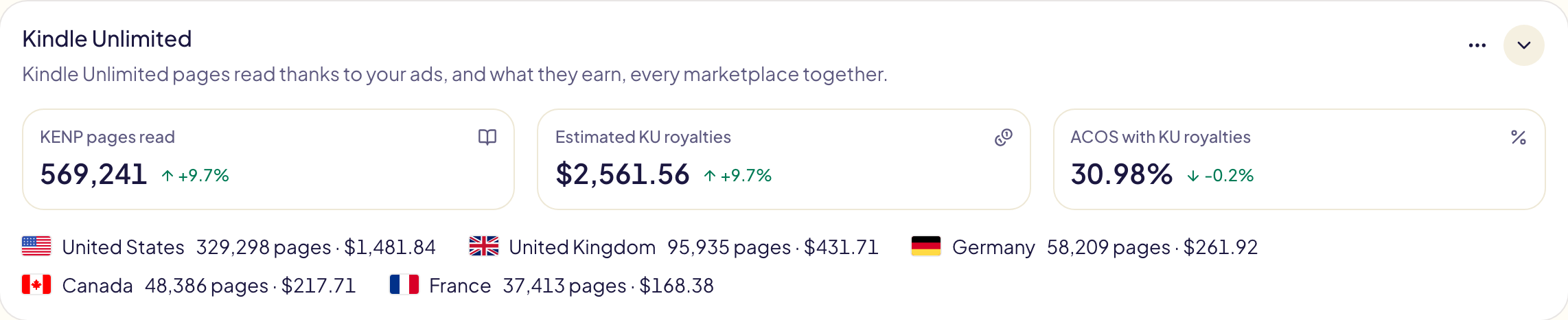
| Figure | What it means |
|---|---|
| KENP pages read | Kindle Unlimited pages read within 14 days of a click on your ad. |
| Estimated KU royalties | What Amazon estimates those pages earn you, in US dollars. |
| ACOS with KU royalties | Spend ÷ (sales + estimated KU royalties): your real ACOS once page reads count. |
- Below, each marketplace with its pages and royalties.
- Lifetime has no Kindle figures: pick another period.
- The first time, they take a few minutes. They are updated once a day, while you open the dashboard at least every two weeks. The card says from which day they are held.
Performance by hour
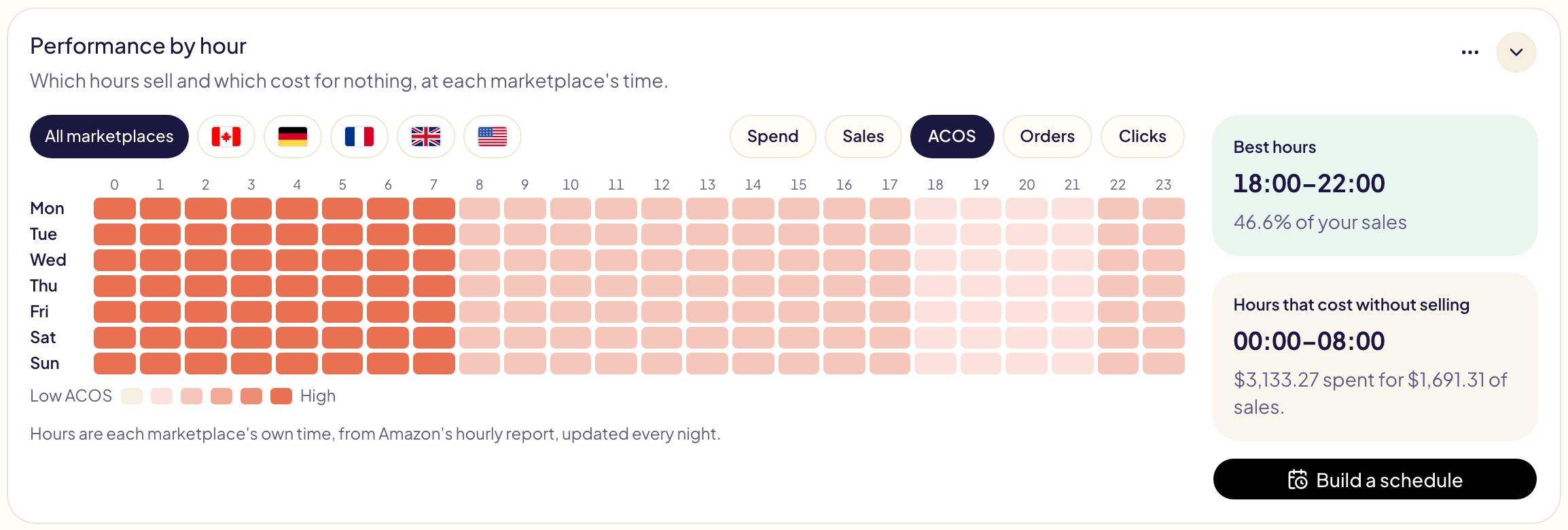
A week of hours, each coloured by what it did over the period: which hours sell and which cost for nothing, at each marketplace's own time. Pick a marketplace and a figure; on the right, your best hours and the hours that cost without selling. Build a schedule opens Dayparting. The card is folded until you open it: its hourly figures are read every night from then.
Performance by targeting type
Spend, purchases, ACOS, clicks and average CPC for each kind of target, every marketplace together, grouped as in Amazon: keyword targeting (exact, phrase, broad), product targeting (ASIN, category), automatic targeting (close match, loose match, substitutes, complements) and Display audiences. Each group shows its total: click it to see its types, then click a type with + to see each ad type it runs on. The Total row adds them all up.
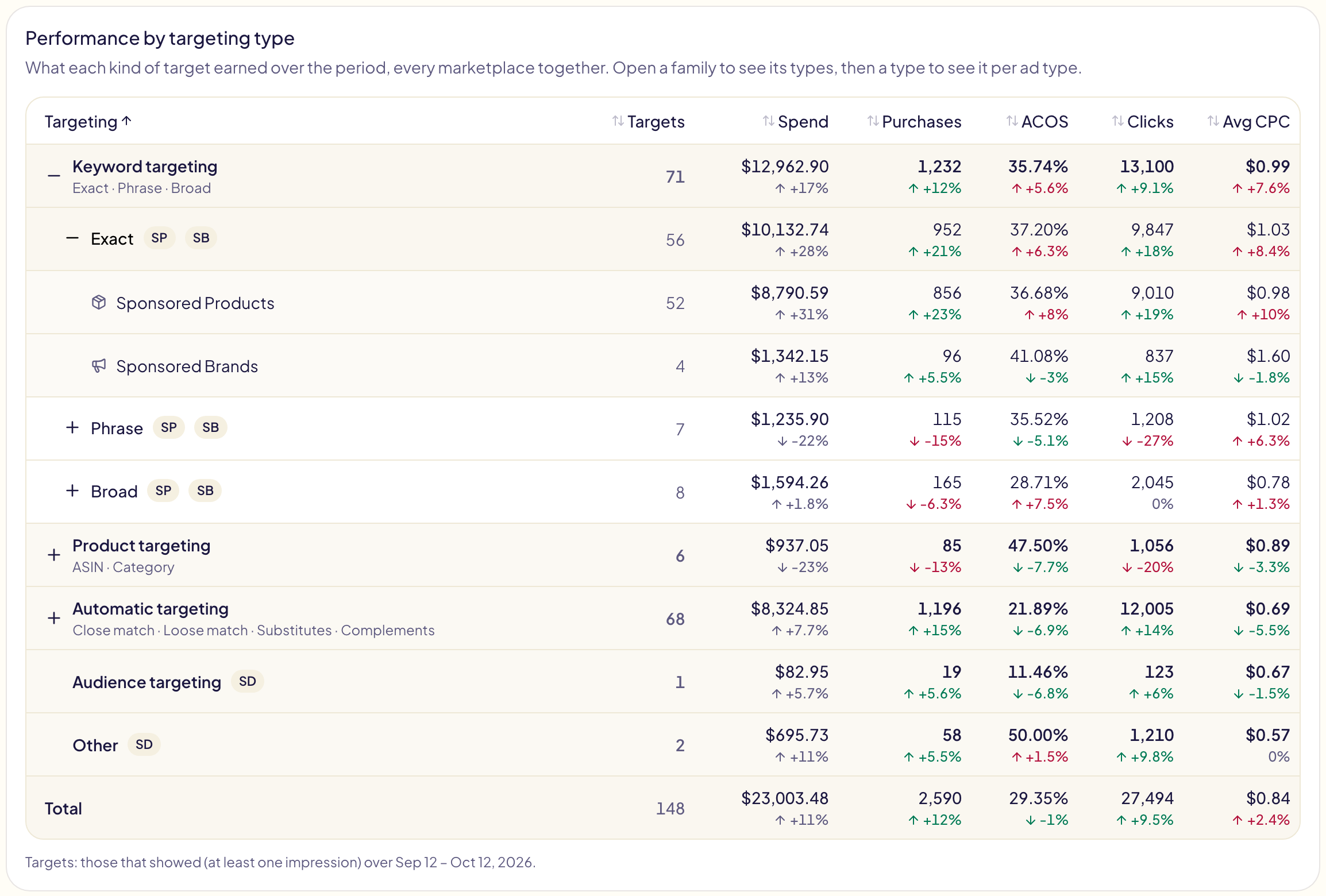
- The card stays hidden until you tick it in Customize, then starts folded: open it with its arrow.
- Targets counts the targets of a type that showed at least once over the last 31 days, whatever the period you picked.
- Click a column name to sort the table.
- With Compare to on, each figure shows its change.
- Other gathers the targets Gloriads cannot sort into a type.
- The figures are updated once a day, as long as the card is open and you open the dashboard at least every two weeks. The first time, they take a few minutes, then the last 14 months follow. An older period shows its figures from the first day held.
How many campaigns, ad groups and ads you have, and how many Gloriads created or touched, is now on the Total row of the Campaigns page.
How fresh the figures are
- Gloriads updates everything once a day. Refresh updates it now (at most once every 5 minutes); performance takes a minute or two.
- Right after you connect, Gloriads fetches your last 90 days first, so you can start at once, then the rest of your history in the background.
- History goes back about 6 years: day by day for the last 14 months, month by month before that. That is what Amazon keeps.
- Your totals can differ from the console by about 1 %. Amazon converts currencies at its own daily rates, and it keeps adjusting the last few weeks (invalid clicks, late sales).