
Add targets
Add keywords and ASINs to many Sponsored Products, Sponsored Brands or Display ad groups at once, with their match type and bid, after a preview.
Adding « red dragon book » as an exact keyword, or a competitor's ASIN as a product target, to 40 ad groups takes 40 trips through the console. Here it is one operation. Open Toolkit → Add targets, choose the type of campaign, then pick the marketplace at the top.
Choose the type of campaign
| Type | What it takes |
|---|---|
| Sponsored Products | Keywords (exact, phrase or broad) and ASINs (exact or expanded), in manual campaigns: an automatic campaign takes neither. Without a bid, each target bids its ad group's default bid. |
| Sponsored Brands | Keywords and ASINs. A bid is required: Sponsored Brands has no default bid. |
| Display | ASINs only, as product targets. Without a bid, each one follows its ad group's default bid. |
| Streaming TV | Nothing: it targets neither keywords nor ASINs. |
Keywords go to keyword ad groups, ASINs to product ones
On Amazon, an ad group targets keywords or products, never both. So each entry goes only to the ad groups of its kind:
| The ad group | Gets |
|---|---|
| Targets keywords | The keywords. The ASINs are left out. |
| Targets products (ASINs or categories) | The ASINs. The keywords are left out. |
| Has no target yet | The keywords, if your list has any. Otherwise the ASINs. |
Display ad groups take the ASINs, whatever else they target.
1. Keywords and ASINs
- Keywords and ASINs: one per line, in any order, or Add a Library list: tick one or several lists, then Add. Gloriads tells them apart: an ASIN is « B0 » and 8 letters or digits, or a book's 10-digit ISBN. The count under the box shows how many of each it found.
- Match type: exact, phrase or broad, for all the keywords. It shows when the list has keywords.
- Expanded (Sponsored Products): on, the ads also show on the pages of products similar to your ASINs (Amazon's « ASIN expanded »). Off, only on the pages of those exact products. It shows when the list has ASINs.
- Bid: in the marketplace's currency, for every target. A bid outside what Amazon accepts there turns the box red, with the range under it. Leave it empty to use each ad group's default bid (not on Sponsored Brands). On Display, a CPC campaign and a vCPM campaign accept different bids: an ad group whose campaign refuses yours is left out.
2. Ad groups
Tick the ad groups to add the targets to, across as many campaigns of that type as you want. Ticking a campaign ticks all its ad groups. Search by campaign or ad group name: Select all shown ticks every ad group the search keeps, on every page.
3. Preview and approve
Click Preview. Each ad group shows how many keywords and ASINs it gets, how many it already has, and what it leaves out and why. A target already in an ad group, with the same match type, is never added twice. What Amazon would refuse is listed apart and never sent.
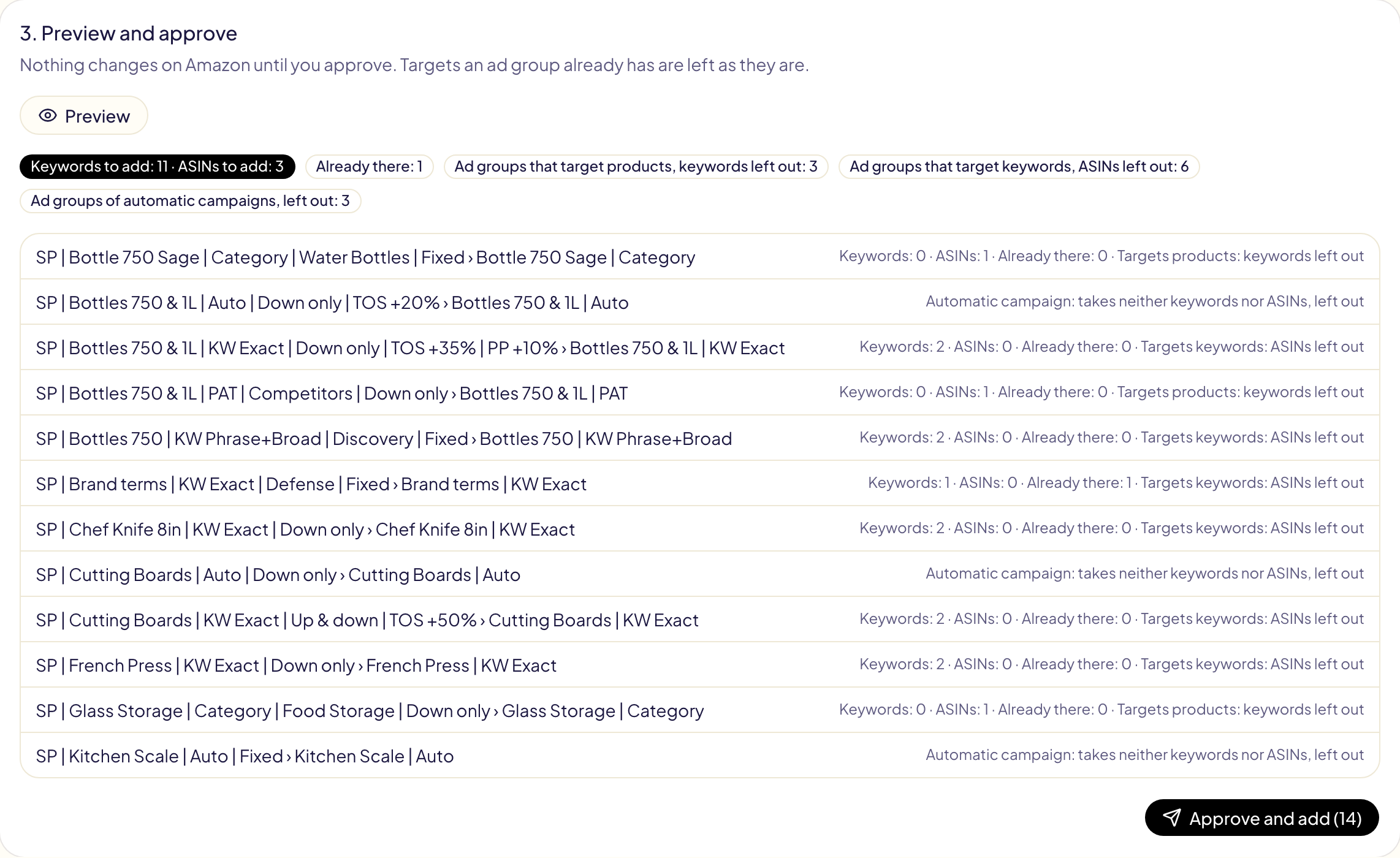
Click Approve and add. The targets are added and the operation opens in Activity, where Undo archives what was added.
From Search terms
On Search terms, tick the searches that sell, then Add as keyword. This tool opens filled: the searches as exact keywords (a word as a phrase keyword), the marketplace, and the ad groups where they appeared already ticked. A search that is an ASIN (a shopper's click on a product page) becomes an ASIN target, and when only ASINs are ticked the button reads Add as ASIN target. Searches found by an automatic campaign often come from its ad groups: the preview leaves those out, so tick a manual campaign's ad group in step 2. Add a bid, preview, approve.