Campaign templates
Save each standard campaign once, group the ones you launch together, and create them for any product in one click.
A template is one of your standard campaigns, saved once. Launch it on any product and Gloriads creates that campaign again, with that product in it. Each template makes one campaign of one type: Sponsored Products, Sponsored Brands, Sponsored Display or Streaming TV. To create several campaigns at once, put their templates in a group. Open Toolkit → Campaign templates.
Create a template
Click New template, then pick the campaign type.
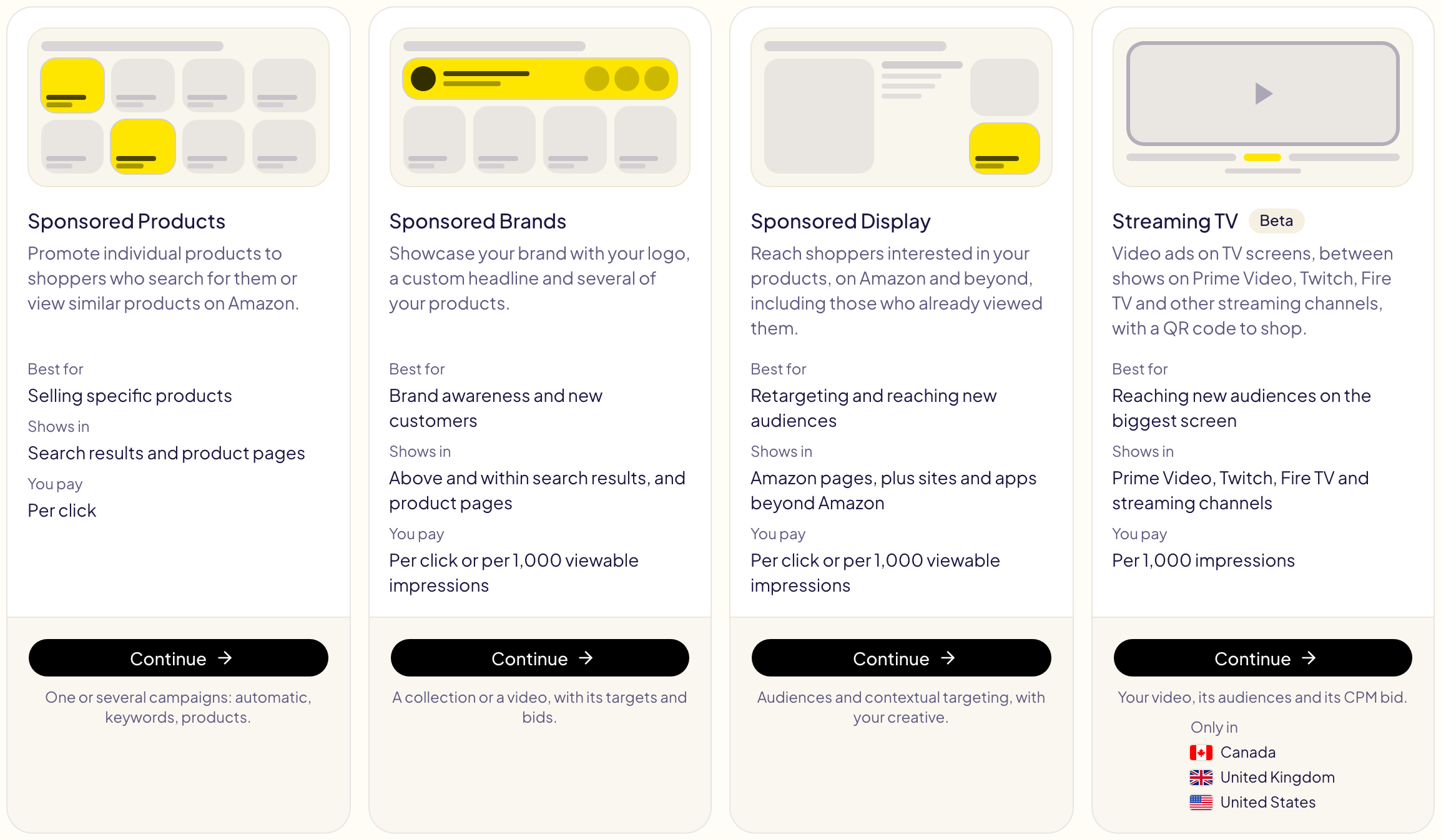
For Sponsored Products, start from one of four:
| Start from | What you get |
|---|---|
| Automatic campaign | Amazon picks the searches and products to target. The simplest start for a new product. |
| Keyword campaign | Your keywords, per match type. |
| Product targeting campaign | The ASINs and categories you target. |
| From one of your campaigns | A copy of an existing campaign's settings, keywords and targets. Gloriads only reads it on Amazon. |
Then set what you need:
- Campaigns per product — one campaign for each product, or one for all the products you pick.
- Names — patterns such as
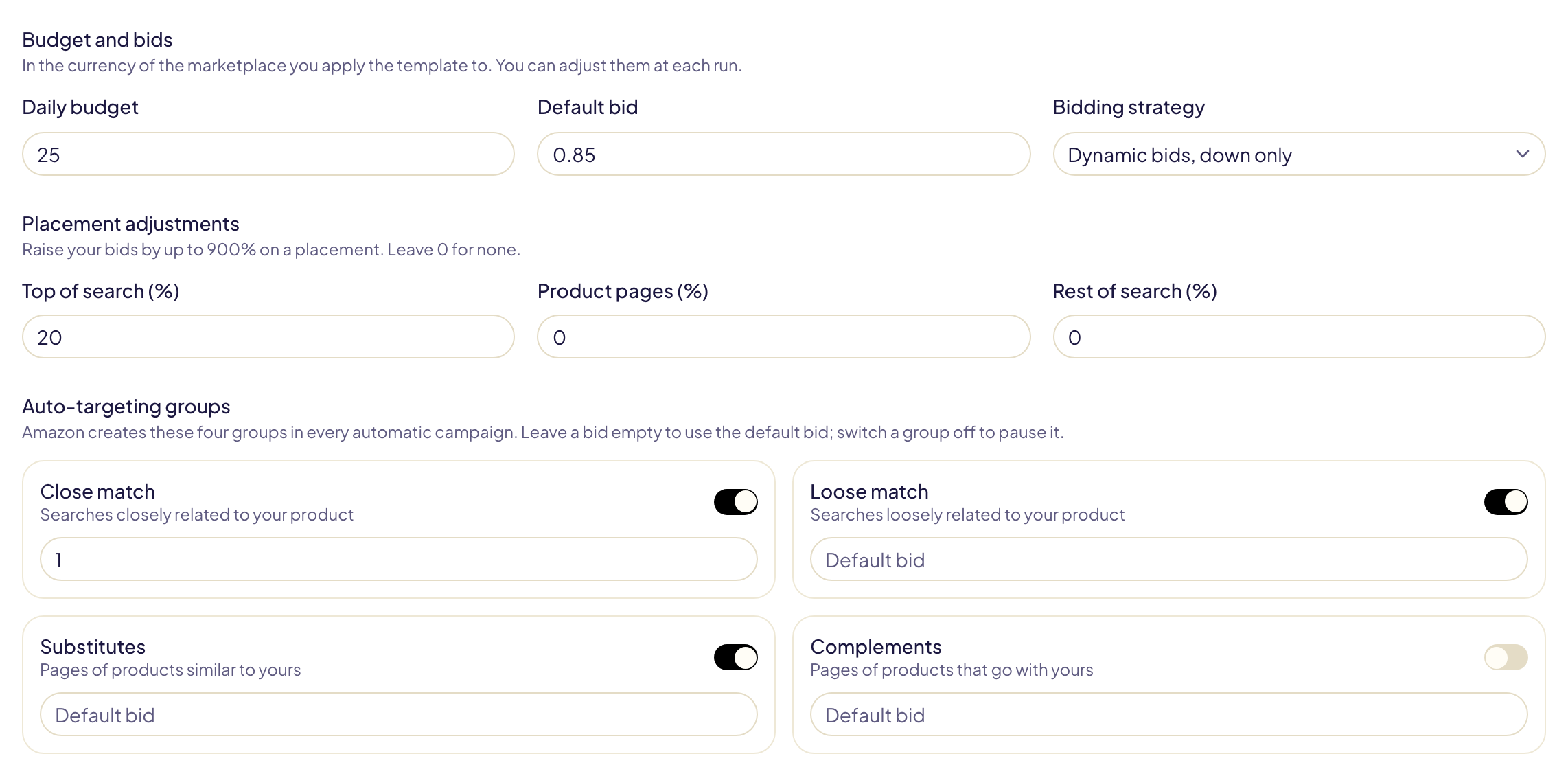
{product} - SP {label}. The tokens{product},{asin},{sku},{marketplace},{date},{template},{label},{match}and{n}are replaced at each launch. The campaign name must contain{product},{asin}or{sku}, or every product's campaign gets the same name. - Budget and bids — daily budget, default bid, bidding strategy, and placement adjustments (top of search, product pages, rest of search).
- Auto-targeting groups — the bid of Close match, Loose match, Substitutes and Complements, or pause one.
- Keywords, product targets and negatives — one per line, with an optional bid after a comma. Paste a mixed list takes one list with titles on their own line (EXACT, PHRASE, BROAD, ASIN, CATEGORY, NEGATIVE EXACT, NEGATIVE PHRASE, NEGATIVE ASIN) and sorts each part into its box. A pasted list loses its bullets, numbers and emojis; accents are kept.
- Portfolio — optional: the campaigns go into the portfolio of that name.
Split a campaign
A manual campaign can become several, so each one stays easy to read and to steer:
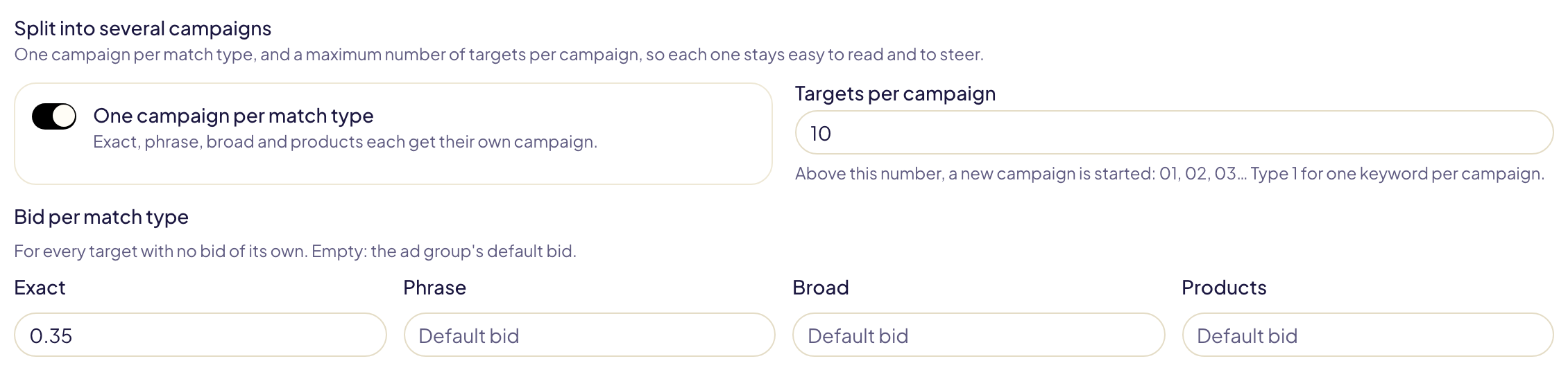
- One campaign per match type: exact, phrase, broad and products each get
their own campaign. The name must contain
{match}, which becomes Exact, Phrase, Broad or Product. - Targets per campaign: above this number a new campaign starts, numbered
with
{n}: 01, 02, 03… Type 1 for one keyword per campaign. - Bid per match type: the bid of every target with no bid of its own. Empty, the ad group's default bid is used.
Turning a split on adds {match} or {n} to the name when it lacks it. With 23
exact keywords and 10 per campaign, {product} - SP {match} {n} gives
« … - SP Exact 01 », « … - SP Exact 02 » and « … - SP Exact 03 ».
Link Library lists as negatives
Under Negatives, Link a Library list adds the Library lists you tick to the campaign (10 at most). Its entries are added to the negatives at every launch: edit the list in Library and the next launches use the new version. A keyword list's entries become negative phrase or negative exact, an ASIN list's negative ASINs. To add a list to campaigns that already exist, use Add negatives.
No list yet? In Library, Ready-made lists adds negative lists already written for your trade, in the language of your marketplace (English, German, French, Spanish, Italian or Japanese):
| List | Keeps your ads off |
|---|---|
| Merch T-shirts, hoodies, tank tops, long sleeves, phone cases | The other Merch products: a T-shirt list excludes hoodie, mug, sticker…, never T-shirt |
| KDP books | pdf, free books, used, summary, study guide… |
| New products | used, refurbished, rental, coupon… |
Each becomes a normal list of your Library: edit it, then link it as negative phrase. Words that also sit inside good searches (« free » in « gluten free ») are left out on purpose, and your never-negate lists still apply.
Sponsored Brands, Display and Streaming TV templates
The template page is that type's Create campaign page: set the campaign as you would to create one. What changes:
- Names are patterns. The tokens
{product},{asin},{sku},{marketplace},{date}and{template}are replaced at each launch. - Dates and products are not kept: each launch picks its own. The products you pick on the page only help Amazon suggest keywords and bids.
- Start from a blank campaign, another template or one of your campaigns.
- Keywords take a fourth match type, Broad match modifier, on Sponsored Products and Sponsored Brands, as on the Create campaign page.
- Save template replaces Create campaign. Nothing reaches Amazon.
When you create a campaign of these types, tick Also save these settings as a template to keep its settings.
Groups
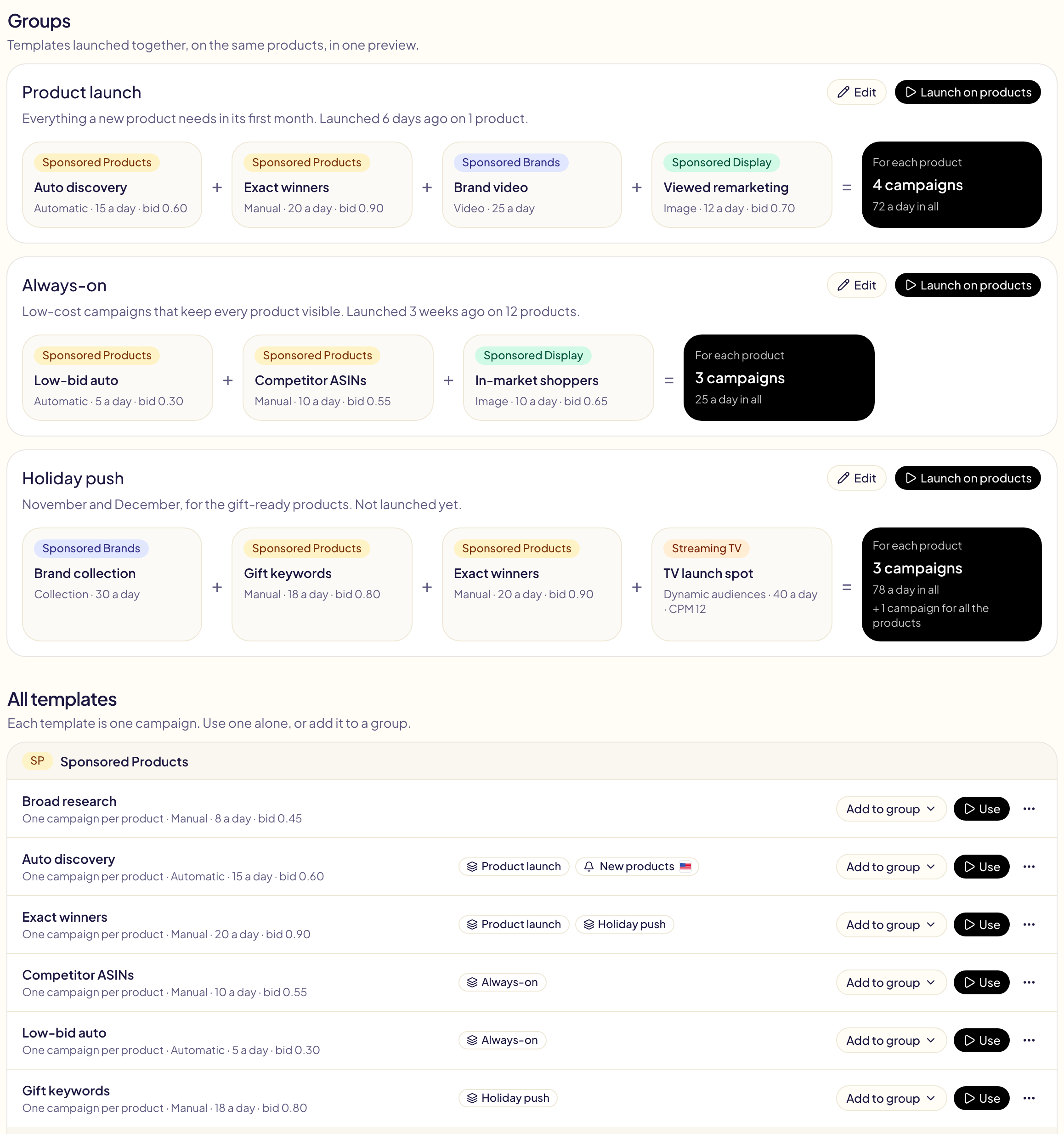
A group launches several templates together, on the same products, in one preview. « Product launch » can be an automatic campaign, an exact campaign, a Brands video and a Display remarketing campaign: 4 campaigns for each product.
Click New group, name it, and tick its templates. They are listed by type, and the bottom of the window says what one product gets. A template can sit in several groups. You can also add a template from its Add to group menu.
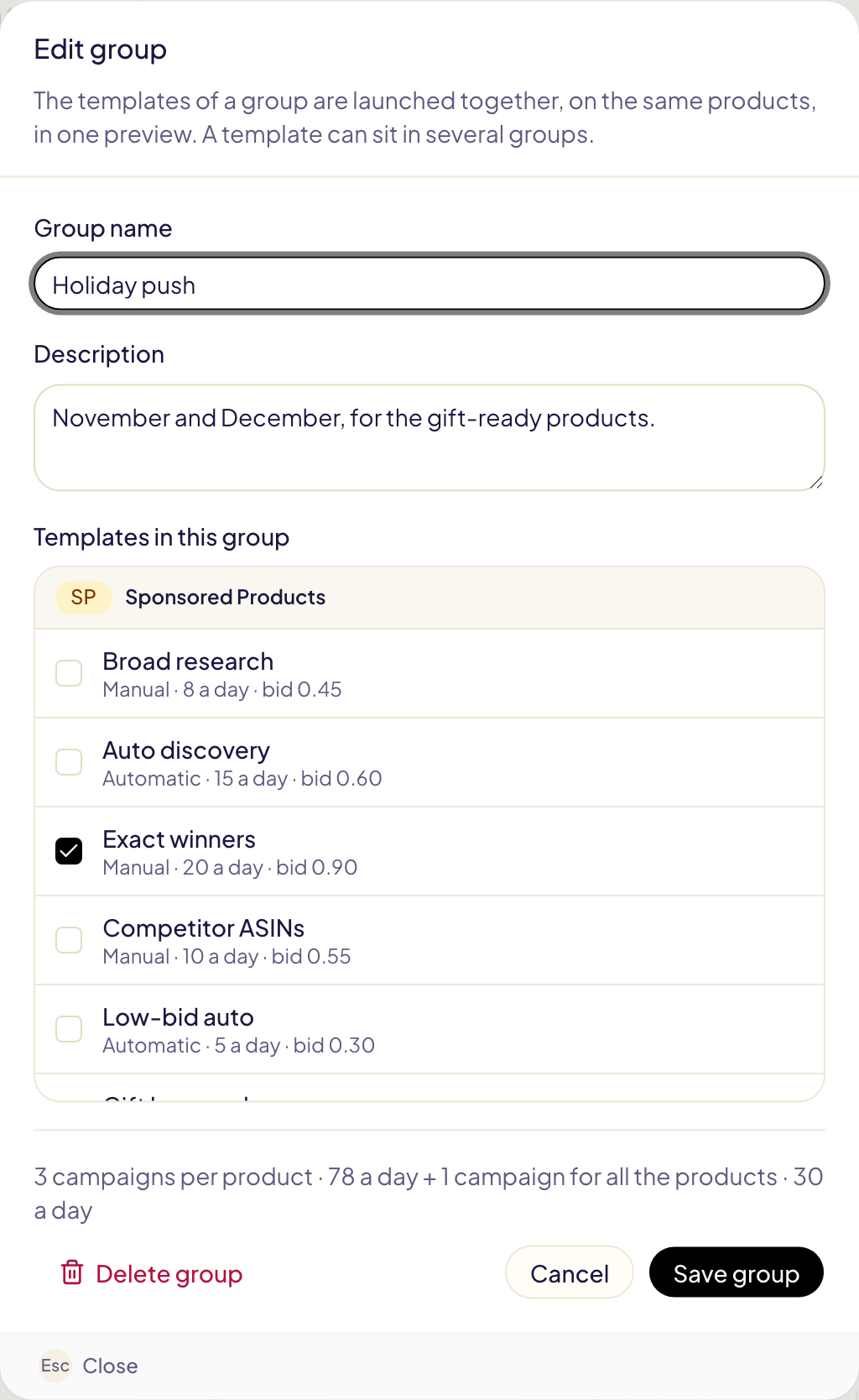
On the page, each group reads as a sum: its templates, then what they make for each product and their budget a day. Deleting a group keeps its templates. Deleting a template takes it out of its groups.
Launch on products
Click Launch on products on a group, or Use on a template. Four screens follow:
Products — pick the marketplace and the products.
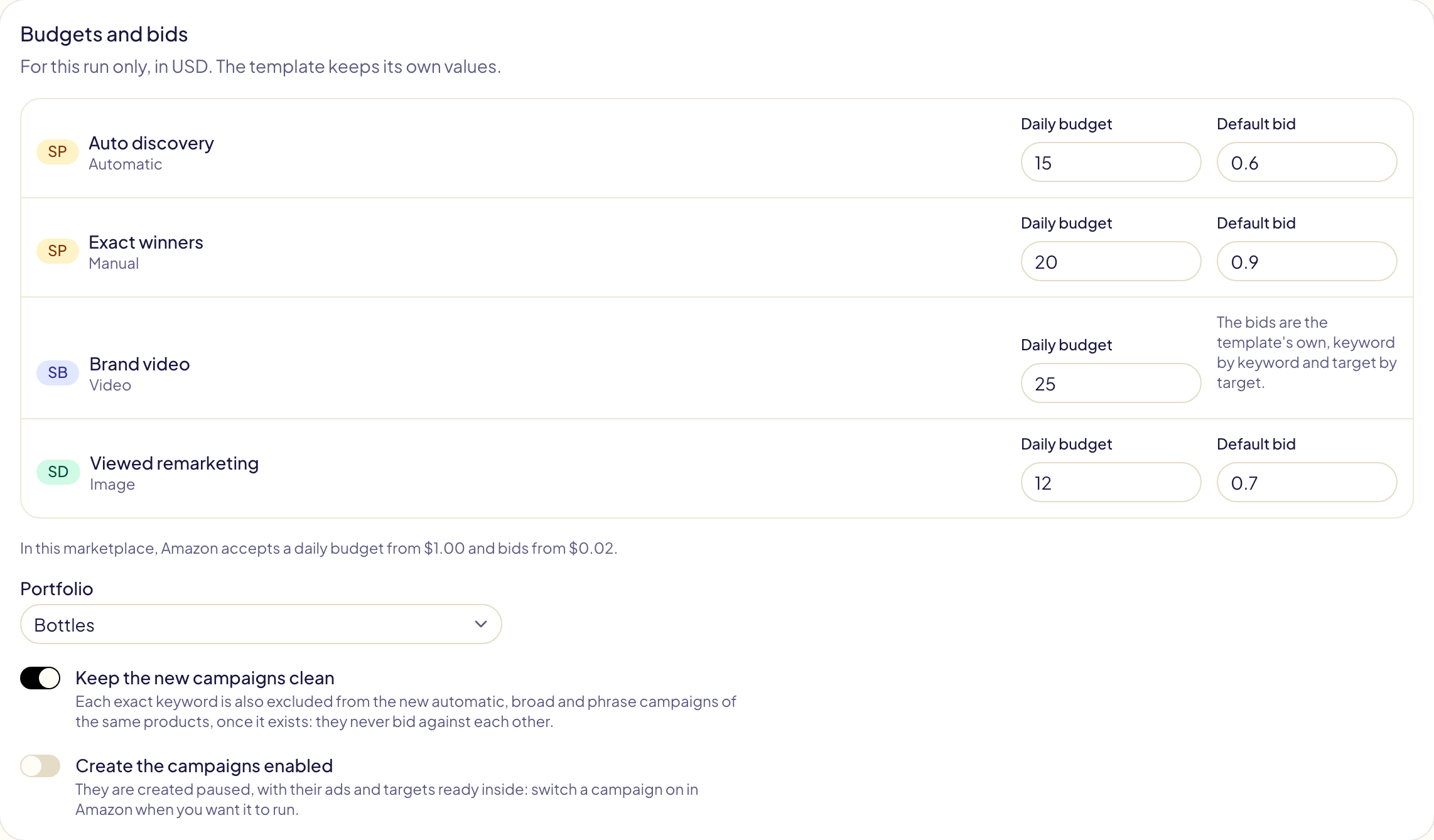
Budgets and bids — each campaign's budget and bid for this launch, the portfolio, and whether the campaigns are created enabled. Amazon's limits in that marketplace are shown under the amounts.
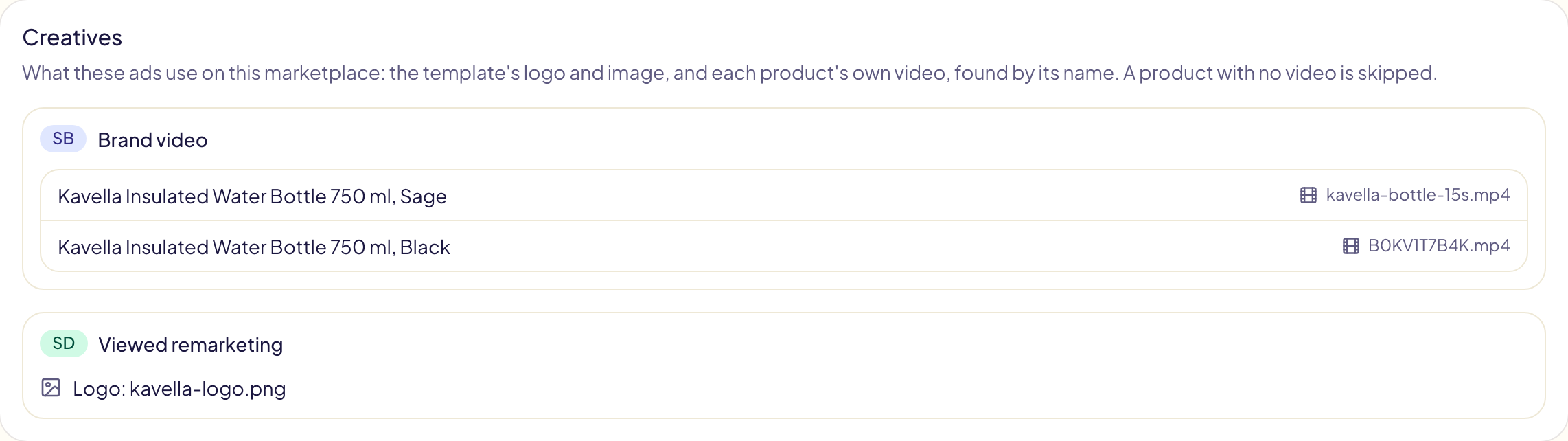
Creatives — only when a campaign shows a logo, an image or a video: what each one uses on this marketplace.
Preview — what each product gets, the campaigns to create, the budget a day in all, and anything Amazon would refuse. Click Approve and create.
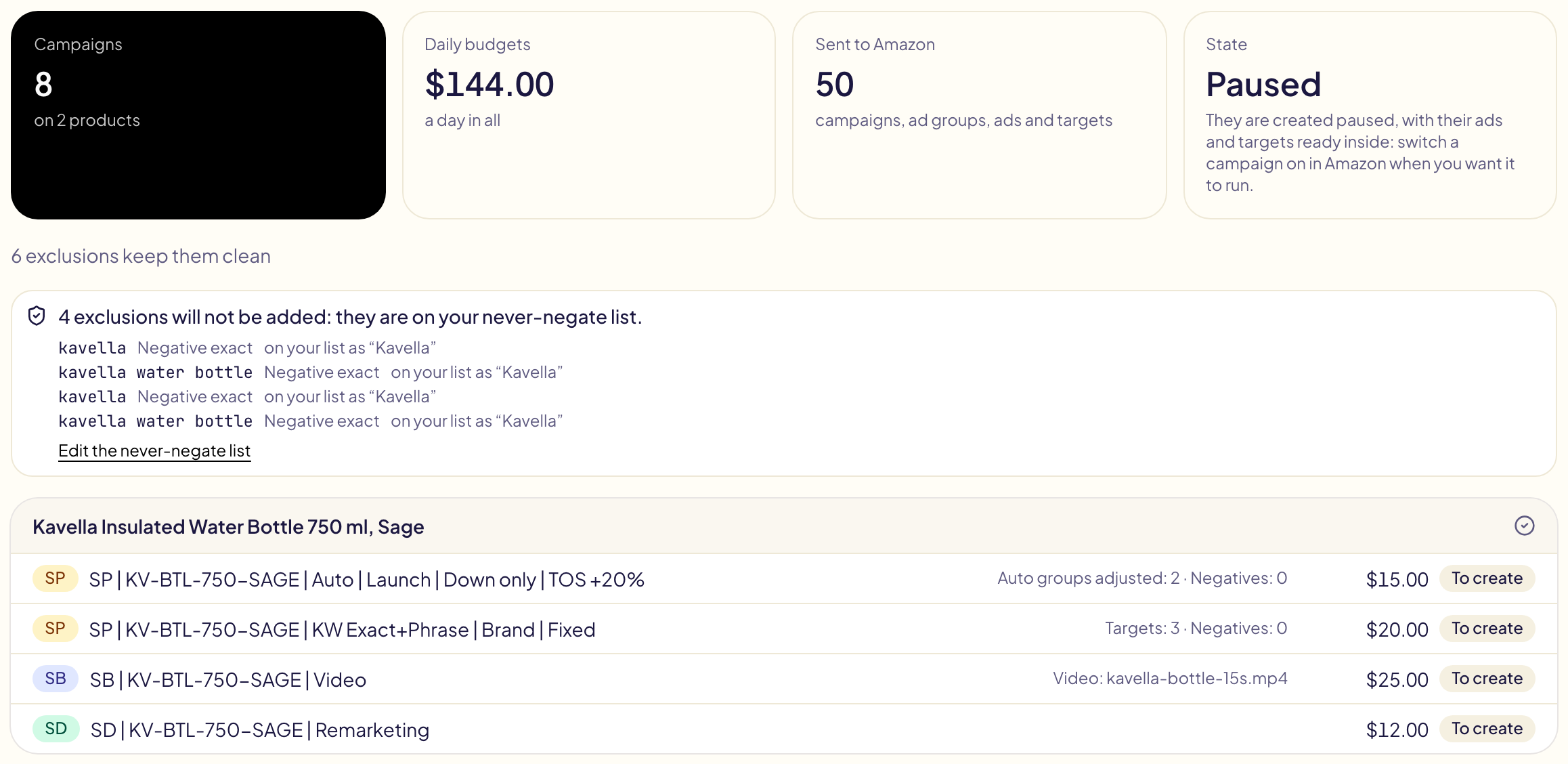
Campaigns are created paused, with their ads and targets ready inside, unless you switch on Create the campaigns enabled. A campaign name Amazon already has is left as it is: a launch never creates a campaign twice. Every line is followed in Activity.
A launch takes up to 2,000 products. Over 5,000 lines, it is sent in parts, one every 12 hours, as in Bulk launch.
With an exact campaign and an automatic, broad or phrase one in the same launch, Keep the new campaigns clean excludes each exact keyword from the other campaigns of the same product, once it exists.
How many campaigns a template makes depends on its type:
| Template | Campaigns |
|---|---|
| Sponsored Brands collection | One for all the products picked (3 to 10). |
| Sponsored Brands video, Display video, Streaming TV | One per product. |
| Display image, Sponsored Products | One per product, or one for all: you choose in the template. |
A video template uses each product's own video. Gloriads finds it in that
marketplace's library by its name (B0XXXXXXXX.mp4), else by the ASIN Amazon tied
to it. On the Creatives screen you can pick another video in a product's menu,
or send your video files to Amazon, as in
Bulk launch. A product
with no video is skipped, and the preview says so.
Launched on another marketplace than the one it was made on, a template's ASINs, categories, Display audiences, brand and logo are found there, by Amazon or by name. Keywords stay as written. What has no match is left out, and the preview lists it. A Store page and Streaming TV places belong to their country: they are left out too. A template whose type Amazon does not offer on that marketplace is left out of the launch.
New product automation
Turn on Propose this template for every new product and pick the marketplaces to watch. Once a day, Gloriads looks at your catalog there.
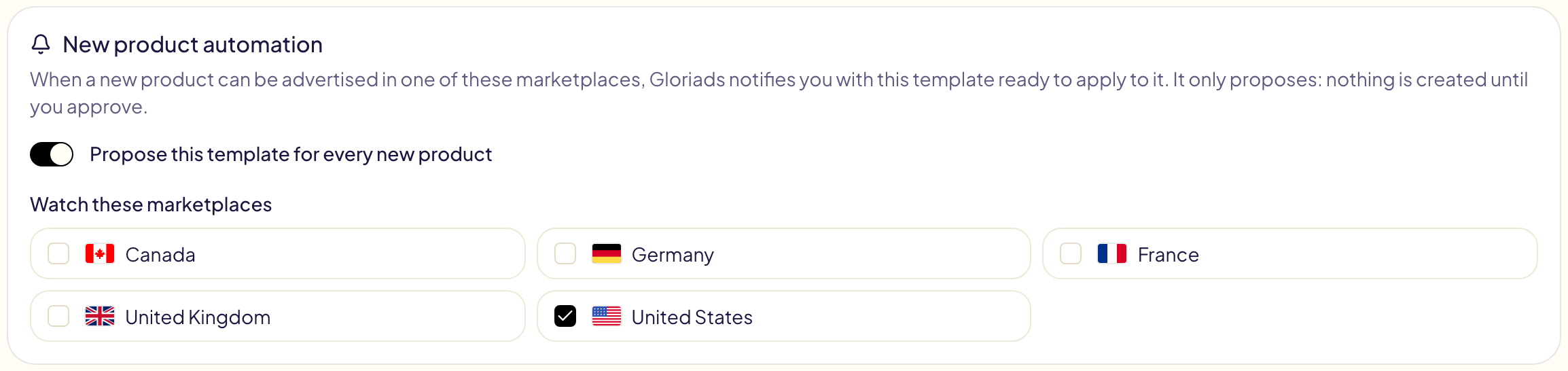
When a product appears that can be advertised, you get a notification that opens this template ready to launch on it.
It only proposes: nothing is created until you approve. Products you had before you turned it on are not proposed.
Copy templates to another account
Copy templates, groups included, to any other Gloriads account, even one with no link to yours: a colleague's, a client's, your second business.
| Way | How |
|---|---|
| File | Export a template or a group (its … menu), or Export all. In the other account, click Import and pick the file. |
| Share link | Share link in the same menu, then Create the link and send it. Whoever opens it sees the templates, no account needed, then imports a copy into their own account. |
A copy keeps each template's settings, keywords, bids and groups, and the Library lists it links as negatives. It leaves behind what belongs to your Amazon account: the brand, logo, video, Store page and landing page of a Sponsored Brands, Display or Streaming TV template. Pick them again in the other account. Such a template needs a marketplace in the same country there, or it is left out and named. Propose this template for every new product starts off.
A link shares the templates as they were when you created it: later changes are not in it. Stop sharing ends it at any time; copies already imported stay. Copies land in the advertiser picked in the sidebar.