
Add negatives
Add negative keywords and negative ASINs to many Sponsored Products, Sponsored Brands or Display ad groups at once, with a preview before anything changes.
Blocking « hoodie » in 120 ad groups takes 120 trips through the console. Here it is one operation. Open Toolkit → Add negatives, choose the type of campaign, then pick the marketplace at the top.
Choose the type of campaign
One type at a time:
| Type | What it takes |
|---|---|
| Sponsored Products | Negative keywords and negative ASINs. |
| Sponsored Brands | Negative keywords and negative ASINs. An ad group that targets keywords takes the negative keywords, one that targets products the negative ASINs. |
| Display | Negative ASINs only: Display has no keywords. |
| Streaming TV | Nothing: Amazon offers no negatives for Streaming TV. |
A type Amazon does not offer your account is greyed out.
1. Negatives
- Negative keywords: one per line, as Negative phrase or Negative exact. A negative phrase holds 4 words at most.
- Negative ASINs: one per line.
- Add a Library list: tick one or several of your Library lists, then Add. Each list's entries go to the box of its kind.
On a list's page in Library, Add as negatives to campaigns opens this tool with the list already in it.
2. Ad groups
Tick the ad groups to add the negatives to, across as many campaigns of that type as you want. Ticking a campaign ticks all its ad groups. Search by campaign or ad group name: Select all shown ticks every ad group the search keeps, on every page.
3. Preview and approve
Click Preview. Each ad group shows how many negatives it gets and how many it already has: a negative already in an ad group is never added twice. On Sponsored Brands, it also shows the negatives of the other kind it cannot take.
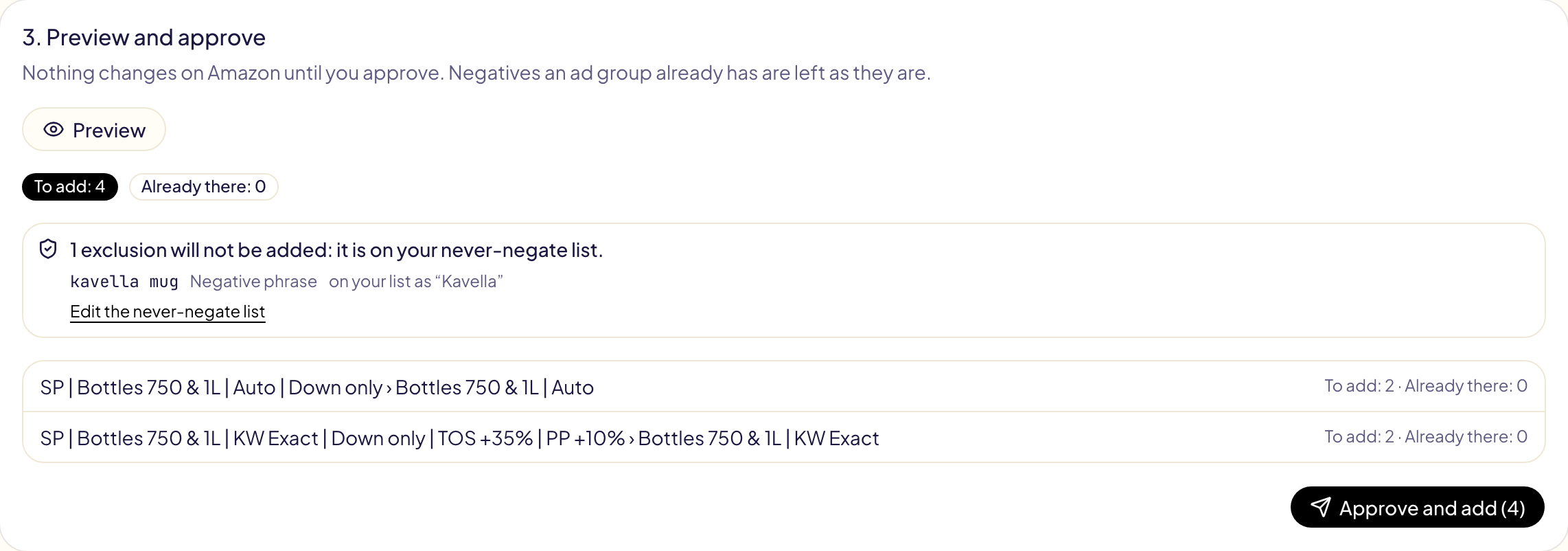
What Amazon would refuse is listed apart and never sent. What your never-negate lists protect, your brand or your own ASINs, is named and kept off.
Click Approve and add. The negatives are added and the operation opens in Activity, where Undo archives what was added.
Negatives for every new campaign
To give your next campaigns the same negatives, link the list to a template instead: its entries are added at every launch.