
Two-factor authentication
Ask for a code from your phone at every sign-in, keep backup codes, and get back in if you lose your phone.
Two-factor authentication adds a second check to every sign-in: after your password or your email code, Gloriads asks for a 6-digit code from an app on your phone. Someone who learns your password still cannot get in.
It is off by default. You turn it on in Settings → Security.

Turn it on
- Install an authenticator app on your phone: Google Authenticator, Microsoft Authenticator or 1Password, for example.
- In Settings → Security, click Turn on, then type your password.
- Scan the QR code with the app, then type the 6-digit code it shows.
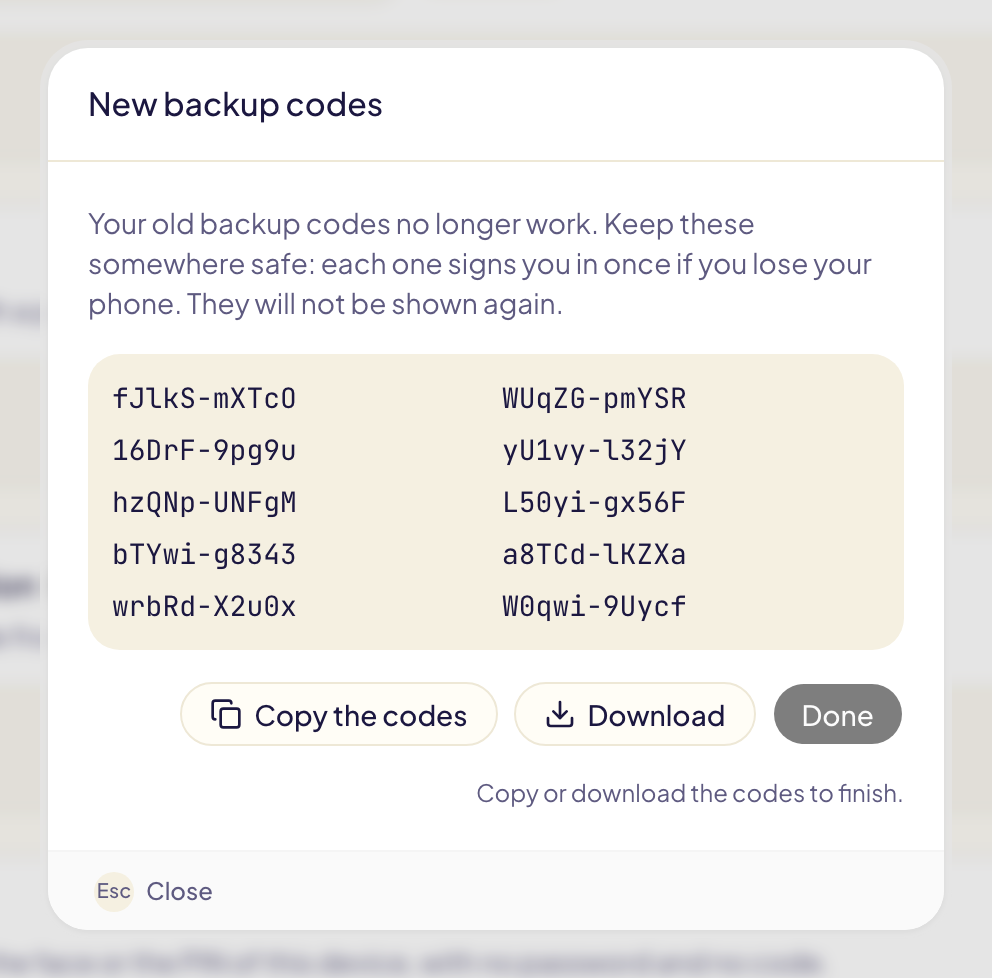
- Save your 10 backup codes: click Copy the codes or Download. Each code signs you in once if you lose your phone. They are shown only this once.
- Gloriads then offers to add a passkey as a backup. A passkey signs you in with the fingerprint, the face or the PIN of your computer, with no code. Add one if you can: it is the easiest way back in if your phone is gone.
At every sign-in you can tick Trust this browser for 30 days: that browser then stops asking for the code.
New backup codes
Used most of your backup codes, or lost the list? In Settings → Security, click New backup codes and type your password. You get 10 new codes, and the old ones stop working. Your authenticator app keeps working as it is.
Lost your phone
Sign in with your password or your email code as usual. On the code screen, click Lost access to your authenticator app? and choose one of the ways in.
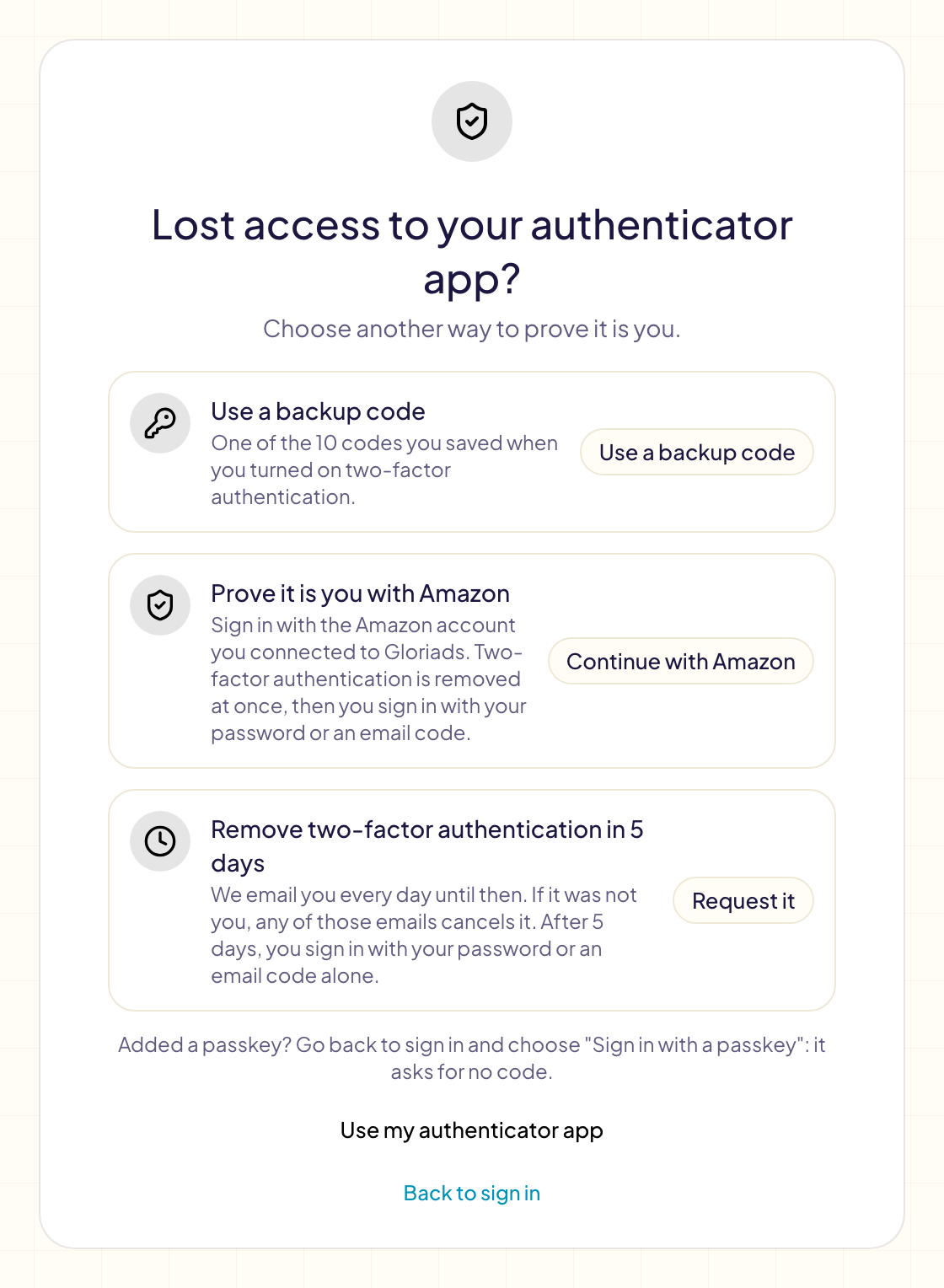
| Way in | What you need | How long |
|---|---|---|
| Use a backup code | One of your 10 backup codes | At once |
| Sign in with a passkey | A passkey on this device | At once: go back to sign in and choose it |
| A trusted browser | A browser where you ticked "Trust this browser" | At once: sign in from it |
| Prove it is you with Amazon | The Amazon account you connected to Gloriads | At once |
| Remove two-factor authentication in 5 days | Nothing else | 5 days |
Prove it is you with Amazon appears only if you connected your Amazon Ads account to Gloriads yourself. Sign in with that Amazon account: Gloriads checks that it reaches your Amazon Ads account, then removes two-factor authentication. It is a way back in, never a way to sign in: you then sign in with your password or your email code.
Remove two-factor authentication in 5 days works for everyone. We email you once a day until then. After 5 days, you sign in with your password or your email code alone.
Once you are back in, turn two-factor authentication on again with your new phone, in Settings → Security.
Someone asked to remove it
You got an email saying two-factor authentication will be removed, and it was not you? Someone knows your password.
- Click Cancel this request in the email. Any of the daily emails cancels it.
- Change your password in Settings → Security.
Signing in with your authenticator app, a backup code or a passkey also cancels the request. While one is waiting, Settings → Security shows it with a Cancel the request button.