
Rules
Automate any Sponsored Products, Sponsored Brands, Sponsored Display or Streaming TV task on a schedule - IF these conditions, THEN these actions - from every hour to every 3 months.
A rule watches your campaigns and acts for you, on its own schedule. It reads like a sentence: IF these conditions are met, THEN do these actions. Open Rules in the sidebar.
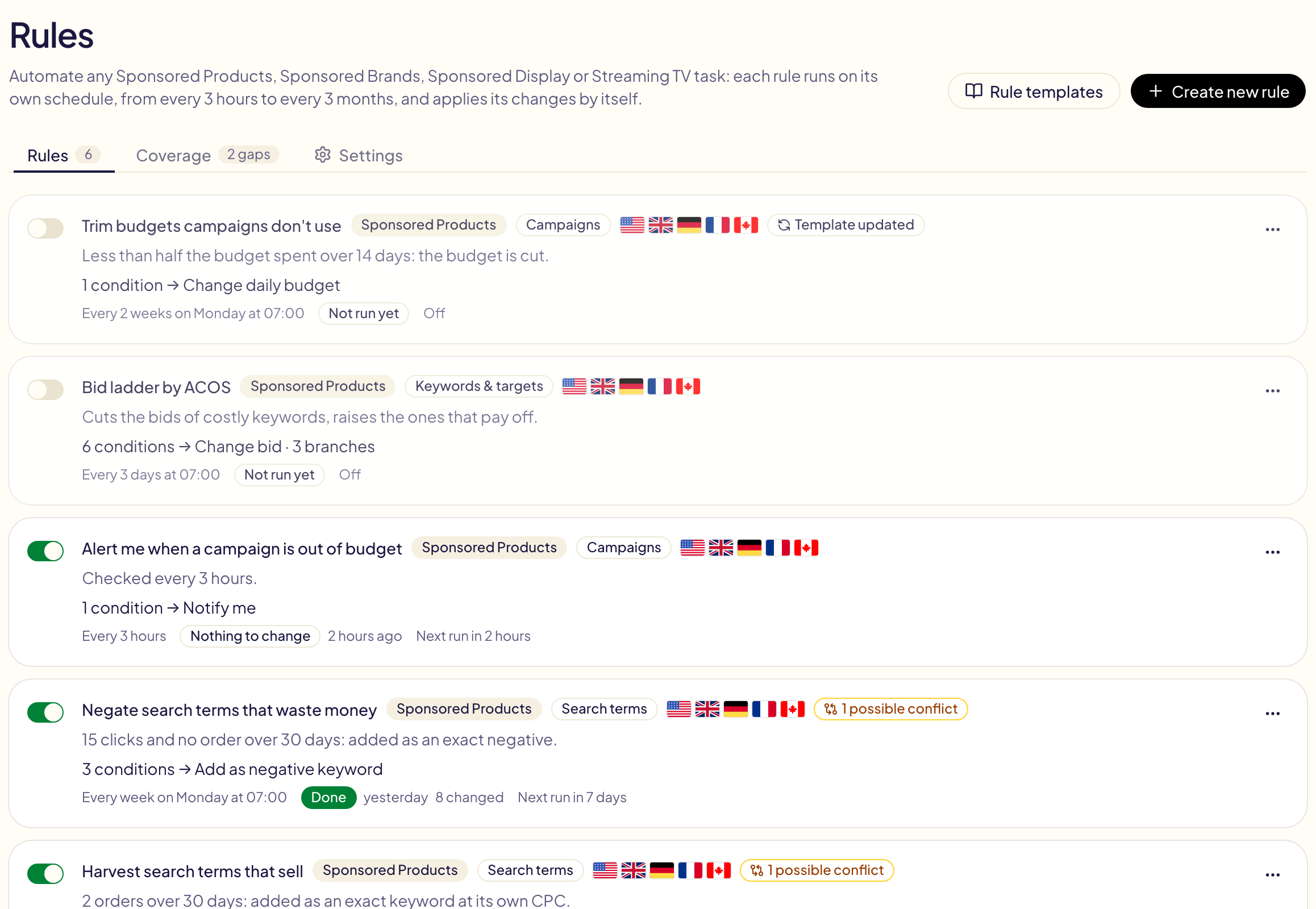
A rule that is on (green switch) applies its changes by itself at each run. A rule that is off does nothing.
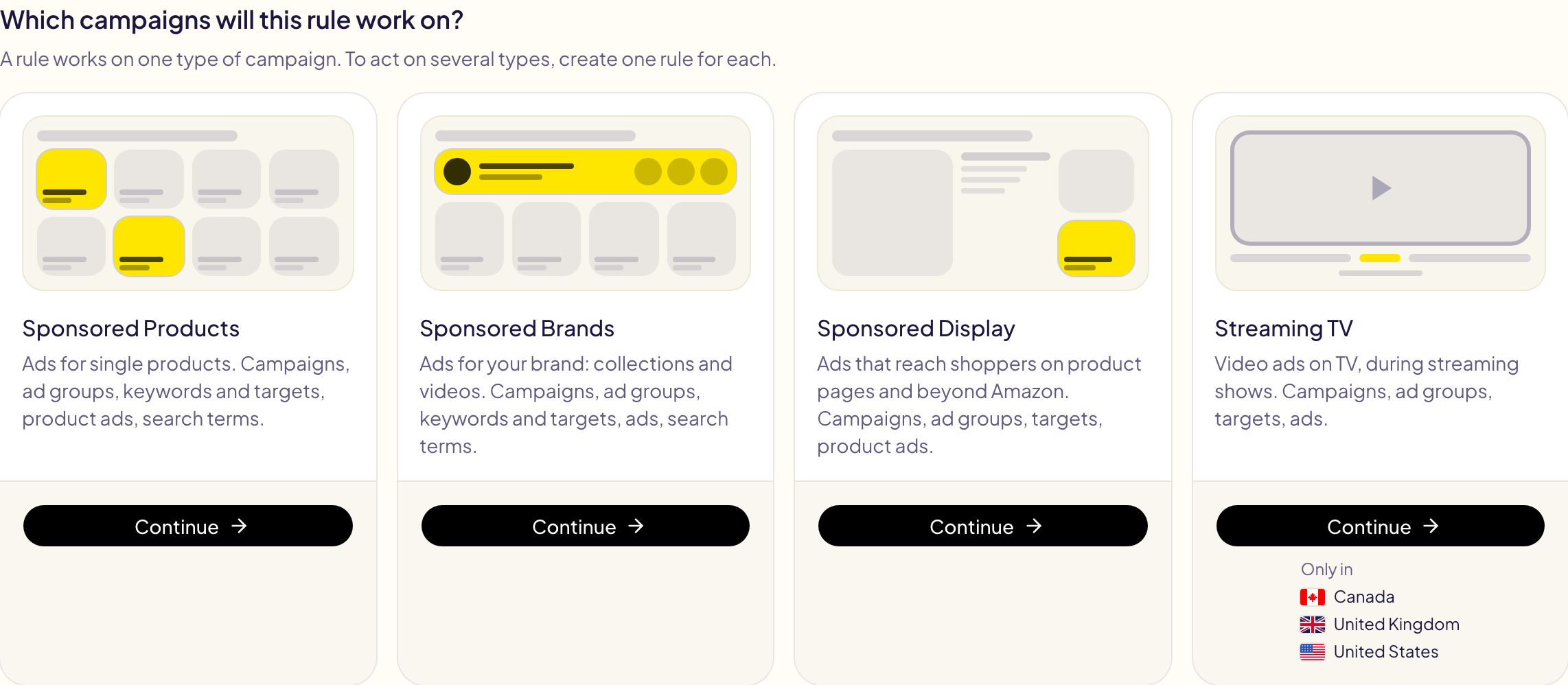
A rule works on one type of campaign: Sponsored Products, Sponsored Brands, Sponsored Display or Streaming TV. To act on several types, create one rule for each. Global campaigns (one campaign for several marketplaces) and archived campaigns are always left out.
Create a rule
Click Create new rule and choose the campaigns it works on. You cannot change this choice afterwards.
Gloriads asks Amazon which types your account can use, on each marketplace:
- A type Amazon offers on none of your marketplaces is greyed out, marked Not offered, with the reason, which names your kind of account (for example, Streaming TV is not offered to KDP authors, and Display is not offered to Merch on Demand sellers' ads accounts).
- A type offered on some marketplaces only lists them under its button (Only in). The others cannot be ticked under Where for that rule.
The same goes for Create campaign.
You can also start from one of the Rule templates. The editor goes from top to bottom: name, Frequency, What it looks at, Where, When and what, Safety, Test.
Anything missing is listed under Test (a name, a marketplace, an amount…). Once the list is empty, save with Save and turn on or Save, turned off.
Frequency
How often Gloriads checks the rule, and acts when its conditions are met.
| Every | Allowed | When |
|---|---|---|
| Hours | 1 to 24 | From the time you choose, then every N hours |
| Days | 1 to 90 | At the time you choose |
| Weeks | 1 to 13 | On the day and at the time you choose |
| Months | 1 to 3 | On a day from 1 to 28, at the time you choose |
Times are quarter hours (:00, :15, :30, :45), in your time zone: your rules that are due at the same moment run together. A value out of range turns red.

The frequency is not a condition's period: « every day » and « clicks over the last 30 days » make a rule that checks, each morning, the 30 days before.
What it looks at
A rule reads and acts on one kind of object. On Sponsored Products:
| Level | Actions |
|---|---|
| Campaigns | Pause or enable, set or change the daily budget, bid strategy, placement adjustments. |
| Ad groups | Pause or enable, set or change the default bid. |
| Keywords & targets | Pause or enable, set or change the bid (keywords, ASIN and category targets, auto-targeting groups). |
| Product ads | Pause or enable. |
| Search terms | Add as a keyword or a product target (in the same ad group, one you pick, or an ad group of the same campaign; at the ad group's bid, a fixed bid or its own CPC), or as a negative keyword or negative ASIN (ad group or campaign). |
Every level can also Notify me: you get a notification listing what the rule found, and nothing is changed.
Broad match modifier: « Add as keyword » can add the search term as a broad
keyword with « + » before each word (+kids +shoes), so every word should be in
the shopper's search. On Sponsored Products, Amazon does not document it: on an
account we measured, about 1 search in 15 still matched without every « + » word,
against 1 in 2 for a plain broad keyword. « Match type is Broad match modifier »
finds the keywords you already wrote this way.
An ad group targets keywords or products, never both: a keyword is never added to an ad group that targets ASINs. To turn the search terms of an ASIN-targeting ad group into keywords, choose In an ad group of the same campaign: the keyword goes to the ad group you name, in the search term's own campaign. If it does not exist, Gloriads creates it there, enabled or paused as you choose, with the same products, default bid and negatives as the ad group the search term came from (except a negative that would block the search term itself). Nothing is created in an automatic campaign.
Under Negatives for every ad group it creates, link one or more lists from your Library: every ad group the rule creates also receives their entries as negatives, negative phrase or negative exact for a keyword list, negative ASINs for an ASIN list. The list stays linked, so the next ad groups use your latest version. An ad group that already exists receives nothing.
On Sponsored Brands
The same levels, with Amazon's own limits:
| Level | What differs |
|---|---|
| Campaigns | No placement adjustments. Bid strategy: fixed bids, or up and down. A campaign on a lifetime budget keeps its budget. |
| Ad groups | Pause or enable only: a Sponsored Brands ad group has no bid. |
| Keywords & targets | Themes too (« keywords related to your brand »). |
| Ads | Collections and videos, paused or enabled. |
| Search terms | A keyword or target you add needs its own bid: fixed, or from its CPC. A negative goes in the ad group. An ad group targets keywords or products, never both, so it only receives its own kind. No product targeting in the Netherlands and Australia. |
Good to know:
- Conditions can read the Ad format of the ad group: product video, brand video, collection or Store spotlight. « Ad format is Product video » keeps a rule on your video ads.
- Broad match modifier: documented by Amazon for Sponsored Brands, where every word must be in the shopper's search.
- In an ad group of the same campaign: the keyword goes to the ad group you name, in the search term's own campaign. If it does not exist, Gloriads creates it there, enabled or paused as you choose, with a copy of the ad the search term came from (its video or its collection) and of that ad group's negatives (except one that would block the search term itself). This is how a search term found by product targeting becomes a keyword next to it. Linked Library lists add their entries too (Negatives for every ad group it creates): a keyword ad group takes keyword lists only, a product ad group ASIN lists only.
- Campaigns created before 2024 take only one ad group: nothing is created in them, and the test says so. A brand video or a Store spotlight ad cannot be copied either.
Harvesting the search terms of video ads' product targeting, as phrase and broad match modifier keywords, in a new ad group of the same campaign:
| Part | Choose |
|---|---|
| Level | Search terms |
| IF | Ad format is Product video, AND Match type is ASIN or ASIN, expanded, AND Search term is an ASIN: No, AND Orders over 30 days at least 2 |
| THEN | Add as keyword: Phrase and Broad match modifier, In an ad group of the same campaign, a fixed bid or the search term's CPC |
On Sponsored Display
| Level | Actions |
|---|---|
| Campaigns | Pause or enable, set or change the daily budget. No bid strategy and no placement adjustments. |
| Ad groups | Pause or enable, set or change the default bid. |
| Targets | Pause or enable, set or change the bid (products, categories, similar products, Amazon audiences, views and purchases remarketing). |
| Product ads | Pause or enable. |
Good to know:
- There are no search terms: nobody types anything before seeing a Display ad.
- A bid follows the campaign's cost type: per click (CPC), or per 1,000 viewable impressions (vCPM), which starts at $1 in the US. Conditions can read the cost type, and the targeting: contextual or audiences.
- Display sales and orders count purchases within 14 days of a click or a view.
- Where Amazon does not offer Display to your account (for KDP authors, outside the United States), a Display rule finds nothing.
On Streaming TV
Video ads on TV, during streaming shows, paid per 1,000 impressions (CPM).
| Level | Actions |
|---|---|
| Campaigns | Pause or enable, set or change the daily budget. |
| Ad groups | Pause or enable, set or change the CPM bid: what you pay at most per 1,000 impressions. |
| Targets | Pause or enable (TV genres, product categories, Amazon audiences). A target has no bid of its own: it bids its ad group's. |
| Ads | Pause or enable. |
Good to know:
- Nobody clicks a TV: judge traffic on impressions, not clicks. A new Streaming TV rule starts with « impressions at least 20,000 ».
- A period covers 90 days at most: Amazon keeps about 95 days of Streaming TV figures. No last year and no fixed dates.
- Amazon gives no figures per ad, so an Ads rule reads only what the ad is: its status, names, targeting, product.
- Conditions can read the campaign's targeting: dynamic (Amazon picks the audiences) or manual, and what a target is: a genre, a category or an audience.
- Where Amazon does not offer Streaming TV to your account (KDP authors, and marketplaces where it is not sold), the rule finds nothing there and its test says « marketplace skipped ».
Where it acts
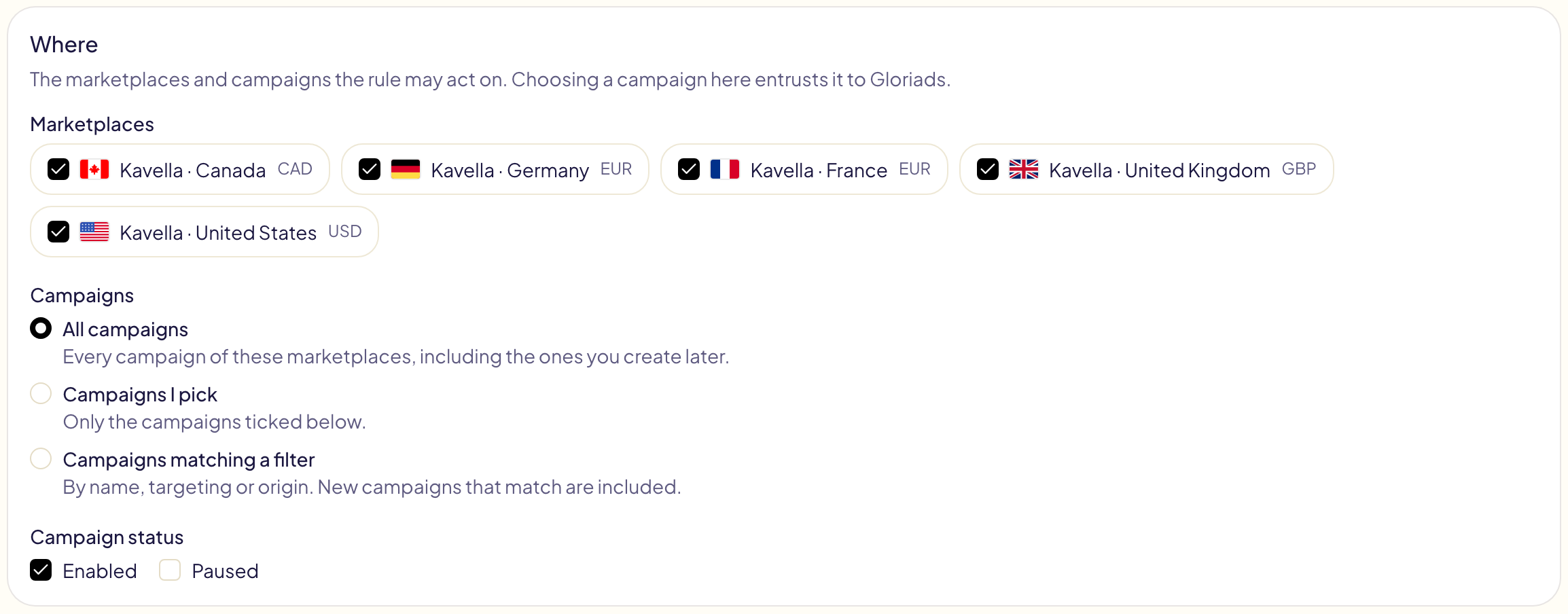
Tick the marketplaces (none is ticked on a new rule). Then pick the campaigns: all of them, including the ones you create later; the ones you tick; or the ones matching a filter (name, automatic or manual, created by Gloriads). Choose their status too: enabled, paused or both. Choosing a campaign here entrusts it to Gloriads.
When and what
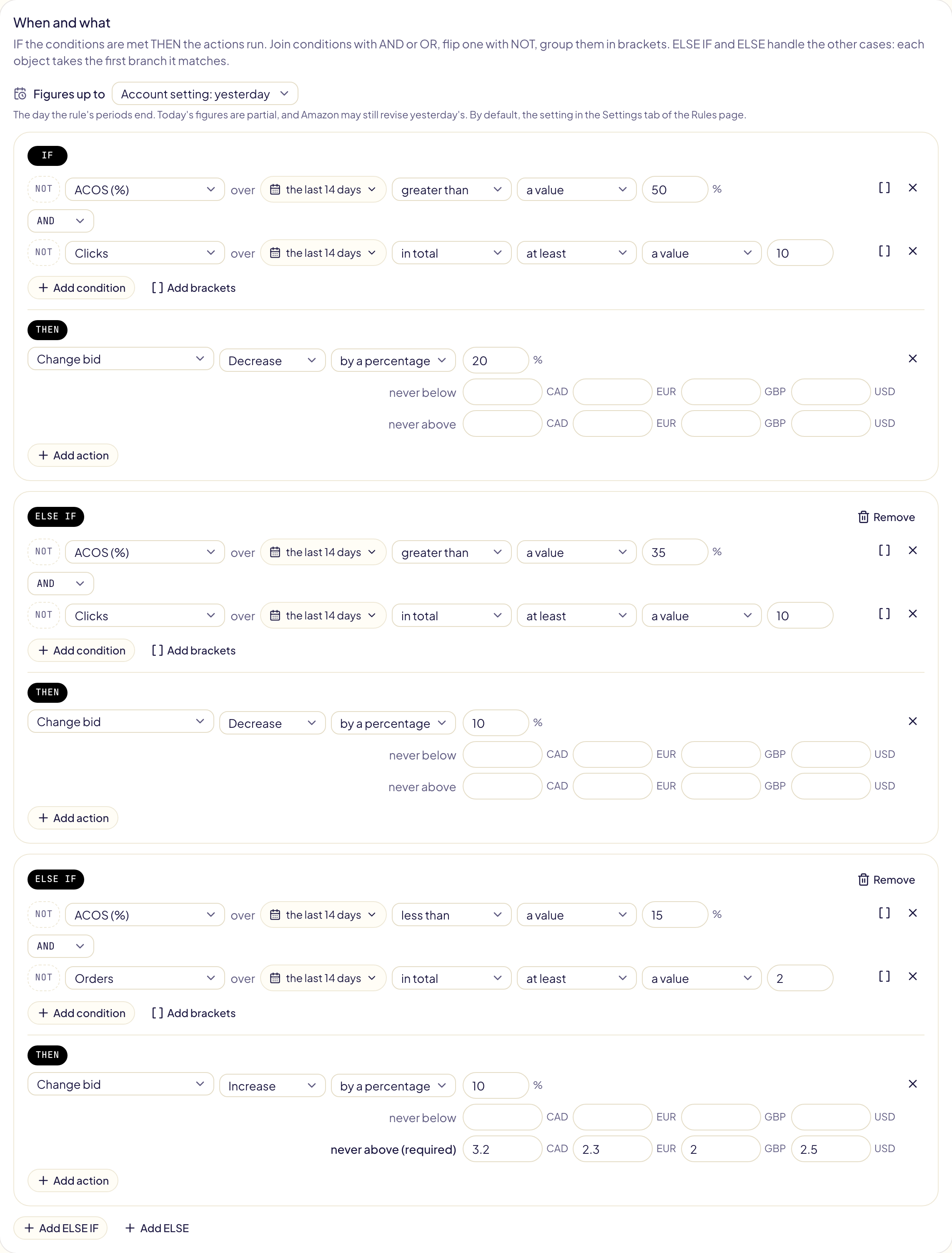
Each condition reads a figure over a period (impressions, clicks, spend, sales, orders, units, CTR, CPC, conversion rate, ACOS, ROAS) or something of the object itself (status, bid, budget, match type, names, out of budget), or the hour of day (0 to 23) and day of the week, at the marketplace's own time when the rule runs. Compare it with a value, an amount, or another figure: « CPC greater than 1.2 × bid ».
- AND / OR join the conditions. AND is read before OR: « A AND B OR C » means « (A AND B) OR C ». Use brackets for anything else.
- NOT turns a condition around.
- ELSE IF adds another case, ELSE handles everything left. Each object takes the first branch it matches.
Good to know:
- By default a period is made of complete days ending yesterday: today's sales are not credited yet.
- Figures up to, at the top of When and what, moves that end: to Today so far (partial figures: sales are credited after their clicks, so ACOS looks higher), or to the day before yesterday while Amazon completes yesterday. By default a rule follows Rules read figures up to, in the Settings tab of the Rules page, where Yesterday is recommended.
- Amounts are given in each marketplace's currency (dollars and euros for a rule on the US and Germany). Gloriads never converts them.
- ACOS, ROAS, CPC, CTR and conversion rate have no value when there is nothing to divide by: a keyword with no sale has no ACOS. To find what spends without selling, use Orders equal to 0 with a clicks or spend threshold.
- A rule with no condition acts on every object it covers, at each run. To pause campaigns every night, or raise bids at set hours, Dayparting is simpler: one grid, and everything goes back at the end of each slot.
Choose the period
Each figure reads a period. Click it (« the last 30 days ») to change it:
| Tab | Choose | Example |
|---|---|---|
| Rolling | The last 1 to 90 days, 180 or 365 days, or all time (up to 6 years) | ACOS over the last 365 days greater than 40 % |
| Compare | The same number of days just before, or the same days last year | Sales over the last 30 days less than Sales × 0.8 over the same 30 days last year |
| Fixed dates | A first and a last day | Orders from 20 November to 31 December 2025 |
Under the tabs, Leave out days removes days from the period: a stock-out, a sale event. They are not counted, and per day divides by the days that are. The panel ends with the days the period reads.
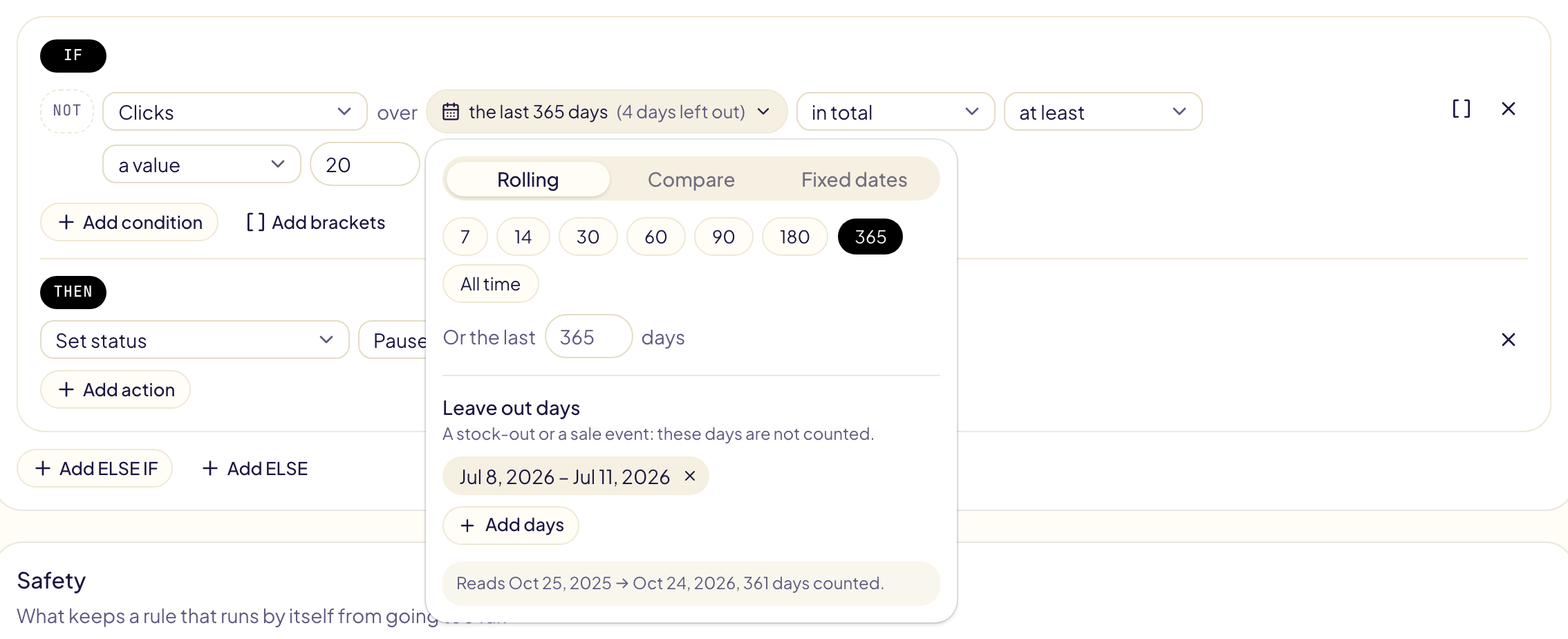
- The same days last year reads the same dates one year earlier: with « 30 days » on 25 October 2026, 25 September to 24 October 2025. 29 February becomes 28 February.
- Fixed dates reach back 6 years. A period that is not over yet reads up to the last day the rule reads.
- Leave out days works on any period, up to 10 ranges of days per condition.
- 180 days, 365 days and all time take longer at the first test of the day: Amazon prepares a bigger report.
Compare with the days before
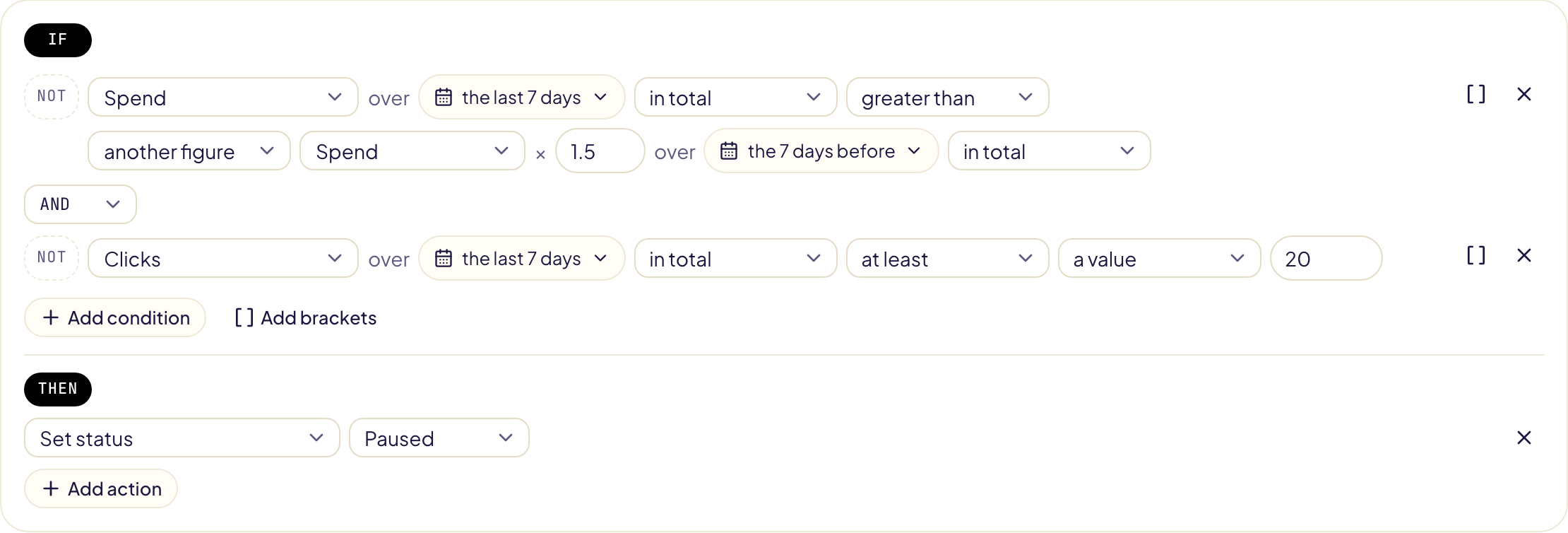
Compare, then Just before the last days, reads the same number of days just before the last N, with no overlap. Compare a figure with itself over the days before to catch what changed, not just where it stands.
| You want to know | Condition |
|---|---|
| Spend is running away | Spend over the last 7 days greater than Spend × 1.5 over the previous 7 days |
| Sales are falling | Sales over the last 14 days less than Sales × 0.5 over the previous 14 days, AND orders over the previous 14 days at least 4 |
| A keyword stopped selling | Orders over the last 14 days equal to 0, AND orders over the previous 14 days at least 3 |
| ACOS is getting worse | ACOS over the last 7 days greater than ACOS × 1.3 over the previous 7 days |
| A season is weaker than last year | Sales over the last 30 days less than Sales × 0.8 over the same 30 days last year |
- To compare, pick another figure on the right, then its period in Compare.
- The days before work with every length, 365 days against the 365 before included (45 days on Streaming TV).
- Today does not count, unless Figures up to is Today: with « 7 days » on 9 October, the last 7 days are 2 to 8 October, and the previous 7 days are 25 September to 1 October.
More figures and details
| You can read | What it is |
|---|---|
| Average order value, cost per order, revenue per click, ROI | Sales ÷ orders, spend ÷ orders, sales ÷ clicks, (sales − spend) ÷ spend. |
| Per day | A total as its average per day, to compare 7 days with 30: « impressions per day over the last 7 days less than impressions per day over the last 30 days × 0.6 ». |
| All time | Up to 6 years in one total, the longest Amazon reports. |
| On one placement | A Sponsored Products or Sponsored Brands campaign's figures on top of search, the rest of search or product pages. Amazon counts the rest of search with its other on-Amazon placements. |
| KENP pages, KU royalties, ACOS with KENP | For KDP authors: the Kindle Unlimited pages read from your ads, their estimated royalties, and the ACOS counting them: spend ÷ (sales + KU royalties). |
| Campaign age | Days since the campaign started. |
| Days since a manual change | Days since a person last changed the object: in Gloriads, or in the Amazon Ads console (Sponsored Products and Brands, last 30 days). None seen: it counts as long ago. |
| Product margin, phase, in stock, label | What you set on the product's page (Products), read through the one product the object advertises. Several products, or nothing set: no value. « In stock » is offered to vendor accounts only: on a KDP, Merch on Demand or FBA/FBM account, Amazon already stops the ads of a product out of stock or unavailable, so they spend nothing (Stock). |
A figure on one placement, over all time or with KENP needs its own report from Amazon: the first test of such a rule takes longer.
Target ACOS
Set your ACOS goal for each marketplace in the Settings tab of the Rules page. An empty box means no target there; Same target everywhere fills every box at once, and Save target ACOS keeps them.
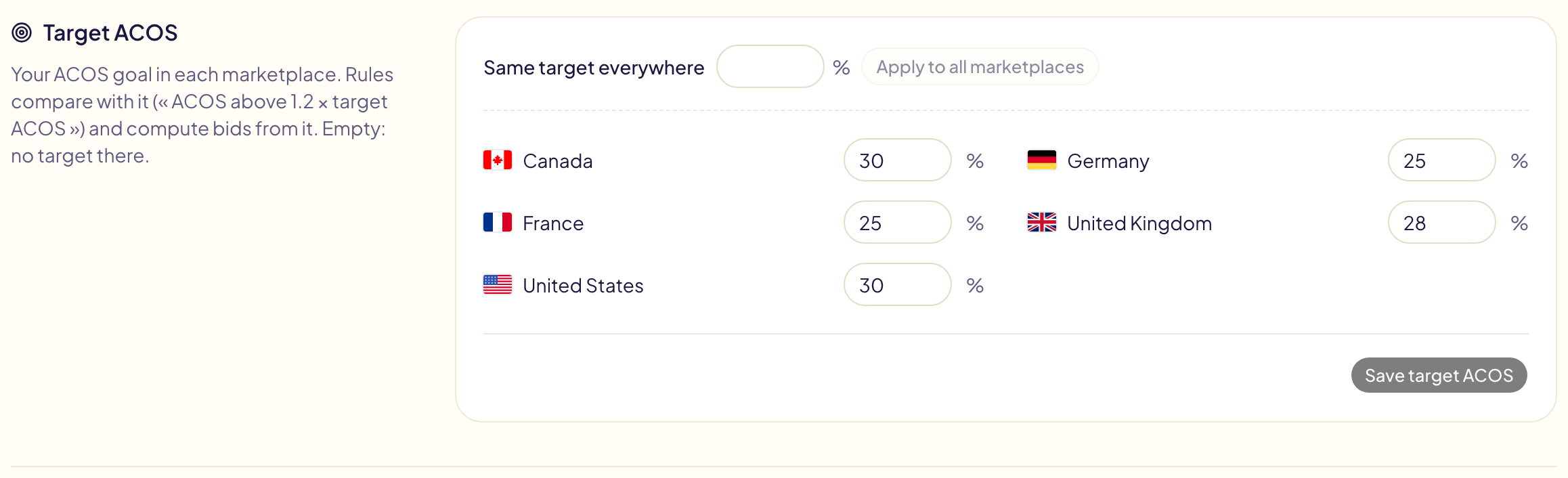
- In a condition, pick target ACOS on the right, then a factor: « ACOS over the last 30 days greater than target ACOS × 1.2 ».
- A marketplace without a target never matches such a condition, and the editor says so.
- A campaign can have its own target, set on the Campaigns page: there, rules use it instead of the marketplace's. See Campaign goals.
Bids and budgets computed from your figures
| Action | New value |
|---|---|
| Set bid from target ACOS | Sales per click over the period × the target ACOS. 40 $ of sales for 12 clicks with a 30 % target: 1.00 $. |
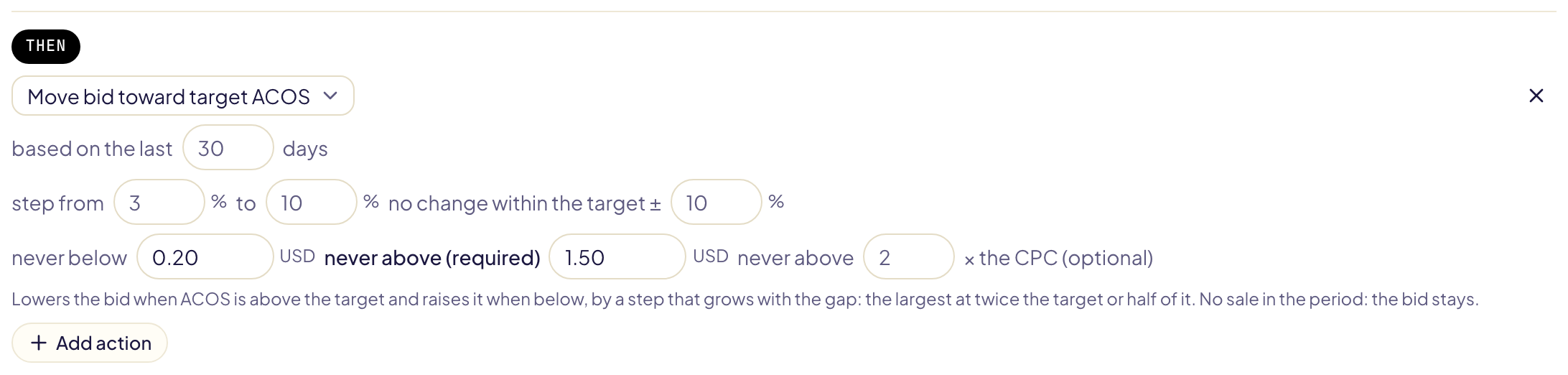
| Move bid toward target ACOS | Lower when ACOS is above the target, higher when below, by a step that grows with the gap: the largest at twice the target or half of it. Close to the target: no change. |
| Set budget from spend | Spend per day over the period × the factor (1.3 by default), within your floor and ceiling. |
- A ceiling is always required; a budget also needs a floor.
- Never above … × the CPC keeps a computed bid under a multiple of the CPC of the same period.
- No sale over the period, or no target in the marketplace: the bid stays, and the run says so.
Safety
A rule that acts by itself keeps to its guardrails:
- Every increase needs a ceiling (« never above »), in each currency.
- A pause after each change: 72 hours by default, so a rule running every few hours does not change the same bid at every run.
- No limit per run, and no surprise: a run changes every object the rule matches, the biggest spenders first. The test always gives the exact number of changes, and warns in plain sight when a run would make more than 1,000.
- A value already in place is not sent again; a keyword or negative that already exists is not added twice.
- A negative on your never-negate lists (your brand in Keywords, your own products in ASINs) is never added: the test and Activity show it as kept off.
Tell me when it changes something (on by default) sends a notification after each run that changed something.
Leave new campaigns alone
A new campaign needs time to collect figures. In the Settings tab of the Rules page, turn on No rule acts in a new campaign and set how many days a campaign stays new (from 1 to 90; 7 by default).

- No rule changes or reports anything in a new campaign: not the campaign, nor its ad groups, targets, ads or search terms.
- The days count from the campaign's start date. With 7, a campaign that started 6 days ago is left alone, and one that started 7 days ago is not.
- A campaign whose start date Amazon does not give counts as launched.
- The test and each run say how many items were left alone because their campaign is new.
To leave new campaigns alone in one rule only, add the condition NOT Campaign age (days) less than 7 to that rule (More figures and details).
When two rules disagree
Two rules can act on the same item: one lowers a bid, the other raises it. Gloriads warns you, and never blocks a rule.
Before they run
Gloriads compares each rule with your rules that are on. On the Rules page, the rules concerned show possible conflict; a rule's page says what and where.
| Gloriads sees | For example |
|---|---|
| Opposite changes at the same moment | One rule lowers a bid, another raises it |
| Changes back and forth | Lower above 30 % ACOS, raise below 29 %: the thresholds are too close |
| A pause, then a raise | Ads paused, so their targets get no impressions, and another rule raises their bids |
| One cancels the other | A negative added by one rule blocks a keyword added by the other |
| Changes that add up | Two rules raise the same bid |

- Combine into one rule makes one rule with steps (IF … ELSE IF …): each item takes only the first step it meets, so the two can no longer pull it apart. Saving it turns the two rules off.
- Let « … » win decides for that pair of rules, whatever your setting.
- Open the other rule to change it.
A rule on keywords and targets can also check the Ad group status and the Campaign status: the Raise bids that get no impressions template only raises targets whose ad group and campaign are enabled. A keyword or product target that a negative of its ad group or campaign already blocks is not added; a negative that would also block an exact keyword of its ad group is added, and the test says so.
At each run
When a rule would undo what another rule changed recently, your setting in the Settings tab of the Rules page decides:
| Setting | What happens |
|---|---|
| The safest change wins (default) | A pause, a lower bid or a lower budget set by a rule is never undone by another. A raise can be. |
| The first change holds | No rule undoes another rule's change. |
| Let every rule act, just warn me | Every rule acts. |
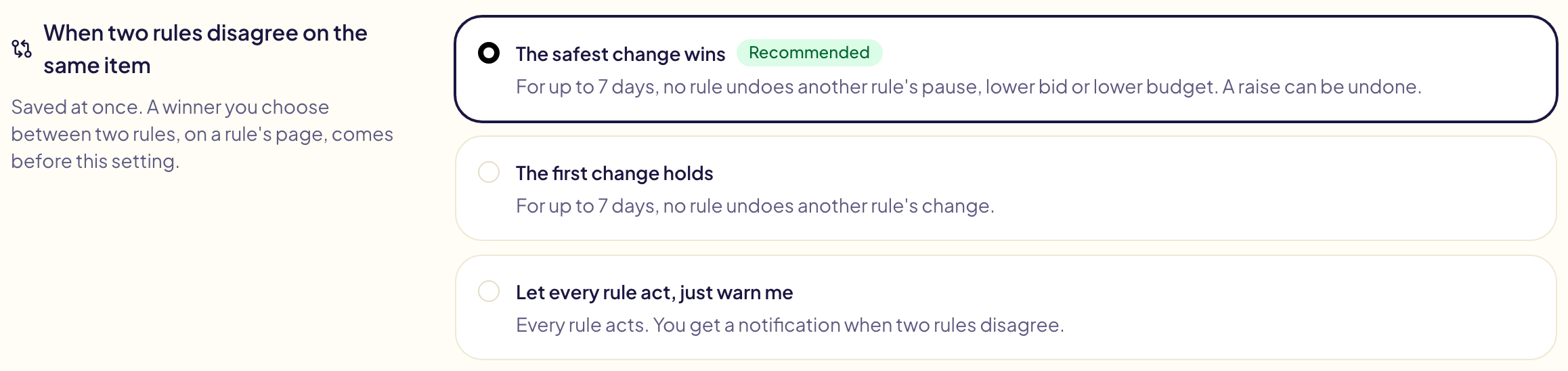
- Recently means within the longer of the two rules' pauses after a change, 7 days at most.
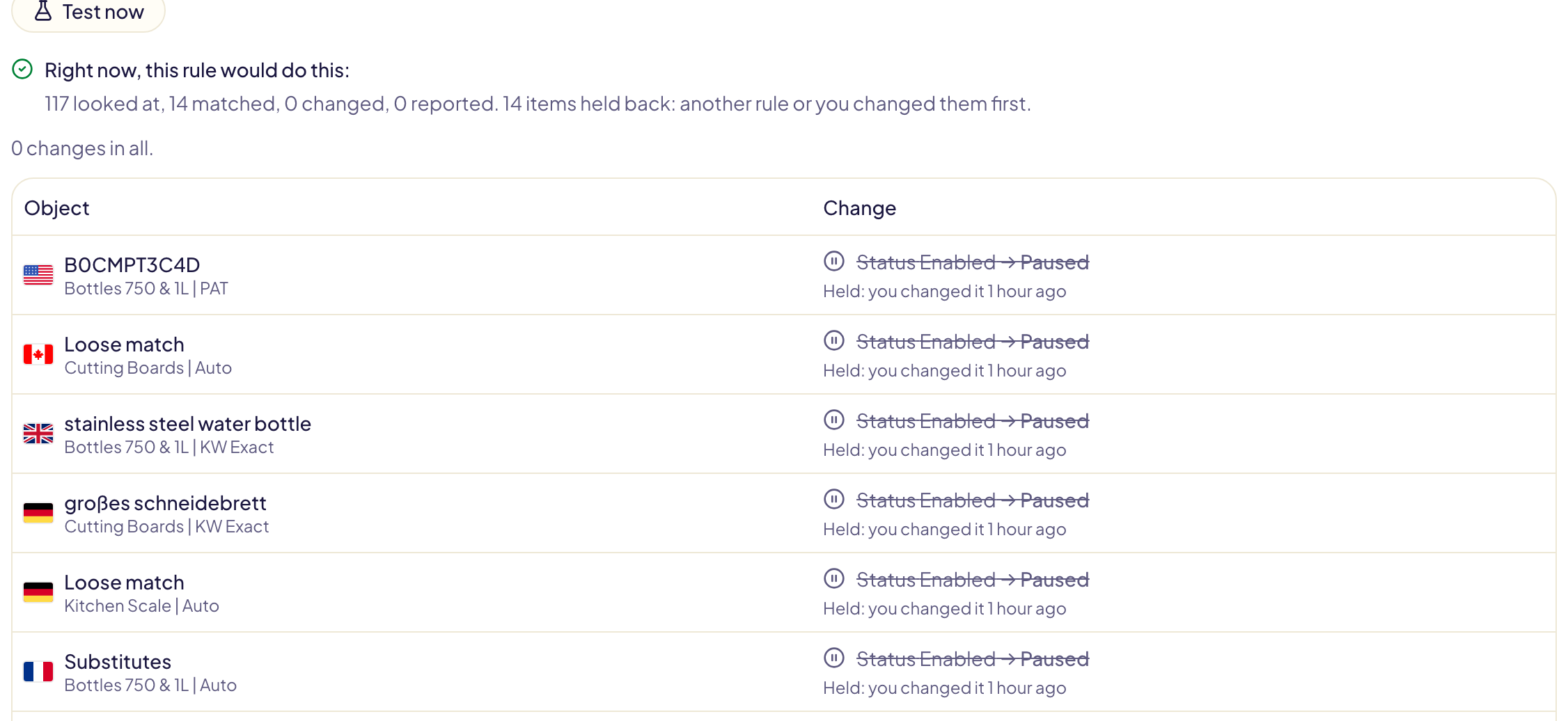
- A change that waits shows as Held in the test and in Activity, with what it gave way to.
- Two changes the same way (two raises) both go.
- Once a day, a notification names the rules that disagreed, went back and forth or added up, on how many items, and the spend at stake.
Your own changes come first
When you Undo a rule's change in Activity, the confirmation asks how long the rules leave it alone:
- For 7 days, every rule (the default);
- Never let « … » touch it again: that rule leaves it alone for good. Its page lists these items under Items this rule leaves alone, each with Let this rule touch it again.
A value changed outside Gloriads (in the Amazon Ads console, for example) is seen at the next run: every rule then leaves it alone for 7 days.
In Activity, such a line shows Held back. Click it to see who changed the item, its value now on Amazon, what the rule wanted (never sent) and the day the rules may change it again. Let rules act on it now ends the wait: your rules may change it from their next run.
Test before you turn it on
Test now shows what the rule would change right now, on your real figures, saved or not. Nothing is changed on Amazon. The first test can take a few minutes: Amazon prepares the figures.
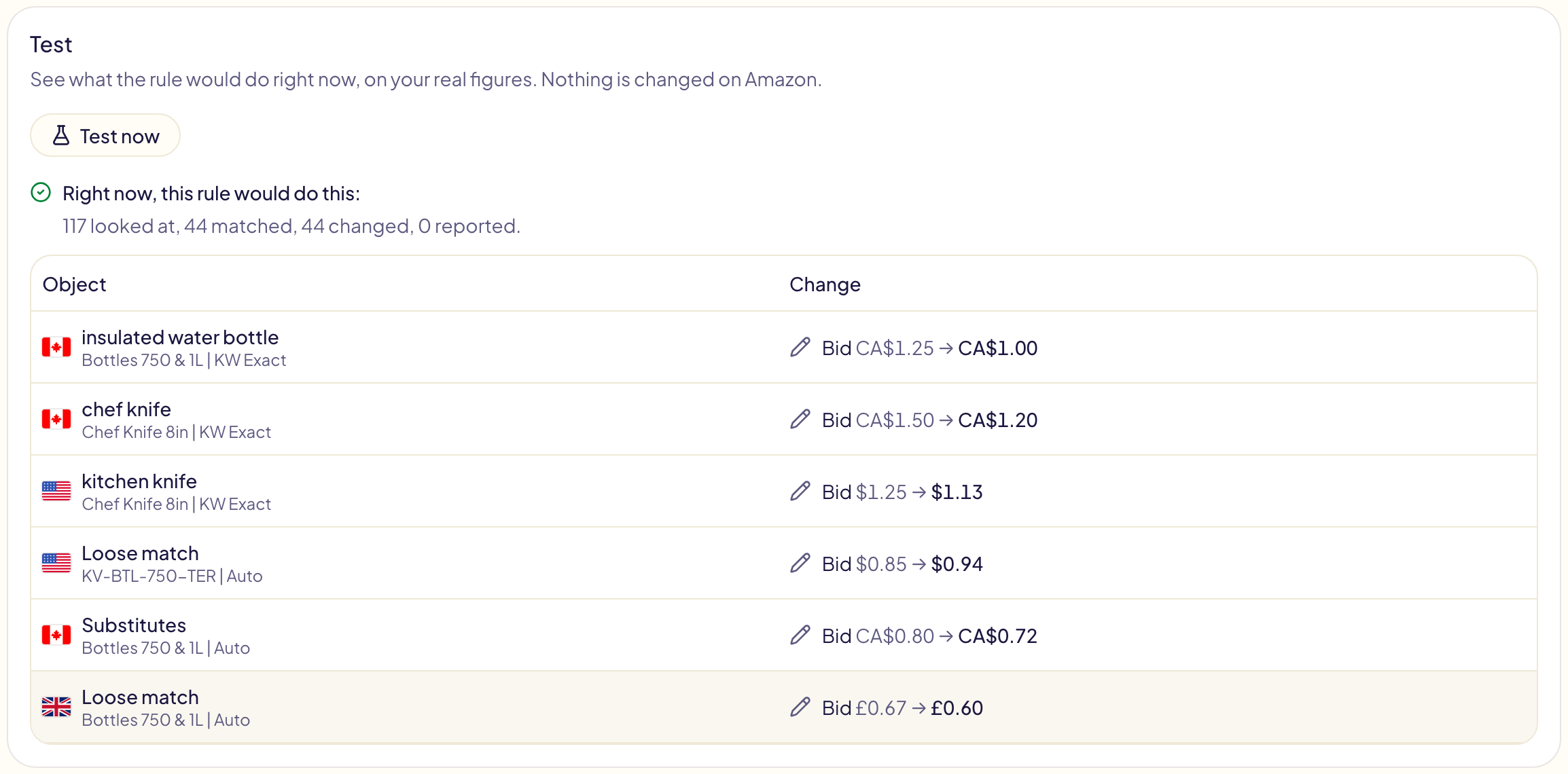
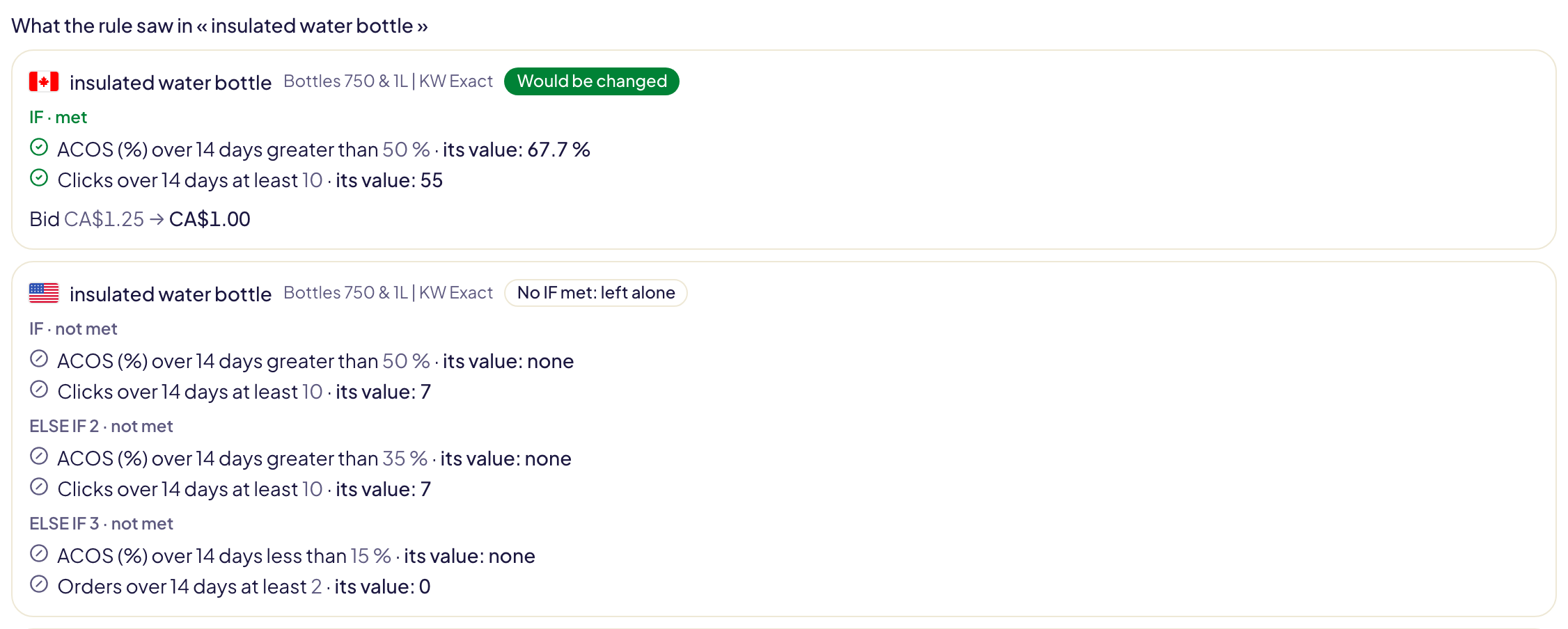
Not sure why a keyword was left alone? Type a few of its words next to Test now (« Why didn't my rule touch… »). For each object they name, the test shows every condition with the object's value, the branch it took, and what it would change, or why not.
Manage your rules
- The switch turns a rule on or off.
- The ⋯ menu of a rule: Edit; Run now, which runs it at once for real, changes included; Duplicate, a copy turned off; Save as template; Delete.
- If Gloriads loses access to your Amazon Ads account, your rules wait, and start again once you reconnect.
What your rules cover
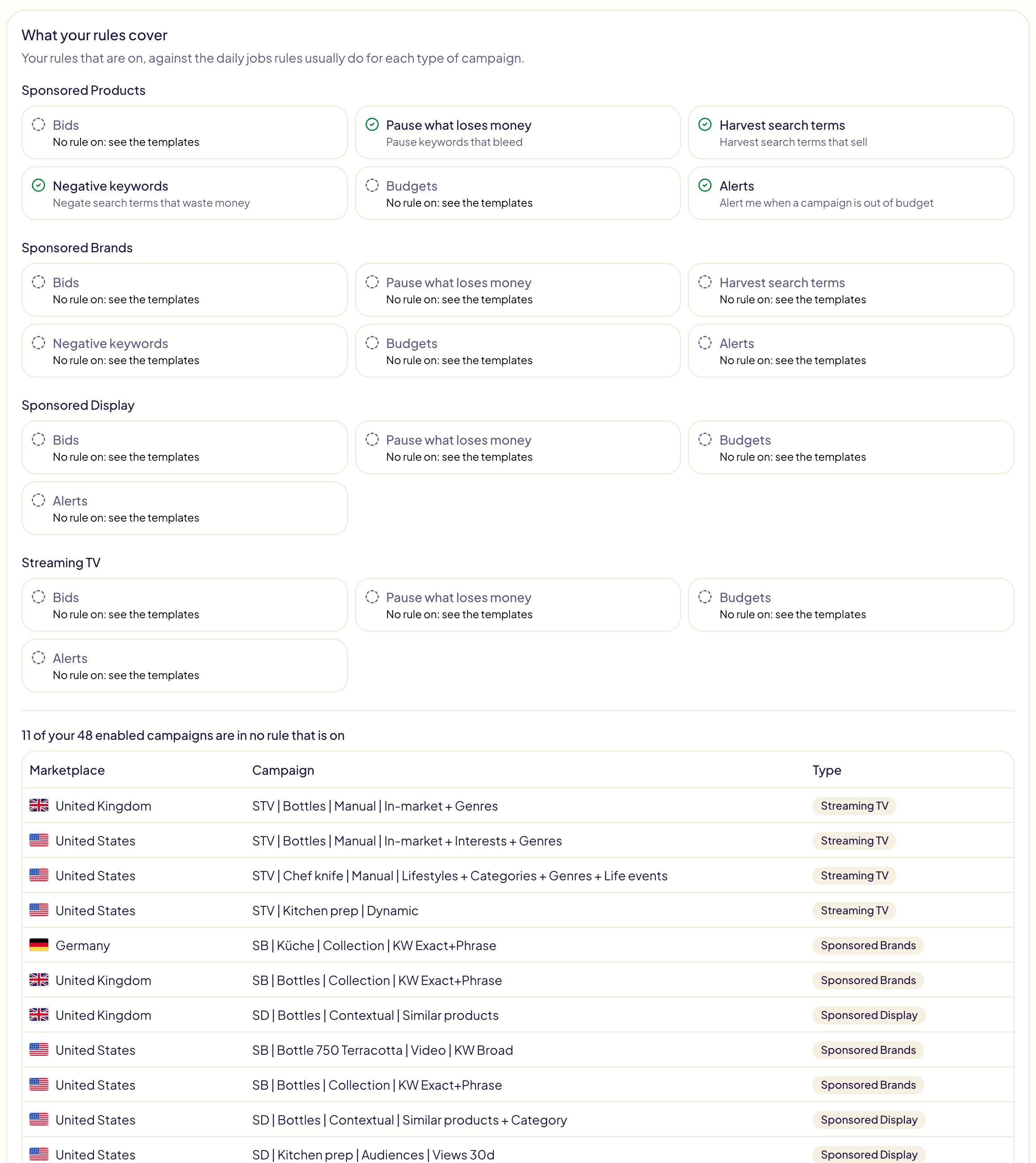
In the Coverage tab of the Rules page, for each type of campaign, the jobs rules usually do every day: bids, pausing what loses money, harvesting search terms, negative keywords, budgets and alerts (only those the type allows). A job is ticked when a rule that is on does it, and names that rule; otherwise it links to the templates that do it. The tab's name shows how many jobs no rule does yet.
Find the campaigns no rule looks at lists your enabled campaigns that no rule that is on covers, with their marketplace and type. It uses the same test as a run: a campaign outside every rule's Where it acts is listed. Streaming TV campaigns are read from Amazon, the others from your campaign lists.
Rule templates
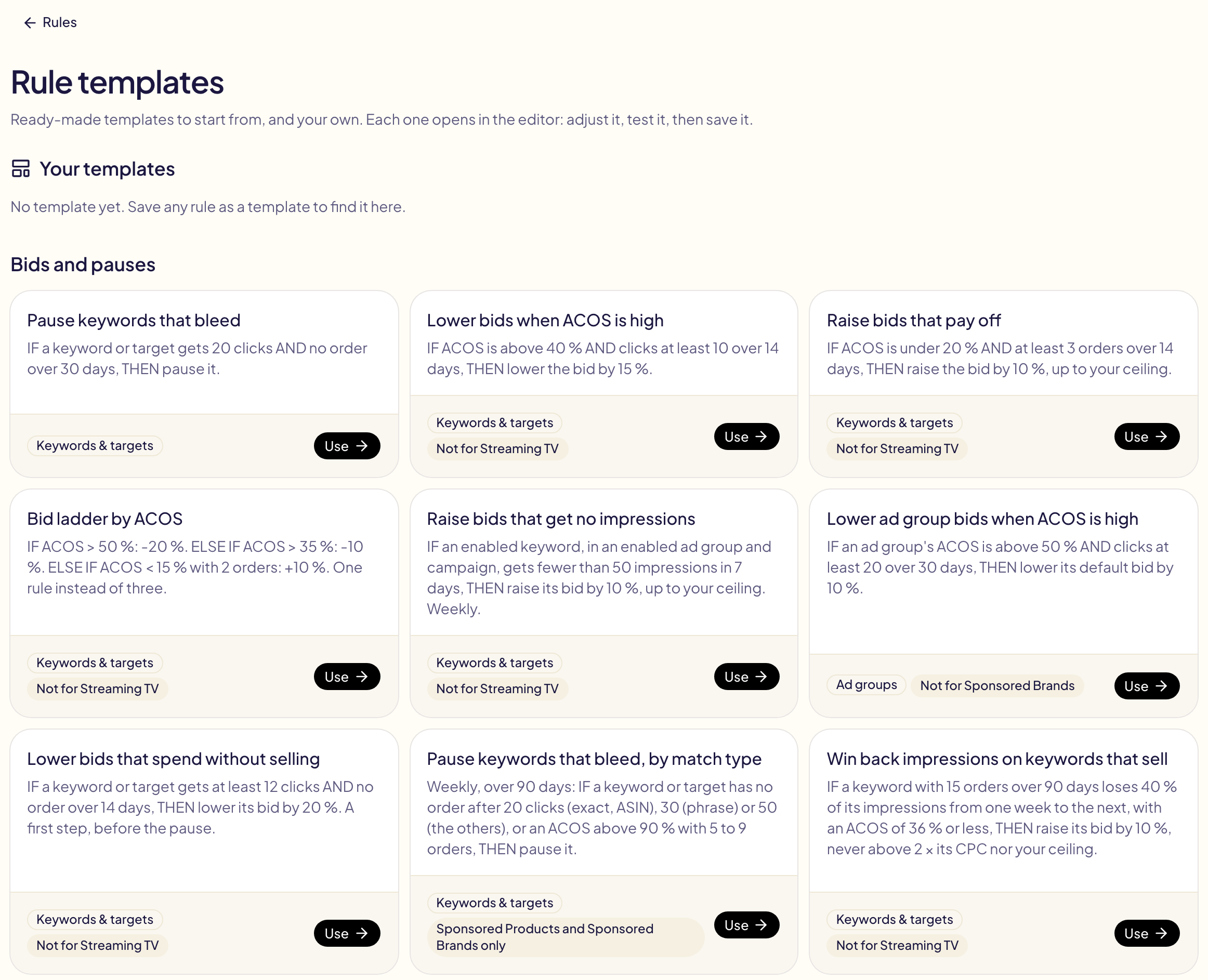
Ready-made rules by theme. Use opens one as a new rule, for the type of campaign you choose (a template not made for every type says so: the search-term ones are not for Sponsored Display or Streaming TV, the bid ones on targets not for Streaming TV): tick your marketplaces and fill in the amounts, left empty on purpose.
| Theme | Templates |
|---|---|
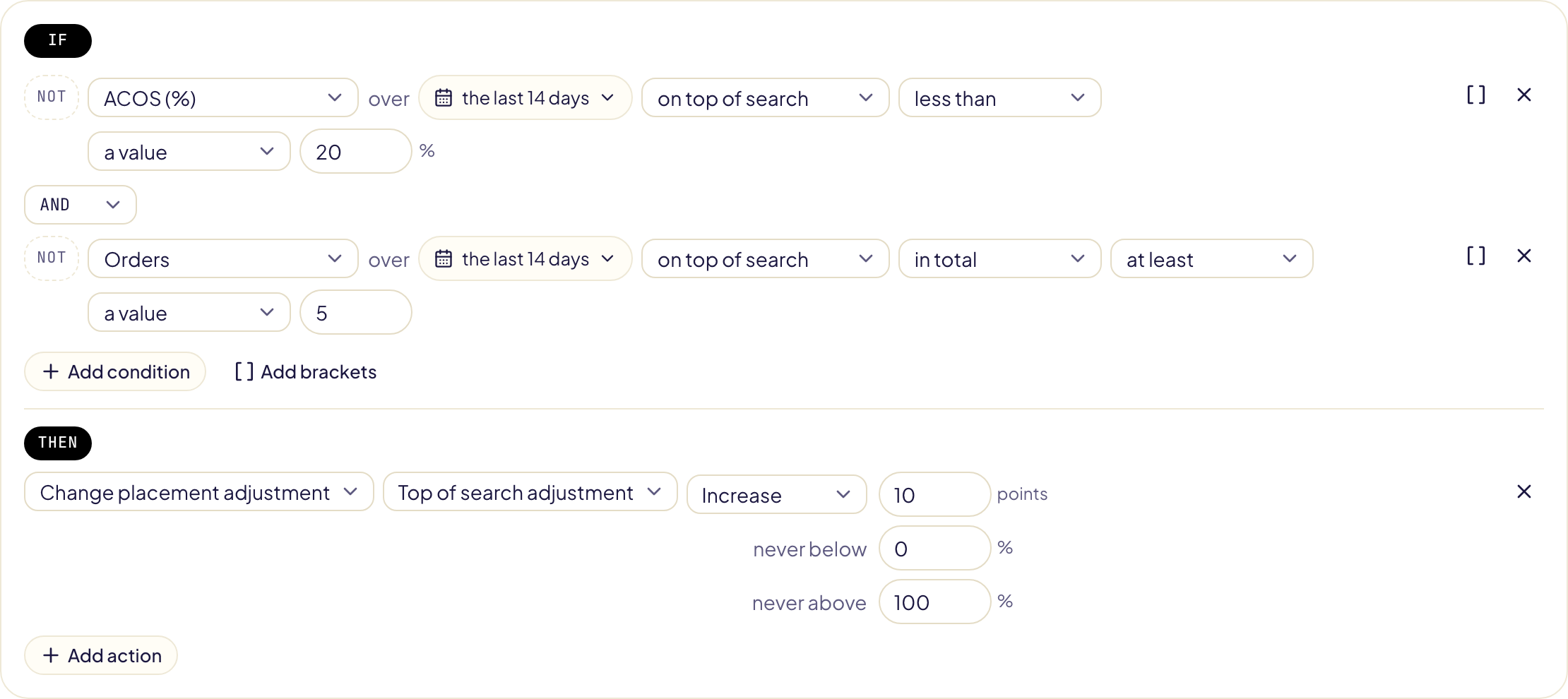
| Bids and pauses | Pause keywords that bleed, also by match type · Lower bids that spend without selling · Bid ladder by ACOS · Move bids toward your target ACOS · Win back impressions on keywords that sell · Raise bids, or ad group bids, that get no impressions · Top-of-search boost by ACOS · Switch to « down only » when ACOS is high · Pause ads that never sell, or sell at a loss · Bid what a click is worth · Lower bids above each product's break-even |
| Search terms | Harvest search terms that sell: into their own ad group, into the exact campaign of their product, or into the ad group you pick, the search then excluded where it came from · Harvest ASINs that sell · Negate search terms that waste, sell at a loss, or that shoppers barely click · Negate ASINs that waste |
| Budgets | Raise the budget of campaigns that pay off, or that run out while ACOS holds · Give each budget at least 5 clicks a day · Lower the budget of campaigns that lose money · Trim budgets campaigns don't use · Weekend and weekday budgets |
| Alerts | Out of budget · A campaign that stops · An ad that stops showing · Spend that jumps, and the keywords behind it · ACOS that jumps · Clicks that get more expensive · Spend without a sale · Sales that drop by half |
| Scheduled tasks | Pause campaigns at night or on weekends; resume them in the morning or on Monday |
Harvesting into the exact campaign of a product needs the roles you confirmed on the Products page. Templates that read your target ACOS need it set in the Settings tab of the Rules page; « Lower bids above each product's break-even » reads the margins of the Products page.
Save as template keeps any rule in Your templates, ready to start a new one.
When a template changes
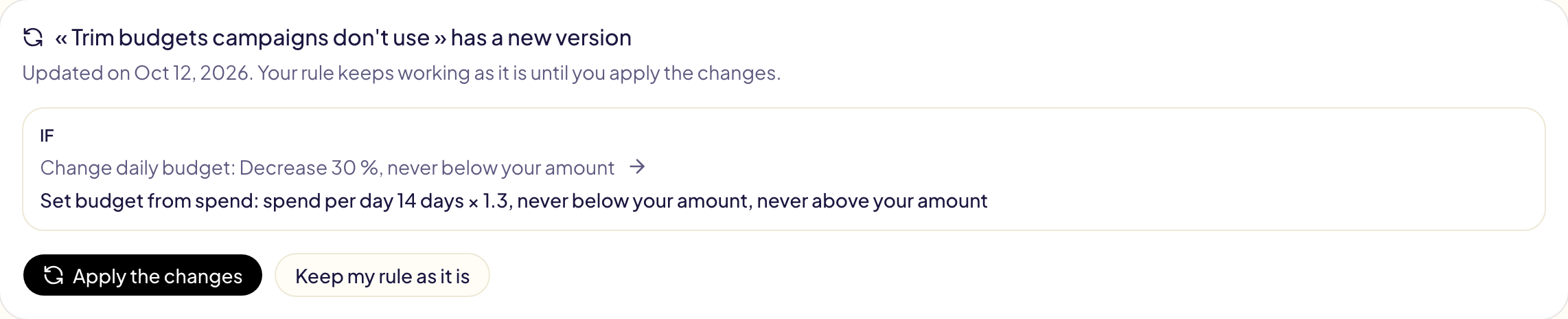
Templates get better. When the template a rule was made from gets a new version, the rule says Template updated in the list, and its page lists every change: the struck-through line goes, the next one comes.
- Apply the changes puts them into the rule, below, for you to check and save. A part you changed yourself stays as you wrote it, and your amounts are kept.
- Keep my rule as it is hides the notice for this version.
Until you save, your rule keeps working as it is.
Follow its runs
A rule's page lists its runs: when, what it looked at, what it changed. On a very large account, a rule reads only the objects whose figures could meet its conditions, and a rule that must look at every object (« no impressions over 30 days ») reads one marketplace after the other, in several steps: its run says so. Every change your rules made is also in Activity, under its Rules filter: one line per run, then each change with its marketplace and its value before and after, beside every rule you created, edited, turned on or off and deleted. A Notify me that found something and a run that failed always appear in your notifications.