
Campaigns
Your Sponsored Products, Sponsored Brands and Display campaigns with their spend, sales and ACOS, one marketplace or all of them, and which ones Gloriads created or changed.
Campaigns lists your campaigns with their figures, one marketplace at a time or all of them. Pick the marketplace at the top.
How fresh the list is
Gloriads reads your campaigns from Amazon and keeps a copy, so the list opens at once. Next to Refresh, « Updated 3 minutes ago » says when Amazon was last read.
- The list is read again every 30 minutes, while you use Gloriads.
- Campaigns that Gloriads creates show up right away.
- A campaign you create in the Amazon Ads console shows up within 30 minutes. Click Refresh to see it now.
Figures
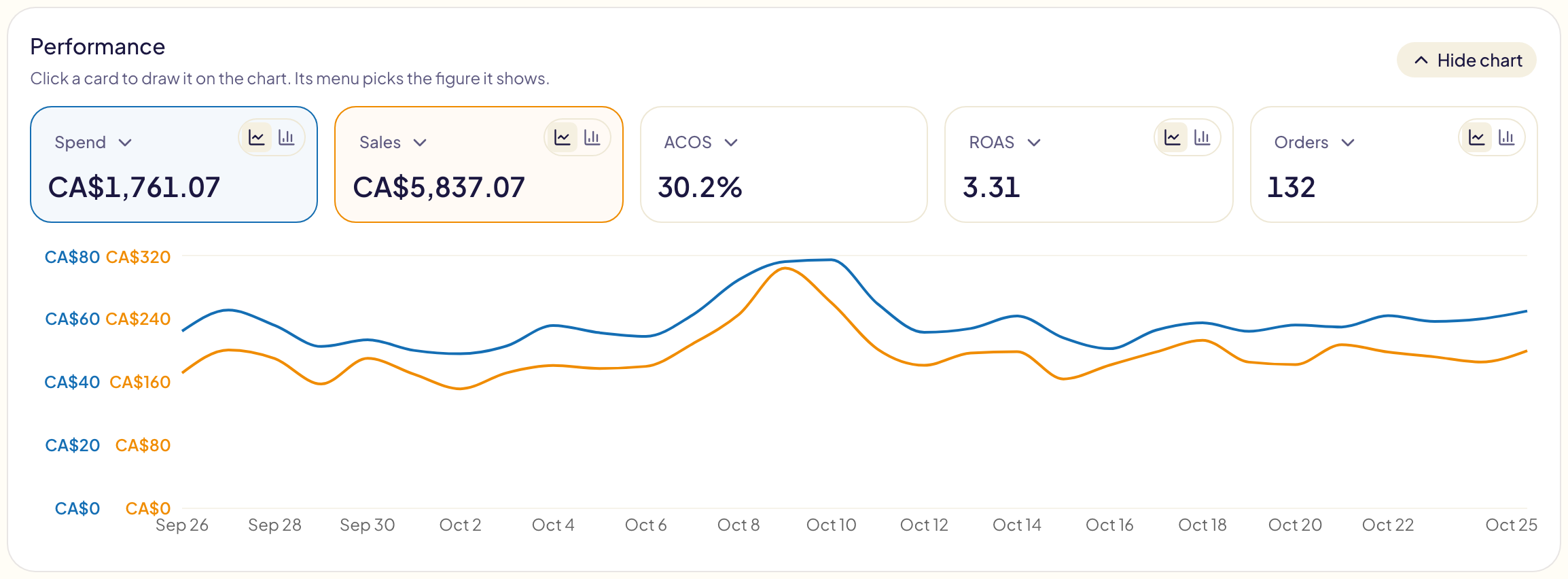
Each campaign shows its Spend, Sales, ACOS, ROAS, Orders and Clicks over the period, in the campaign's own currency. A Total row at the top adds up every campaign your filters keep, on every page.
Under Total, the row also counts those campaigns: how many there are, how many are on and paused, their ad groups and ads (and their marketplaces, on All marketplaces). The Gloriads column counts how many Gloriads created and touched, and the Targeting column how many target automatically and manually. These counts do not depend on the period.
- Click the period button (« Last 30 days ») to pick today, yesterday, the last 7, 14 or 30 days, this month, or your own dates.
- Figures cover the last 31 days. For an older period, use the dashboard.
- They are updated with your dashboard, at least once a day. Refresh asks for new ones when they are more than an hour old.
- Today's figures are still coming in: Amazon credits a sale up to several days after the click.
- Orders counts orders. When a campaign sold more units than orders (one order of 3 copies is 1 order and 3 units), the units sold show under its orders.
- ACOS is green when it is at or under the campaign's target ACOS, red when it is above. Set a target in the Goals column: see Campaign goals.
Open a campaign with the arrow in front of it to see the same figures for each of its ad groups. Ad group figures are updated once a day.
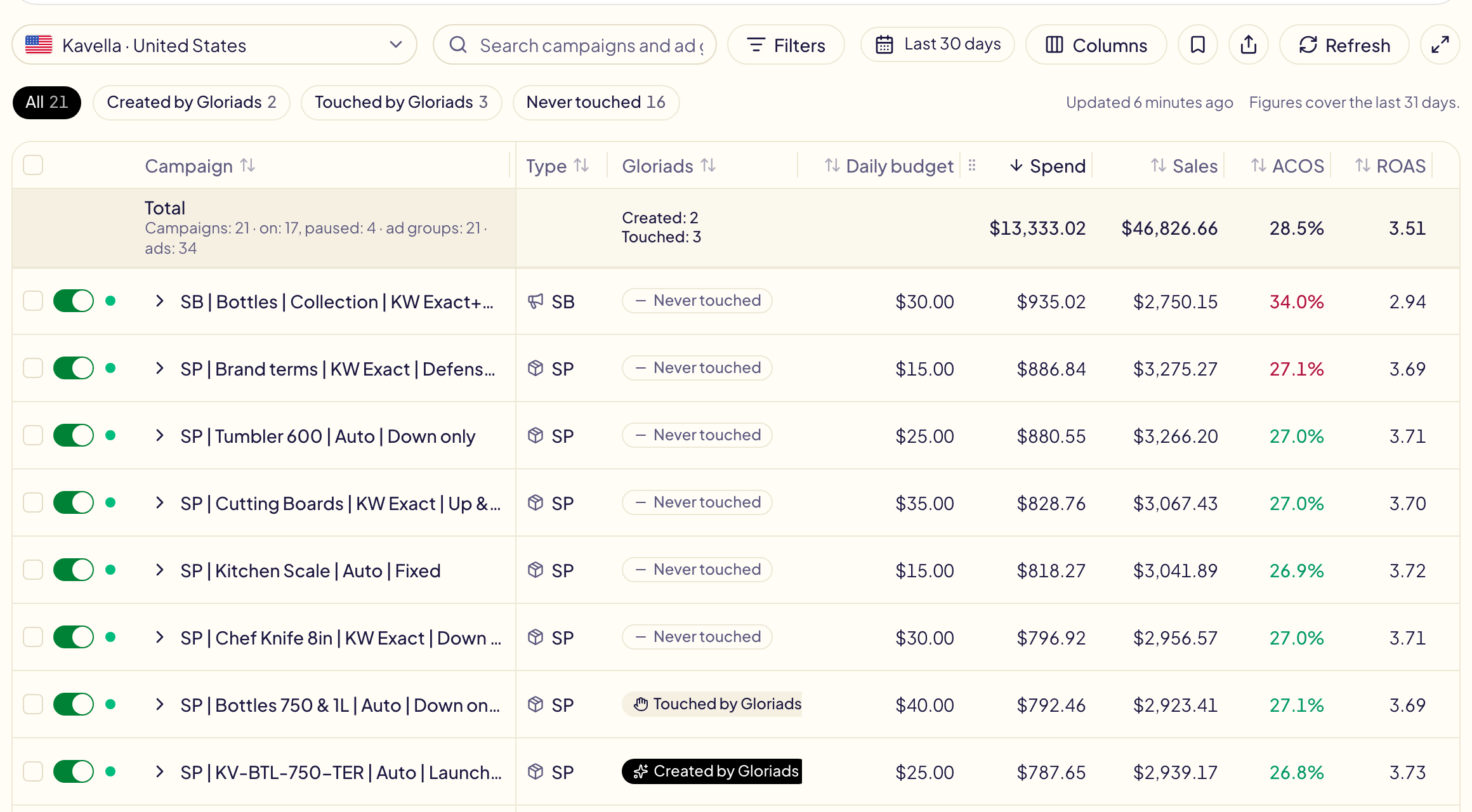
Performance chart
At the top of the page, Performance adds up the campaigns your filters keep, over the period, in five cards, and draws them day by day.
- Pick what a card shows: open the menu at the top of the card. Each card can show spend, sales, ACOS, ROAS, orders, units sold, impressions, clicks, CTR, CPC or conversion rate.
- Draw a card on the chart: click the card. Click it again to take it off. Each card keeps its colour on the chart.
- Line or bars: the two small buttons in the corner of a card draw it as a line or as bars. Impressions are always bars and ACOS always a line, so their cards have no buttons.
- Fold it away: Hide chart folds the whole card. Show chart brings it back.
The cards add up to the Total row of the table. Gloriads remembers your cards in this browser.
Sort and choose columns
Click a column's name to sort on it, the biggest figures first. Click it again to turn the order round. Click Campaign to sort by name.
- Move a column: drag its title and drop it where you want it.
- Make it wider or narrower: drag the edge at the end of its title. Double-click the edge to give it back its usual width.
- Show or hide columns: the Columns button. Besides the figures, you can add Impressions, CTR, CPC, Conv. rate, Targeting, Ad groups, Bid strategy, Portfolio, Start date and End date. Default columns puts the columns, their order and their widths back.
- See as much as possible: the full-screen button, last on the right after Refresh, gives the table the whole window. Click it again to leave. The Performance chart stays above it: Hide chart leaves all the room to the table.
Gloriads remembers your columns in this browser.
All marketplaces
Pick All marketplaces at the top of the marketplace list to see the campaigns of every marketplace in one list, each with its marketplace's flag before its name.
- The Total row is in US dollars, converted at Amazon's daily rates.
- Sorting on an amount compares them in US dollars too.
- To change several campaigns at once, pick one marketplace: ticking works one marketplace at a time. Each campaign's switch, budget and goals still work.
Status and filters
The dot right after each campaign's switch says whether Amazon is showing its ads. Hover it to read the status and, if the ads are not showing, why:
| Dot | Status | Meaning |
|---|---|---|
| Green | Delivering | Its ads are showing. |
| Orange | Out of budget | It spent its daily budget, or its portfolio's. It starts again tomorrow. |
| Red | Not delivering | Its ads are not showing: end date reached, waiting for Amazon's review, rejected… |
| Grey | Not delivering | It is paused or archived. |
Ad groups have their own dot too.
The status is read with the list (see « How fresh the list is »).
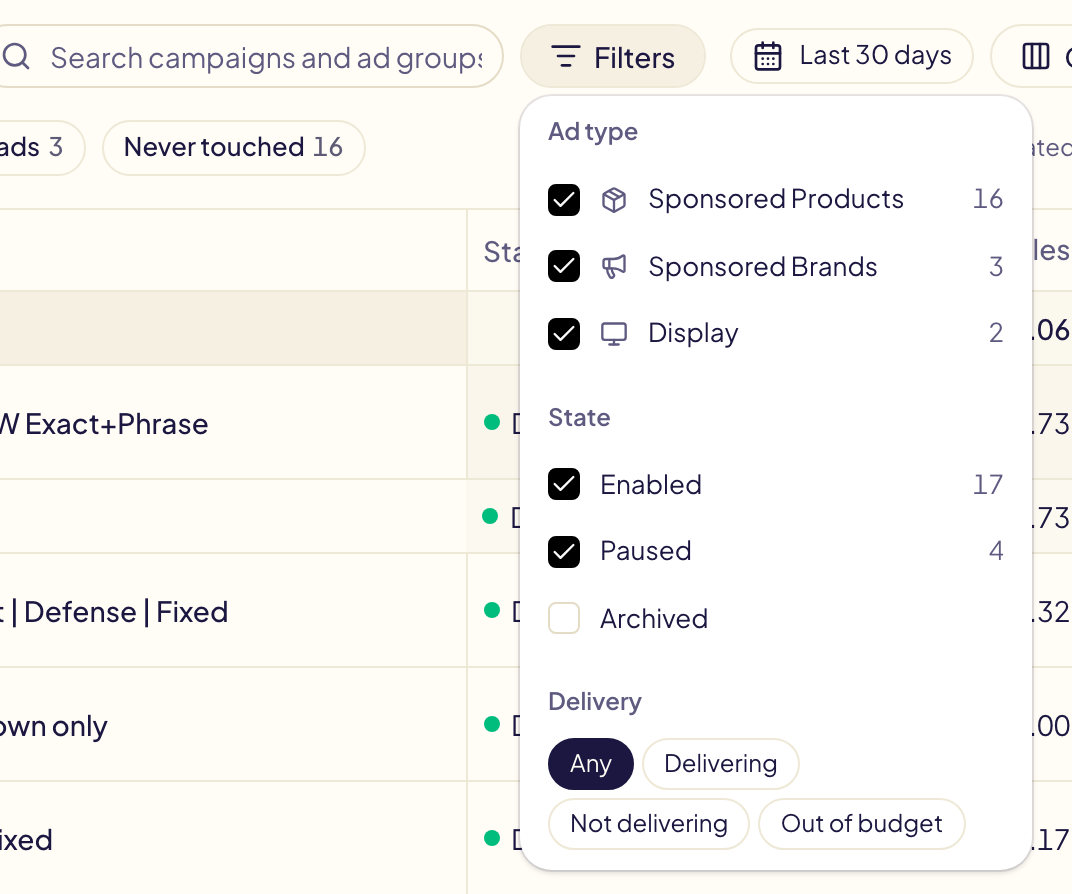
The Filters button holds three filters:
- Ad type: see « Campaign types » below.
- State: Enabled, Paused and Archived. Archived campaigns are hidden until you tick Archived; Gloriads then reads them from Amazon, once a day. An archived campaign cannot be turned on again or changed.
- Delivery: only the campaigns delivering, not delivering, or out of budget.
Rules and last change
- Rules says how many of your rules that are on act on the campaign. Click it to see their names and their next run, and to open one.
- Last change names the last change Gloriads made in the campaign (a rule's name, or the tool) and when. Click it to open it in Activity. Undo takes it back, after asking you. A rule's change is undone with its whole run, from the run's page.
The filters, the search, the sort and the period are kept in the page's address: share the link, or come back to it, and the same view opens.
Ad groups
The arrow in front of a campaign opens its ad groups under it, with their switch and default bid. Click the arrow again to close them.
Click the name of a campaign or an ad group to open it in the Amazon Ads console, in a new tab. For Sponsored Brands, it opens your campaign list and copies the campaign's name: paste it into Search by name or ID. Amazon's console only opens a Sponsored Brands campaign from its own ids, which Amazon does not share with other tools.
Turn a campaign or an ad group on or off
Every campaign and every ad group has a switch at the start of its row: on (green) means enabled, off means paused. Click it to change the state on Amazon.
- The switch moves at once, and a message confirms when Amazon made the change.
- If Amazon refuses, the switch goes back and the message says why.
- Each change is in Activity as « On/off switch », where Undo puts the earlier state back.
A global campaign (one campaign for several marketplaces) is turned on or off in the Amazon Ads console: its switch is greyed out.
Change many at once
The box before each switch ticks the row. Tick several campaigns or ad groups to turn them on, pause them, or change their budget or default bid together, or to open their targets: see Bulk edit.
The Goals column holds a campaign's own target ACOS and bid limits, which your rules follow: see Campaign goals.
Campaign types
The Type column says what kind of campaign each one is:
| Type | Meaning |
|---|---|
| SP | Sponsored Products |
| SB | Sponsored Brands |
| SD | Sponsored Display |
The Filters button lists each type with its number of campaigns: untick a type to hide it, and keep as many ticked as you like. A type you have no campaign of is greyed out, with 0.
Targeting (automatic or manual) only exists for Sponsored Products: the other types show a dash.
Who touched what
Every campaign carries one of three badges:
| Badge | Meaning |
|---|---|
| Created by Gloriads | Gloriads created it, after your approval. |
| Touched by Gloriads | Your own campaign, which Gloriads changed at least once (for example, by adding a product). |
| Never touched | Gloriads never changed anything in it. |
Filter on one badge, or search a campaign by its name or the name of one of its ad groups. A campaign found through an ad group opens by itself, the matching text highlighted. Click a Created by Gloriads or Touched by Gloriads badge to open Activity on that campaign: every change Gloriads made in it, its creation included.
Saved filters
Saved filters, next to Refresh, keeps a view under a name: the marketplace, the badge, the campaign types, the states, the delivery, the search, the sort and the period. Choose Save current filters…, then one click on its name applies it again. In Manage saved filters…, make one the Default: the page opens with it. It works like the saved filters of Activity, each page keeping its own.
Long lists
The list shows 100 campaigns per page. Under the table, choose 25, 50 or 100 rows per page, type a page number, or use the arrows. A new search or filter starts again on page 1.
Save a campaign as a template
The template icon on a Sponsored Products row saves that campaign's settings, keywords and targets as a template, to create it again for other products. Gloriads only reads the campaign: nothing changes on Amazon.